Meeting notes on an iPhone can be private, but only if you take two specific actions: lock the note itself and control how the audio gets transcribed. Apple Notes offers per-note end-to-end encryption for supported content, yet shared notes, most attachments, and cloud transcription pipelines fall outside that protection. The practical fix is straightforward: lock sensitive notes immediately after a meeting and default to on-device transcription whenever confidentiality matters.
TL;DR:
- Locking individual notes is quick but choosing between device passcode and a custom password significantly affects recovery options and security.
- Apple Notes encrypts supported content with industry-standard AES-GCM, but audio, video, and shared notes remain outside this protection.
- Transcription of meeting recordings often involves cloud processing unless using on-device apps, which is crucial for maintaining privacy.
- Enabling Face ID or Touch ID, setting short auto-lock intervals, and disabling notifications improve practical confidentiality during meetings.
- Using on-device transcription tools like Echo Chamber Pro ensures meeting audio and transcripts stay private by processing entirely on the device without uploading data.
Table of Contents
- How Do You Lock Meeting Notes in iPhone Notes?
- What Does Apple's Notes Encryption Actually Cover?
- Is It Safe to Record and Transcribe Meetings on iPhone?
- What Are the Best Privacy-First Alternatives to Apple Notes?
- Which iPhone Settings Actually Harden Meeting Note Privacy?
- A Copy-Ready Checklist for Secure Meeting Notes
- Why Cryptographic Isolation Still Beats Convenience
- Echo Chamber Pro: On-Device Meeting Transcription Done Right
- Sources
- FAQ
How Do You Lock Meeting Notes in iPhone Notes?
Locking a note takes under a minute once you know where Apple buried the setting. The bigger decision is choosing between your device passcode and a separate Notes password, because that choice determines what happens if you ever forget it.
Before you start, confirm two things: your iPhone runs a current version of iOS, and iCloud Keychain is turned on if you want to unlock notes with your device passcode. Without Keychain syncing, the device passcode option for Notes won't behave consistently across your signed-in devices.
Here's the actual sequence:
- Open Settings, tap your name at the top, then go to iCloud and confirm Notes is toggled on.
- Still in Settings, scroll to Notes, tap Password, then choose to use your iPhone Passcode or set a custom password with an optional hint.
- Open the note you want to protect in the Notes app, tap the three-dot menu, and select Lock.
- To view a locked note later, tap it and authenticate with Face ID, Touch ID, or your chosen passcode.
- To re-lock it manually, tap the three-dot menu again and select Lock Now, or simply leave the app. It closes automatically on its own.
The recovery implications matter more than most people realize. If you use your device passcode, Apple can help you regain access the same way you'd reset your phone. If you set a custom Notes password, Apple cannot recover it under any circumstances. That's not a support gap. It's the tradeoff for a password Apple never stores or sees.
One quirk catches people off guard: unlocking one locked note temporarily unlocks all locked notes in that account for several minutes, until the device locks or the Notes app backgrounds. If you unlock a note to check something, then hand your unlocked phone to a colleague, every other locked note in that account is briefly exposed too.
If you can't access a locked note, check three things first: whether you're signed in to the same iCloud account you used to create the lock, whether the note lives in a different app data source (some corporate Exchange or Google accounts store notes separately), and whether your iOS version matches across devices. Notes locked on a newer iOS release sometimes won't display properly on an older one until you update.
Pro Tip: Set your auto-lock to 30 seconds or Immediately for meetings involving sensitive material. The Notes secure session closing on backgrounding only helps if your phone screen locks quickly too.
What Does Apple's Notes Encryption Actually Cover?
Apple Notes encryption is real, but it has firm boundaries you need to know before you trust it with anything sensitive. Locked notes use a passphrase-derived key, generated through PBKDF2 with SHA-256, then encrypt supported content and attachments with AES-GCM. That's a legitimate, industry-standard encryption scheme, not marketing language.
The gap is in what "supported" actually means. Several common note elements sit outside that protection entirely:
- Audio recordings embedded in a note
- Video attachments
- PDF attachments
- Notes shared with other people via iCloud sharing
- Certain synced third-party account types (some Exchange and Google-linked notes)
That shared-notes exclusion deserves attention because it's counterintuitive. A shared note feels collaborative and secure because it requires an iCloud invitation. In practice, Apple Notes was built for personal organization, not confidential team communication. Shared notes don't use the peer-to-peer key negotiation or forward secrecy that a real secure-messaging protocol requires. If two people co-edit a note about layoffs or legal strategy, that note is not cryptographically isolated the way a Signal thread would be.
There's also a hard stop on recovery. If you set a custom Notes password and forget it, there is no reset path. Apple designed it that way on purpose; the password never leaves your control, which also means nobody at Apple can bail you out. For anything you truly cannot afford to lose, a password manager built for that purpose, such as 1Password or Bitwarden, is a better home than Notes.
Is It Safe to Record and Transcribe Meetings on iPhone?
Recording is the easy part. Transcription is where privacy quietly leaks out, because the convenient option and the private option are often not the same app.
Native tools like Voice Memos and the Notes app's built-in audio recording keep the raw recording stored locally on your iPhone by default. Apple also supports recording and transcribing audio directly within these apps, but whether that transcription happens entirely on-device depends on your iOS version and specific settings. That distinction rarely gets explained clearly, and it's the single biggest privacy variable in the entire meeting-notes workflow.
Third-party AI meeting apps introduce a different risk profile. Many upload your audio to a server to generate a transcript, then store both the audio and the text on their systems for some retention window. The privacy policy usually spells out what happens, but almost nobody reads it before their first meeting.
| Capture method | Where audio lives | Where transcription happens | Main privacy risk |
|---|---|---|---|
| Voice Memos / Notes audio | On-device by default | Varies by iOS version and setting | Transcription may route through cloud processing without a clear prompt |
| Cloud-based AI meeting apps | Uploaded to vendor servers | Vendor's cloud infrastructure | Audio and transcript retention outside your control; minute caps and data policies vary widely |
| On-device transcription apps | On-device only | On-device only | Requires choosing an app that explicitly states local processing |
If confidentiality is the priority, treat cloud transcription as the exception, not the default. Check the specific service's retention period and whether audio is deleted after transcription or kept indefinitely.
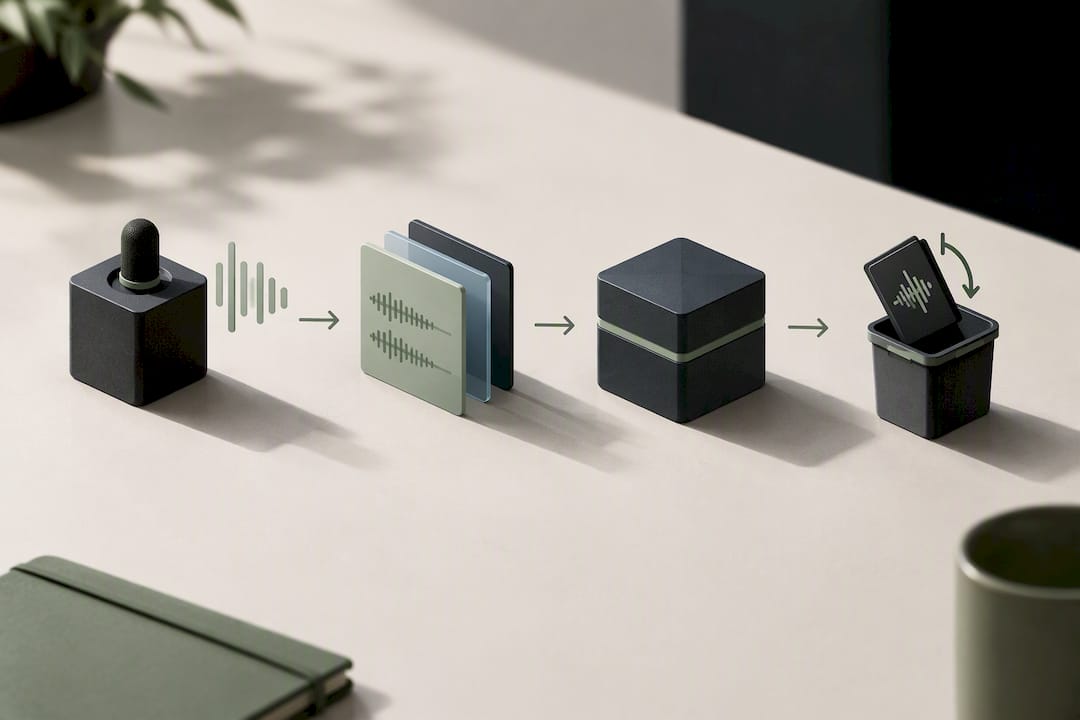
A workable sequence for sensitive meetings: record locally, review the recording and mentally flag or verbally note anything you'll need to redact, transcribe using an on-device method or an app that states local-only processing, then lock the resulting note and delete the raw audio once you've confirmed the transcript is accurate.
Pro Tip: Before any meeting where confidentiality matters, ask out loud whether recording is happening and how the transcript will be stored. It sounds obvious, but skipping this step is the most common way sensitive audio ends up on a server nobody agreed to.
What Are the Best Privacy-First Alternatives to Apple Notes?
Apple Notes covers a lot of ground for free, but it wasn't built as a dedicated secrets vault or a meeting-transcription tool. Three categories fill that gap, each with a different tradeoff.
- On-device AI transcription apps process audio locally and never transmit it off the phone, eliminating the upload step that creates most transcription privacy risk.
- Encrypted notes apps built specifically for sensitive storage often add features like per-note keys, biometric-gated vaults, and no shared-account model at all.
- Local-only workflows using "On My iPhone" storage keep a note off iCloud entirely, which removes an entire sync and shared-access attack surface, at the cost of losing cross-device access.
When evaluating any tool in these categories, four criteria separate a genuinely privacy-first option from one that just claims to be: does processing happen on the device itself, are any network connections clearly opt-in and explained, is an account mandatory just to use core features, and does the vendor state a specific data retention policy rather than a vague one.
On-device design reduces exposure by removing the server from the equation, but it doesn't remove your own operational habits from the equation. A perfectly private transcription app still leaves a readable transcript sitting in an unlocked note if you never lock it. The tool solves the transmission risk; you still own the storage discipline.
Obsidian Ridge Labs builds on-device AI apps specifically for Apple hardware, with transcription and note-related tools designed so audio and text processing happen locally rather than routing through a remote server. The company states that any optional network connection is explicitly opt-in and explained, with no mandatory account or advertising profile attached to core functionality. For a privacy-conscious professional who needs meeting transcription without uploading a single recording, that on-device model is the direct answer to the tradeoffs described above, and it sits alongside options detailed in this roundup of private note apps and alternatives.
Pro Tip: Test any new transcription app on a throwaway recording first. Speak a fake sensitive detail out loud, then check the app's own settings or support docs to confirm whether that audio ever left your device.
Which iPhone Settings Actually Harden Meeting Note Privacy?
A handful of settings changes, combined with a repeatable habit, close most of the gaps that Apple's per-note lock alone doesn't cover.
Start with these device-level settings:
- Enable Face ID or Touch ID and require a passcode immediately, not after a delay.
- Turn on iCloud Advanced Data Protection if your threat model includes concern about server-side access to iCloud data.
- Confirm iCloud Keychain is active if you want device-passcode unlocking for Notes to sync properly.
- Disable lock-screen notification previews for Notes and Messages so a locked phone doesn't display sensitive content.
- Remove Notes from Control Center quick access to prevent one-tap entry into an app that may hold unlocked sensitive content.
That's the settings layer. The workflow layer is what actually gets used consistently, because settings only help if a habit triggers them.
Before a meeting, decide your capture method in advance rather than improvising mid-conversation, and set your device's auto-lock to a short interval so an unattended phone doesn't stay exposed. During the meeting, avoid typing genuinely sensitive details, like legal terms or compensation figures, directly into a shared note. After the meeting, redact anything unnecessary, lock the note immediately, and choose where it lives. On My iPhone storage keeps it off iCloud sync entirely; a dedicated encrypted app adds a second layer of isolation. Confirm your backup settings and delete the raw audio once you've verified the transcript, unless you have a specific reason to retain it.
Three habits are worth flagging as outright red flags: using a shared Note for anything genuinely confidential, screenshotting sensitive note content (screenshots bypass locks and often sync to Photos automatically), and feeding meeting audio into a transcription service you haven't vetted. Combining fast auto-lock, disabled previews, and note-level locking closes most of the practical gaps that any single setting leaves open on its own.
Pro Tip: If you manage notes across a therapy practice, legal team, or any client-confidentiality context, run a quick verification test rather than assuming a lock is doing its job. This step-by-step privacy verification guide walks through exactly how to confirm a workflow is actually private.
A Copy-Ready Checklist for Secure Meeting Notes
Keep this sequence handy before your next confidential meeting. It takes the same steps covered above and compresses them into something you can actually run through in under a minute.
Before the meeting:
- Decide your capture method (Voice Memos, Notes audio, or an on-device transcription app) before you sit down.
- Confirm auto-lock is set short and lock-screen previews are disabled.
- If you plan to record, tell attendees before you start.
During the meeting:
- Never type sensitive details, like legal terms, salary figures, or client identifiers, into a shared note.
- Use shorthand or initials for anything you'll expand on privately afterward.
- Mentally flag the timestamp of any segment you'll need to redact later.
After the meeting:
- Redact anything unnecessary from the note or transcript.
- Lock the note immediately using your device passcode or custom password.
- Move highly sensitive notes to On My iPhone storage or a dedicated encrypted app.
- Delete the raw audio once the transcript is verified, unless retention is required.
- Check that iCloud backup settings match your intended retention policy.
| Stage | Primary action | Why it matters |
|---|---|---|
| Before | Pick capture method in advance | Prevents mid-meeting improvisation that leads to unvetted apps |
| During | Avoid typing secrets into shared notes | Shared notes lack the cryptographic isolation of a locked, personal note |
| After | Lock note and delete raw audio | Closes the window between capture and encryption |
Why Cryptographic Isolation Still Beats Convenience
Apple Notes gets criticized for not being a secure messaging app, which misses the point of what it was ever supposed to do. It's a personal organization tool that added a genuinely solid per-note lock feature on top. The mistake isn't using Notes. The mistake is expecting a personal-organization tool to behave like a confidential collaboration platform the moment you share a note with a colleague.
Where I'd draw the line: routine meeting recaps, project updates, personal reminders about a conversation, all of that is fine in a locked Notes entry with your device passcode. Where Apple's native tools stop being sufficient is anything involving legal exposure, health information, or financial specifics that would cause real harm if exposed, and especially anything you plan to record as audio. That's where on-device transcription tools built specifically around local processing, rather than general-purpose note-taking with encryption bolted on, earn their place. The distinction isn't about which tool is fancier. It's about whether the audio and transcript ever have a reason to leave your device at all.
If you want to go deeper on verifying whether a given workflow is actually private rather than just labeled that way, Obsidian Ridge Labs publishes technical breakdowns on exactly that, including how on-device privacy holds up across the Apple ecosystem.
— Alex
Echo Chamber Pro: On-Device Meeting Transcription Done Right
If cloud transcription is the gap you've been trying to close, Echo Chamber Pro from Obsidianridgelabs is built specifically to close it. Rather than uploading meeting audio to a server the way most transcription apps do, it processes recordings and generates private notes entirely on your iPhone.

That matters most for anyone handling client conversations, legal discussions, or internal meetings where a transcript leaving the device is not an acceptable risk. Any network connection the app offers is opt-in and explained, with no mandatory account required to use its core transcription and note features. It fits naturally into the workflow described above: record, transcribe locally, redact, and lock, without a cloud step breaking that chain anywhere in the middle.
Echo Chamber Pro is available for $2.99 per month, $29.99 per year, or a $79.99 one-time purchase. If you run frequent confidential meetings, start with a look at the Echo Chamber Pro product page and pick the plan that matches how often you actually need it.
Sources
The technical claims in this guide are grounded in Apple's own documentation: how to lock notes on iPhone, the encryption details behind secure Notes features, and the process for recording and transcribing audio natively. For a critical look at where Notes falls short as a confidentiality tool, see MacObserver's breakdown of why Notes isn't a secret messenger. Readers wanting more on-device options can also check Obsidian Ridge Labs' curated list of private iPhone apps.
- Lock your notes on iPhone — Apple Support
- Apple Notes isn’t a secret messenger — MacObserver
- How to protect your Apple iPhone notes — Reader’s Digest
FAQ
Are the Notes on My iPhone Private?
Notes are private only when locked, and even then, only supported content types get real end-to-end encryption. Unlocked notes are readable by anyone who unlocks your phone, and shared notes never receive the same cryptographic protection as a locked personal note.
Is There a Way to Make Notes Private on iPhone?
Yes. Open the note, tap the three-dot menu, and select Lock, choosing either your device passcode or a custom Notes password. This encrypts supported content with AES-GCM, though attachments like audio or video and any shared note remain unlocked.
Can Someone Access My Notes on an iPhone?
Anyone who unlocks your phone can read any note you haven't individually locked, and unlocking one locked note briefly unlocks all locked notes in that account for several minutes. Screenshots also bypass the lock entirely, since they capture the unlocked content and often sync to Photos.
How Secure Is the Notes App on iPhone?
Notes offers genuine encryption for locked, supported content, using a passphrase-derived key and AES-GCM, but it was never designed as a secure collaboration platform. For anything requiring true confidential team communication, experts recommend a dedicated secure-messaging tool instead, and for meeting audio specifically, an on-device transcription app like Echo Chamber Pro avoids the cloud-upload risk entirely.
What Happens if I Forget My Custom Notes Password?
If you set a custom password rather than using your device passcode, Apple has no way to recover it or reset the lock. That note and its contents become permanently inaccessible, which is the tradeoff for a password Apple never stores.