
By default, iOS dictation sends audio to Apple's servers unless on-device processing is indicated in Settings. Three controls make the biggest difference immediately: turn off Improve Siri & Dictation (Settings > Privacy & Security > Analytics & Improvements), disable Enable Dictation (Settings > General > Keyboard), and switch to an on-device dictation app that processes speech locally. For step-by-step paths to each of these, see the controls section below.
- Toggle off Improve Siri & Dictation to stop Apple from storing audio samples and transcripts server-side.
- Disable Enable Dictation entirely if you do not need the feature, eliminating audio uploads at the source.
- Install an on-device alternative such as Dictus, Dictly, or an app from Obsidianridgelabs, to keep all speech processing local.
Key Takeaways
iOS dictation sends audio to Apple's servers by default, but three settings changes and a switch to an on-device app can reduce or eliminate that exposure entirely.
| Point | Details |
|---|---|
| Default behavior sends audio off-device | Unless on-device processing is indicated in Settings, dictation audio travels to Apple's servers for recognition. |
| Improve Siri & Dictation is the highest-risk setting | Enabling it allows Apple to store audio and transcripts for up to two years and permits human review of a sample. |
| Three controls cover most exposure | Disable Improve Siri & Dictation, delete Siri & Dictation History, and revoke unnecessary microphone permissions. |
| On-device apps eliminate the upload entirely | Tools like Dictus, Dictly, and Obsidianridgelabs' Echo Chamber process speech locally with no server round-trip. |
| Verify settings after every iOS update | Updates can reset permissions; a quick check in Settings takes under a minute and confirms your posture held. |
Table of Contents
- How iOS handles your speech: on-device vs. server-side processing
- What Apple may collect, how long it keeps it, and who can see it
- What "Improve Siri & Dictation" actually does when you enable it
- Step-by-step controls to reduce or eliminate server-side exposure
- Practical privacy risks with voice dictation and how to address them
- How Siri and dictation relate to HIPAA and health information
- Private on-device dictation options that keep audio local
- When to use Apple dictation, when to opt out, and when to go fully on-device
- How facts were checked and iOS version caveats to watch for
- The case for treating on-device processing as the default, not the exception
- Obsidianridgelabs: private transcription built for Apple devices
- Sources
How iOS handles your speech: on-device vs. server-side processing
The clearest signal is in Settings itself. When processing runs locally, iOS indicates this directly in the interface. When it does not, audio is sent to Apple's servers for processing and is not stored there unless you have opted in to Improve Siri & Dictation.
The distinction matters because most everyday dictation scenarios still route audio off-device. Typing in Notes using the microphone key, asking Siri a factual question, or using a third-party app that calls Apple's speech recognition API all send audio to Apple's infrastructure. Voice Control, which is designed for accessibility, runs on-device. Apple's Translate app uses on-device models for some language pairs but falls back to servers for others.
Several conditions push processing server-side regardless of your preferences:
- Requests that require a live internet query (weather, web search, sports scores)
- Third-party app integrations that invoke Siri's cloud speech API
- Language pairs or accents not covered by the on-device model installed on your device
- Older device models that lack the Neural Engine capacity for local inference
- Features tied to iCloud or Siri personalization that require server context
Apple uses a rotating device identifier, not your Apple ID, to associate requests with a device. That distinction limits direct identity linkage, but it does not eliminate the data path entirely.
What Apple may collect, how long it keeps it, and who can see it
| Data Type | When Collected | Retention | Access |
|---|---|---|---|
| Audio of the request | Server-side processing only | Not stored by default; stored up to two years if opted in | Apple employees (small reviewed subset) |
| Transcript of the request | Server-side processing | Not stored by default; stored if opted in | Same as above |
| Request metadata | Every server-side request | Retained with request history | Apple internal |
| Approximate device location | Every server-side request | Retained with request history | Apple internal |
| Device specs and category | Every server-side request | Retained with request history | Apple internal |
| On-device transcript history | Local only | Persists until user deletes or disables Dictation | User only |
Apple's legal page for Improve Siri & Dictation states that when you opt in, audio and related data may be stored and that a small subset of interactions may be reviewed by Apple employees who are bound by confidentiality obligations. Stored request history is retained for a finite period, and a small portion of reviewed samples may be kept longer for ongoing model improvement.
The rotating device identifier Apple uses is not linked to your Apple ID under normal conditions, which limits the ability to tie a specific request to a named individual. That said, metadata such as approximate location and device specifications can still narrow the field considerably, particularly for users in less populated areas.
What "Improve Siri & Dictation" actually does when you enable it
Enabling this setting is the single largest expansion of Apple's data retention rights over your voice. With it on, Apple may store audio recordings of your Siri and dictation interactions along with transcripts and request metadata. A small subset of those stored interactions may be reviewed by Apple employees to evaluate whether the system understood the request correctly and to improve model accuracy.
The iOS path to change this setting is: Settings > Privacy & Security > Analytics & Improvements > Improve Siri & Dictation. Toggling it off stops new audio and transcripts from being stored server-side going forward. It does not automatically delete previously stored data; for that, use the separate Delete Siri & Dictation History option in the same menu.
Key implications of opting in vs. opting out:
- Opted in: Audio, transcripts, device specs, and approximate location are stored for a substantial retention period; human review is possible.
- Opted out: Audio sent for server-side processing is not retained after the request completes; no human review of your interactions.
- Accuracy trade-off: Opting out may marginally reduce personalization accuracy over time, but on-device models have improved substantially across recent iOS versions, narrowing that gap.
Pro Tip: Opting out of Improve Siri & Dictation does not disable server-side processing itself. Audio still travels to Apple's servers for real-time recognition; it simply is not stored afterward. To eliminate the upload entirely, you need to disable Dictation or use an on-device alternative.
Step-by-step controls to reduce or eliminate server-side exposure
These steps apply to iPhone and iPad running iOS 17 and later. Settings paths may vary slightly by iOS version; always verify the current path on your device.
- Disable Enable Dictation — Settings > General > Keyboard > Enable Dictation. Toggle off. This removes the microphone key from the keyboard and stops all dictation audio uploads.
- Disable Siri — Settings > Siri & Search. Turn off "Listen for 'Hey Siri'" and "Press Side Button for Siri." This prevents voice-triggered Siri requests entirely.
- Opt out of Improve Siri & Dictation — Settings > Privacy & Security > Analytics & Improvements > Improve Siri & Dictation. Toggle off.
- Delete Siri & Dictation History — Settings > Siri & Search > Siri & Dictation History > Delete Siri & Dictation History. This removes stored request history from Apple's servers.
- Manage microphone permissions per app — Settings > Privacy & Security > Microphone. Review which apps have access and revoke any that do not need it.
- Manage Speech Recognition permissions — Settings > Privacy & Security > Speech Recognition. Revoke access for any app that does not require it.
- Use Screen Time restrictions — Settings > Screen Time > Content & Privacy Restrictions > Allowed Apps. Disable Siri & Dictation to prevent re-enabling at the system level, useful for managed devices.
Regarding iCloud sync: Siri personalization data synced via iCloud uses end-to-end encryption for some categories, but the safest posture for high-sensitivity use cases is to disable Siri entirely rather than rely on encryption alone.
Pro Tip: Keeping iOS updated is one of the most effective passive privacy improvements available. Apple has expanded on-device model coverage with each major release, which reduces the number of request types that require a server round-trip. iOS 17 and later handle significantly more dictation tasks locally than iOS 15 did.
Practical privacy risks with voice dictation and how to address them
Understanding the threat model is what separates a useful privacy posture from security theater. The main risks with iOS dictation are concrete and addressable.
Primary risks:
- Unintended transcription of sensitive content — dictating near others or in shared spaces can expose information you did not intend to share with any service.
- Server storage and human review — if Improve Siri & Dictation is enabled, a sample of your audio may be reviewed by Apple employees, as confirmed by Apple's legal documentation.
- Metadata leakage — even without audio storage, each server-side request sends approximate location, device specs, and request category to Apple.
- Third-party app exposure — apps that integrate Siri or Apple's speech recognition API introduce their own data paths. The OWASP Mobile Top 10 identifies insecure data storage and improper platform usage as leading mobile risks, both relevant to third-party transcription integrations.
- Credential and sensitive-data dictation — dictating passwords, PINs, financial account numbers, or health information through a server-connected system creates an unnecessary exposure window.
Practical mitigations:
- Opt out of Improve Siri & Dictation immediately if you have not already.
- Disable server-side dictation for any workflow involving sensitive personal, financial, or health data.
- Use an on-device app or keyboard for transcription tasks that involve confidential content.
- Audit microphone and Speech Recognition permissions quarterly; revoke access for apps that no longer need it.
- Never dictate passwords, PINs, or authentication codes through any cloud-connected voice interface.
- For broader mobile privacy context, privacy-focused mobile guides can help you assess platform-level risks beyond dictation alone.
How Siri and dictation relate to HIPAA and health information
HIPAA applies to covered entities and their business associates, not to Apple directly as a device manufacturer in most consumer contexts. That distinction matters: using default iOS dictation to transcribe protected health information (ePHI) in a clinical workflow is a covered-entity decision, not Apple's. The HHS Security Rule requires technical safeguards including access controls, transmission security, and audit controls for any system handling ePHI.
Default iOS dictation, which routes audio through Apple's servers, does not meet those requirements without a signed Business Associate Agreement (BAA) with Apple. Apple does not currently offer a BAA for consumer Siri or dictation features. That means using standard iOS dictation for clinical notes, patient identifiers, or any ePHI in a covered-entity context carries real compliance risk.
Practical steps for clinicians and healthcare organizations:
- Stop using default Siri or keyboard dictation for any content that includes ePHI.
- Evaluate on-device transcription alternatives that keep audio local and require no BAA because no data leaves the device.
- Document a formal risk assessment covering your transcription workflow, as required by the HHS Security Rule.
- Consult your compliance officer or legal counsel before deploying any voice transcription tool in a clinical setting.
- Review the HIPAA-compliant transcription guide for Apple devices for a practical on-device configuration walkthrough.
Pro Tip: On-device transcription does not automatically make a workflow HIPAA-compliant. Storage, access controls, and audit logging on the device itself still need to meet the Security Rule's requirements. On-device processing eliminates the transmission risk, but it is one component of a broader compliance posture.
Private on-device dictation options that keep audio local
The core advantage of on-device speech recognition is simple: audio that never leaves the device cannot be stored, reviewed, or subpoenaed from a server. Three categories of options are worth knowing.
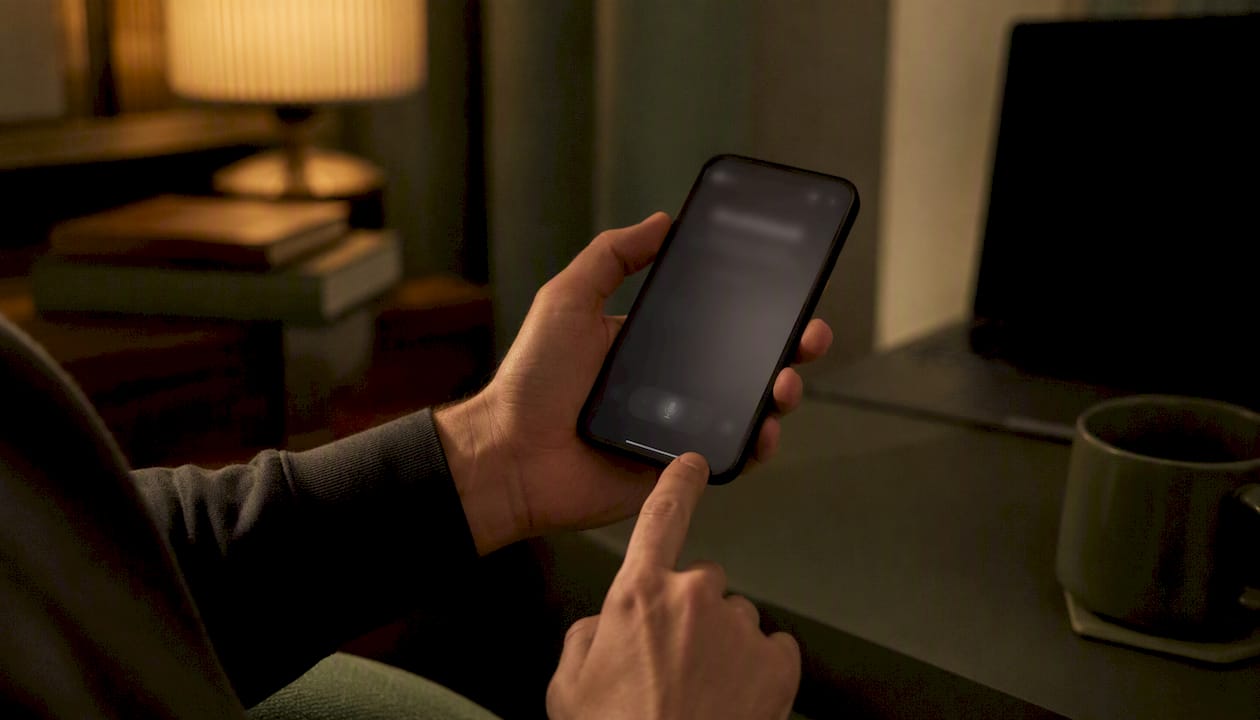
Dictus is an open-source iOS keyboard that runs speech recognition entirely on-device using CoreML and WhisperKit under an MIT license. Its README explicitly states no user data collection. Because the code is publicly auditable, the privacy claim is verifiable rather than a marketing assertion. The trade-off is that setup requires more technical comfort than a standard App Store install, and language coverage depends on which Whisper model is bundled.
It requires iOS 26 or later, which limits compatibility for users on older software. For those who qualify, it offers a polished experience without the technical overhead of an open-source keyboard.
LocalWhisper (App Store) takes a similar approach, offering fully offline transcription with optional one-time purchases for larger, more accurate models. The developer claims "Data Not Collected" for the core feature set. The optional local server connection mode is worth reviewing in its settings before use.
Obsidianridgelabs (disclosed: publisher of this article) builds a suite of on-device AI apps for Apple devices, including Echo Chamber, a private transcription app that processes audio locally. All core processing stays on the device. For users who want a comparison of offline transcription options across accuracy, model size, and privacy posture, the offline transcription app comparison covers the key trade-offs in detail.
Key factors when choosing an on-device option:
- Accuracy vs. model size — larger Whisper-based models are more accurate but require more storage and CPU time; smaller models are faster but may struggle with accents or technical vocabulary.
- Battery and latency — on-device inference draws more power than sending a short audio clip to a server; expect higher battery use during extended dictation sessions.
- Language coverage — on-device models typically support fewer languages than cloud APIs; verify your language is included before committing.
- Custom keyboard vs. standalone app — a keyboard replacement like Dictus works system-wide but requires "Allow Full Access," which grants the keyboard developer broader system permissions. A standalone transcription app limits scope to that app's own interface.
Pro Tip: For open-source keyboards, "Allow Full Access" is a meaningful permission to evaluate. With Dictus, the MIT-licensed code lets you verify what that access is used for. With closed-source keyboards, that same permission warrants more scrutiny. When in doubt, a standalone app with a narrower permission scope is the lower-risk choice.
For a broader look at private transcription on macOS and how local processing compares to cloud services across Apple platforms, the linked guide covers that ground in detail.
When to use Apple dictation, when to opt out, and when to go fully on-device
The right choice depends on your threat model, not a universal recommendation.
- Low-sensitivity use, convenience-first user — keep Apple dictation enabled, opt out of Improve Siri & Dictation, and delete history periodically. Audio is processed server-side but not retained. Acceptable for general note-taking and messaging where the content is not sensitive.
- Privacy-conscious professional — disable Improve Siri & Dictation, audit app permissions, and use an on-device app for any dictation involving confidential work content. Apple dictation can remain available for non-sensitive tasks.
- High-sensitivity or regulated workflow (clinician, attorney, financial advisor) — disable default dictation entirely for any work-related content. Use a verified on-device transcription tool. Document the choice as part of your compliance posture. Do not rely on vendor privacy statements alone; verify behavior in Settings.
- Maximum privacy posture — disable Siri and Dictation at the system level, use an on-device keyboard or app exclusively, and review microphone permissions for every installed app.
After making any settings change, verify the current state in Settings rather than assuming the toggle held. iOS updates occasionally reset certain permissions, and it takes under a minute to confirm.
How facts were checked and iOS version caveats to watch for
The claims in this article draw from Apple's own legal privacy pages, HHS regulatory guidance, App Store listings, and Reuters reporting on Apple's 2026 Siri privacy clarifications following a $95 million class-action settlement. That settlement and the public scrutiny around it prompted Apple to clarify aspects of its Siri audio handling policy, reinforcing the value of verifying settings rather than relying solely on vendor statements.
iOS version caveats to keep in mind:
- Settings paths described here reflect iOS 17 and later; earlier versions may use different navigation.
- On-device model availability varies by device generation; older hardware may route more requests server-side even with the same iOS version.
- Third-party app behavior depends on which speech API the app uses; verify permissions individually.
- Apple updates its legal privacy pages periodically; always check the current version at apple.com/legal/privacy for the most accurate retention and review policies.
Primary sources used in this article:
- Apple Legal: Siri, Dictation & Privacy
- Apple Legal: Improve Siri and Dictation & Privacy
- HHS HIPAA Security Rule
- Reuters: Apple Siri Privacy Clarification
- Dictus on GitHub
- Obsidianridgelabs
The case for treating on-device processing as the default, not the exception
Most privacy guides treat on-device dictation as the advanced option and cloud processing as the sensible default. That framing deserves scrutiny. Cloud processing is the default because it was the only viable option when these systems were built. On-device models have caught up considerably, and for the majority of everyday dictation tasks, the accuracy gap between a local Whisper-based model and a cloud API is narrow enough that the privacy cost of the server round-trip is no longer justified by a meaningful quality gain.
The more important point is that the burden of proof has shifted. After a $95 million settlement and public reporting on audio review practices, users are right to treat vendor privacy statements as a starting point rather than a guarantee. Apple's documentation is more transparent than most, but transparency about what can happen is not the same as a guarantee about what will happen. On-device processing removes that uncertainty structurally, not contractually.
The practical implication: if your device supports on-device dictation and the content you are transcribing is sensitive in any meaningful way, the on-device option is the rational default. The convenience difference is marginal. The privacy difference is architectural.
Obsidianridgelabs: private transcription built for Apple devices
Obsidianridgelabs builds on-device AI apps exclusively for Apple devices, and its transcription app, Echo Chamber, processes audio entirely on your iPhone or iPad with no cloud uploads and no telemetry. Every word you dictate stays on your device. This is the publisher of this article, and Echo Chamber is one of its products.

For users moving away from cloud-based dictation, whether for personal privacy, professional confidentiality, or HIPAA-adjacent workflows, Echo Chamber offers a direct path: download from the App Store, dictate, and keep everything local. No subscription required for core features; optional one-time purchases are available for expanded model access. If you want to verify the privacy posture before committing, the on-device AI privacy verification guide walks through exactly how to confirm local processing behavior on your device.
Sources
Verify the details in this article against the primary sources below. Settings paths and retention policies can change with iOS updates, so checking the current Apple legal pages directly is always the most reliable approach.
- Legal - Improve Siri and Dictation & Privacy - Apple
- Legal - Siri, Dictation & Privacy - Apple
- HIPAA Security Rule — HHS
- Apple clarifies Siri privacy stance after $95 mln class action settlement — Reuters
- getdictus/dictus-ios — GitHub
Check your iOS version before following any Settings path in this article. Paths verified against iOS 17 and later; earlier versions may differ.