Making study notes private on iOS comes down to three actions: lock sensitive notes or keep them stored under an "On My iPhone" account, turn on Advanced Data Protection for your Apple ID, and audit which apps can touch your data. Each closes a different gap, from local device access to cloud-side exposure. A local-first app like the one Obsidian Ridge Labs builds removes cloud transfer from the equation entirely. The steps below explain the mechanics behind each one.
TL;DR:
- Locking individual notes protects their content but does not conceal metadata such as creation time, location tags, or folder placement, which remain visible with device access or iCloud data.
- Enabling Advanced Data Protection shifts your decryption keys to only your devices, preventing Apple from providing unencrypted iCloud data even under legal compulsion.
- Notes stored exclusively on "On My iPhone" remain solely on the device and are never synchronized to iCloud, reducing exposure to cloud vulnerabilities.
- Locking features do not apply to third-party services or multimedia attachments, which may still be accessible without protection or with vulnerabilities.
- Local-first apps like Obsidian Ridge Labs processes all data on-device, avoiding cloud transfer and offering stronger privacy for multimedia study materials.
Table of Contents
- Quick Privacy Checklist for Study Notes Privacy on iOS
- How Apple Notes Locking and iCloud Encryption Actually Work
- Step-by-Step: Settings and Menus to Secure Your Study Notes
- Where Notes Locking Falls Short
- Private Local-First Alternatives and Safe Workflows
- How to Verify Your Protections Actually Work
- Why On-Device Processing Changes What "Private" Means
- Echo Chamber Pro: On-Device Study Notes Without the Cloud Trade-Off
- Sources
- FAQ
Quick Privacy Checklist for Study Notes Privacy on iOS
Run through this before your next study session if you're taking notes on anything you'd rather keep off a server somewhere.
- Turn on "On My iPhone" for any notes you never want syncing to iCloud.
- Lock genuinely sensitive notes with Face ID, your passcode, or a separate Notes password.
- Enable Advanced Data Protection on your Apple ID so iCloud data gets end-to-end encryption.
- Exclude study apps you don't fully trust from iCloud backup.
- Revoke permissions (Photos, Microphone, Files) that a notes or flashcard app doesn't actually need.
- Confirm iOS is fully updated, since Notes security patches ship in point releases.
Pro Tip: Run this checklist once at the start of a semester, then again after any major iOS update. Apple occasionally resets permission prompts after upgrades, and you won't notice until you check.
How Apple Notes Locking and iCloud Encryption Actually Work
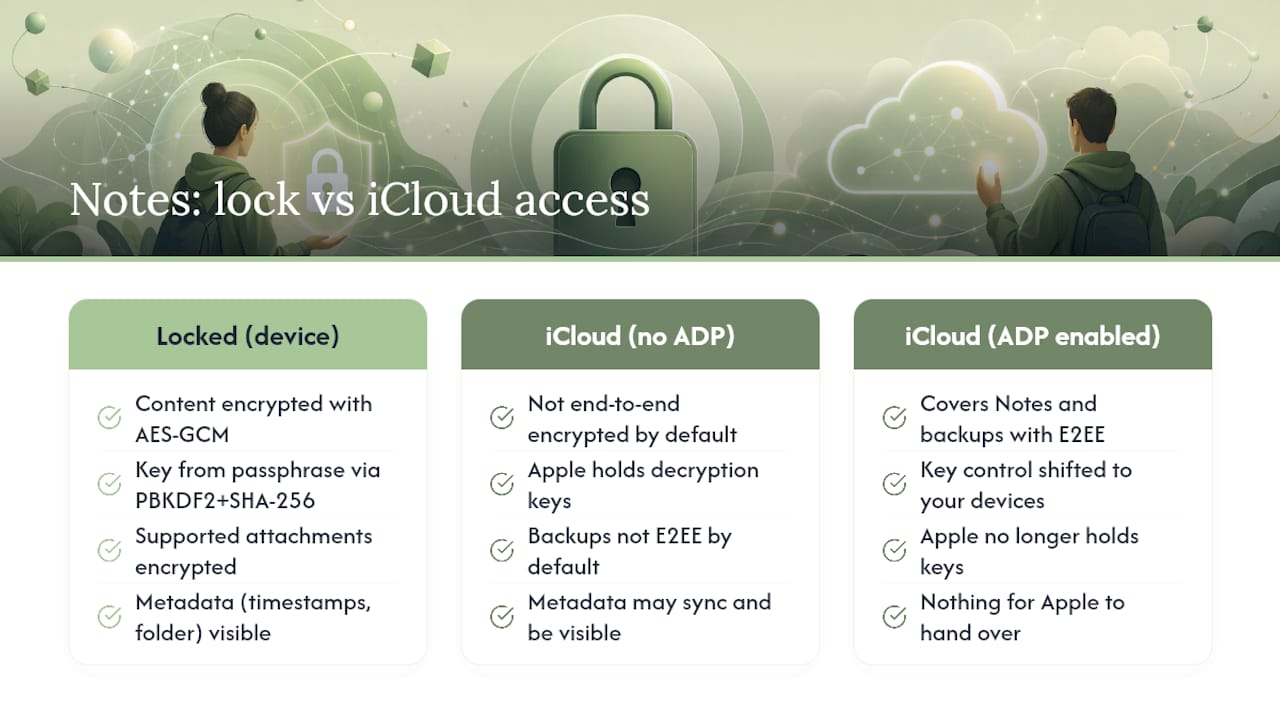
Locking a note in Apple Notes doesn't just hide it behind a prompt. The Lock feature encrypts protected notes using AES-GCM, with a 16-byte key derived from your passphrase through PBKDF2 and SHA-256. That's a real cryptographic barrier, not a cosmetic one, and it's the same category of key derivation used in password managers.
The note content and supported attachments get encrypted at rest. What doesn't get the same treatment is metadata: creation timestamps, folder placement, and sometimes location tags can remain visible to anyone with device access, even on a locked note.
This is where the distinction between "locked" and "private" starts to matter. A locked note protects content. It does not protect the fact that a note exists, when it was created, or where.
The bigger gap is what happens after a note leaves your device. iCloud sync and iCloud backups are not end-to-end encrypted by default, which means Apple holds the decryption keys for that data unless you change a setting. Advanced Data Protection shifts key control to your own devices, covering Notes and iCloud backups among other categories. Without ADP, a court order compelling Apple to hand over iCloud data is technically straightforward for Apple to fulfill. With ADP enabled, Apple simply doesn't hold the keys anymore, so there's nothing to hand over even if legally compelled. That single toggle changes who can access your synced study notes and under what circumstances.
Step-by-Step: Settings and Menus to Secure Your Study Notes
Each step below maps to a specific menu, so you can work through this in about ten minutes.
- Open Settings > Apps > Notes > Default Account and switch to "On My iPhone" for notes you never want in the cloud. Notes stored under this account stay on the device and never sync anywhere.
- To lock an individual note, open it, tap the menu icon, and select Lock. Choose Face ID, your device passcode, or a custom Notes password as the unlock method.
- If you use a device passcode for unlocking, make sure iCloud Keychain is active so that password is backed up securely rather than only living in your head.
- Go to Settings > [Your Name] > iCloud > Advanced Data Protection and turn it on. Apple will walk you through setting a recovery contact or recovery key. Do not skip this step. Losing both is the one scenario where you can permanently lose access.
- In Settings > [Your Name] > iCloud > iCloud Backup, check which apps back up automatically and exclude any study or note app you'd rather keep local only.
- Under Settings > Face ID & Passcode, set a short auto-lock interval and enable Stolen Device Protection, which adds delays and biometric requirements for sensitive changes made away from familiar locations.
Pro Tip: If your notes sync through a third-party IMAP account like Gmail or Yahoo, the Lock option won't even appear. Move anything sensitive to "On My iPhone" or an iCloud account with ADP turned on first.
Where Notes Locking Falls Short
Locking a note doesn't protect everything inside it, and knowing the boundaries matters more than the feature itself.
- Certain attachment types and any note shared with another person cannot be locked at all, regardless of account type.
- Notes synced through third-party IMAP services (Gmail, Yahoo) never get the Lock option in the first place, since Apple's locking only applies to iCloud or on-device accounts.
- If your study notes include scanned lecture slides, audio recordings, or large PDFs, don't assume locking covers them the way it covers plain text.
Locking also isn't immune to bugs. A documented vulnerability tracked as CVE-2026-20682 involved state-management issues in Notes that allowed disclosure of locked-note images and recovery of notes that had supposedly been deleted. Apple patched it in a subsequent iOS release, which is the whole argument for keeping automatic updates on rather than deferring them.
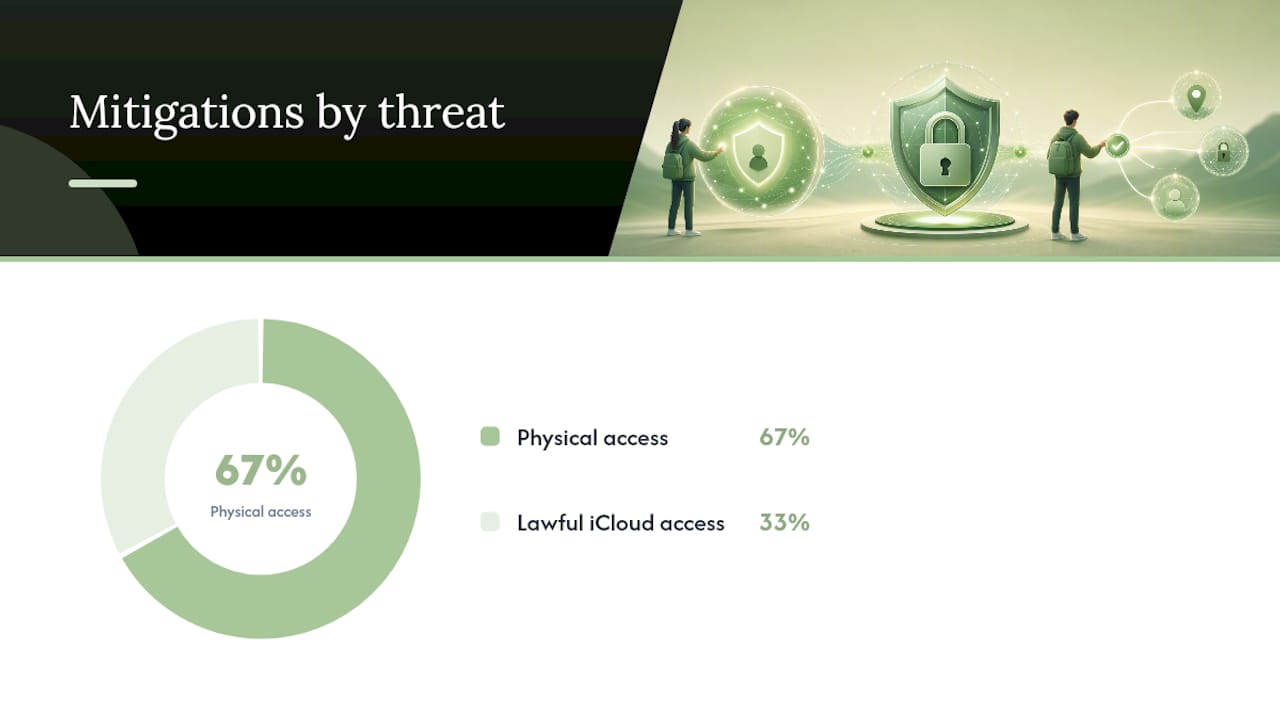
There's also a meaningful difference between someone physically holding your unlocked phone and a lawful request for your iCloud data. Device-level locks and Face ID address the first threat. ADP and backup encryption address the second. Most students only think about the first one, but the second is where unencrypted iCloud backups quietly expose years of coursework. If your threat model includes either scenario at an elevated level, features like Lockdown Mode and a shorter auto-lock window are worth the friction.
Private Local-First Alternatives and Safe Workflows
Apple Notes handles plain text well. It gets shakier once your study material involves lecture recordings, scanned readings, or AI-generated summaries you'd rather not route through a cloud service.
- If your notes lean heavily on multimedia or AI-assisted summarization, a dedicated local-first app is usually a better fit than stretching Notes beyond what it's built for.
- Keep raw source material, PDFs, and recordings inside an encrypted local container, and store only the distilled summaries or flashcards in a locked note or a local-only app.
- Before feeding lecture transcripts or readings into any cloud AI tool, understand that you're trading privacy for convenience, and that trade isn't reversible once the data leaves your device.
Obsidian Ridge Labs builds tools around a different default: on-device processing, no mandatory cloud transfer, and optional network connections that are disclosed rather than buried in settings. For students recording lectures or building flashcards from readings, that means the raw material never has to leave the phone unless you explicitly choose it to. Tools covered in our roundup of AI flashcard apps follow similar local-first logic for turning PDFs into study material.
Pro Tip: Before importing anything into a new study app, check its stated data policy for the word "on-device." If a feature requires a server round-trip, the app should say so plainly, not bury it in a EULA.
How to Verify Your Protections Actually Work
Settings changes only mean something if they hold up under a real check. Confirm each one directly instead of assuming it worked.
- Open App Privacy Report under Settings > Privacy & Security and review which domains your study apps have actually contacted; this report exposes network activity most apps never mention.
- Check iCloud.com or a second signed-in device to confirm your "On My iPhone" notes are genuinely absent from the cloud.
- Create a test locked note with a small image, then sign out of iCloud on another device and confirm the note is unreachable without your passphrase, a test detailed in Obsidian Ridge Labs' verification guide.
- Check Settings > General > Software Update and cross-reference your iOS version against recent Apple security release notes for any outstanding Notes-related fixes.
Why On-Device Processing Changes What "Private" Means
Most privacy advice treats settings as the whole job. They're not. A setting can be reversed by an update, a shared account, or a permission you forgot you granted. What doesn't get reversed as easily is architecture: if an app was never built to send your notes anywhere, there's no cloud misconfiguration to worry about later.
That's the reasoning behind building study tools that process everything on-device rather than defaulting to cloud sync with privacy controls bolted on afterward. It's also why we push readers toward verification instead of trust. Check the App Privacy Report. Sign out of iCloud on a second device and see what's actually visible. The convenience of sync is real, and for some people it's worth the trade-off. But for lecture recordings, source material, or anything you wouldn't want subpoenaed, local-only processing removes the question rather than managing it.
— Alex
Echo Chamber Pro: On-Device Study Notes Without the Cloud Trade-Off
Apple Notes locking and Advanced Data Protection get you most of the way there, but they're still built around a cloud-connected architecture with privacy controls layered on top. Echo Chamber Pro takes the opposite starting point: processing happens on your device, storage stays local by default, and any optional network connection is disclosed rather than assumed.
That matters most for students working with lecture recordings, scanned readings, or AI-generated study material, exactly the content types where locked Notes starts to show its limits. There's no mandatory account, no hidden data transfer, and no advertising profile built from your coursework. If you want AI-assisted study tools without deciding whether to trust another company's cloud, check out Echo Chamber Pro, with various purchase options available on the product page.
Sources
Every step above traces back to primary documentation, not secondhand summaries. Apple's own guides cover locking notes and secure features and Advanced Data Protection in detail. The EFF's Surveillance Self-Defense module walks through broader iPhone privacy auditing, and Wired's settings checklist covers related trade-offs. For hands-on verification, see our App Privacy Report walkthrough.
- Apple Support — Advanced Data Protection overview
FAQ
Is the Notes App on iPhone Private?
It's private by default only in a limited sense: Notes stored "On My iPhone" never leave the device, but notes synced through iCloud aren't end-to-end encrypted unless you turn on Advanced Data Protection. Locking an individual note adds a separate encryption layer on top of whichever storage method you're using.
Is There a Way to Make Notes Private on iPhone?
Yes. Lock any individual note with Face ID, your passcode, or a custom password, and switch storage to "On My iPhone" if you want that note to never touch iCloud at all. Combining both gives you the strongest protection Apple's native app offers.
Is There a Private Notes App for iOS?
Apple Notes with locking and On My iPhone storage covers most casual privacy needs, but apps built entirely around on-device processing, like the tools from Obsidian Ridge Labs, avoid cloud sync architecture altogether rather than adding protections after the fact. That distinction matters most for multimedia study material Notes wasn't designed to encrypt.
Can People See My Notes on My iPhone?
Anyone with your unlocked device can see any note that isn't individually locked, regardless of where it's stored. Locked notes require your passcode, Face ID, or custom password even if someone else is holding an already-unlocked phone.
Does Locking a Note Protect It From Apple or the Cloud?
Locking protects content from someone with physical access to your unlocked device, but it doesn't by itself stop Apple from holding decryption keys for iCloud-synced data. Enabling Advanced Data Protection is the separate step that removes Apple's server-side key access for that same data.