
App Privacy Report shows exactly which apps accessed your location, camera, microphone, contacts, and other sensors, plus every domain those apps and their embedded content contacted, over the past seven days. The report stores data locally and encrypts it on your device. If you want a recurring way to audit permissions and catch overreach, turn it on now and check back weekly.
TL;DR:
- Most app activity in the privacy report only starts recording after you enable the feature and can take several days to gather meaningful data.
- Unfamiliar domains in the report often relate to benign infrastructure such as ad networks, analytics, or content delivery, not malicious tracking.
- Repeated or persistent access outside of active sessions should trigger suspicion and warrants revoking permissions or uninstalling the app.
- The report only covers a rolling seven-day window, stores data locally, and does not provide real-time or historical oversight, so regular checks are essential.
- Comparing the app’s Privacy Nutrition Label with observed activity helps identify discrepancies and potential overreach or data mishandling.
Table of Contents
- How to Turn on App Privacy Report on Your iPhone
- What Each Section of the Report Actually Shows You
- Reading Suspicious Entries Without Overreacting
- What to Do Once You Spot a Problem
- The Boundaries of What This Report Can Tell You
- What Obsidian Ridge Labs Recommends for Ongoing Monitoring
- Why This Feature Deserves More Attention Than It Gets
- Sources
How to Turn on App Privacy Report on Your iPhone
The feature lives in a predictable spot, but it only starts working the moment you flip it on. Apple's own documentation confirms the report gathers information only after you turn it on, so there's no retroactive history waiting for you.
Here's the exact path:
- Open Settings, then tap Privacy & Security.
- Scroll down and select App Privacy Report.
- Tap Turn On App Privacy Report.
- Wait. The report needs a few days of normal use to populate meaningfully, since it works on a rolling 7-day window.
- To disable it, return to the same screen and tap Turn Off App Privacy Report. Doing this immediately deletes the collected report data from your device.
You'll need iOS 15.2 or later. If the menu doesn't appear under Privacy & Security, your software is outdated. Go to Settings > General > Software Update and install the latest version before trying again. If it still won't show up after that, a restart usually clears whatever glitch is blocking the toggle.
What Each Section of the Report Actually Shows You
Once data starts collecting, the report splits into four distinct views, and each one answers a different question about your app privacy iPhone settings.
Data & Sensor Access lists which apps touched which sensors and personal data categories, including:
- Location
- Camera and microphone
- Contacts
- Photos
- Calendars and reminders
- Motion and fitness data
- Local network access
Apple notes that some of these accesses stay entirely on-device, meaning the app used the sensor for a feature to function, not to send data anywhere. That distinction matters when you get to interpretation.
App Network Activity breaks down which domains each app contacted directly, complete with timestamps and contact counts. A weather app pinging a forecast API repeatedly makes sense. A flashlight app doing the same thing should raise questions.
Website Network Activity covers domains reached through in-app browsing sessions or embedded web content, like a news app loading an article inside its own browser rather than kicking you out to Safari.
Most Contacted Domains aggregates activity across every app on your phone. Security researchers point out that this view is particularly useful for spotting third-party trackers, since ad networks and analytics providers often show up as the same domain across a dozen unrelated apps.
Reading Suspicious Entries Without Overreacting
Not every unfamiliar domain in your app privacy report iPhone screen is a threat. Most of what looks alarming at first glance turns out to be routine infrastructure.
Common, harmless explanations for unfamiliar domains include:
- Embedded ad networks serving banners or video
- Analytics SDKs tracking crash reports and usage patterns
- Content delivery networks (CDNs) hosting images or fonts
- Link preview services generating thumbnails for shared URLs
- Third-party login or payment SDKs calling back to their own servers
Apple's guidance draws a clear line between local sensor use and actual data transmission, and that distinction is worth remembering before you assume every logged access left your phone.
To investigate a domain that still bothers you, tap it in the report to see which apps contacted it and how often. From there, a quick web search on the domain name usually reveals whether it belongs to a known ad network, analytics firm, or something less identifiable. When domain ownership stays murky, a general WHOIS lookup service can confirm who registered it.
Pro Tip: Context beats a single data point. One location access during a maps session is normal. The same app accessing your microphone at 3 AM while closed is not, and that pattern deserves immediate attention.
Escalate your concern when you see persistent contact with an unidentifiable domain, unusually high-frequency pings, or sensor access that happens outside any session where you were actively using the app. Those three signals, especially in combination, separate background noise from something worth acting on.
What to Do Once You Spot a Problem
Finding a suspicious entry is only useful if you follow through. Here's the sequence that actually reduces risk:
- Revoke the permission. Go to Settings > Privacy & Security, choose the sensor category (Location, Camera, Contacts, etc.), find the app, and switch its access to Never or Ask Next Time.
- Check the app's Privacy Nutrition Label on its App Store page. Compare what the developer declares against what App Privacy Report actually logged. A detailed breakdown of how these labels work can help you spot a mismatch between claimed and observed behavior.
- Read the developer's privacy policy if the discrepancy looks significant, or reach out to the developer directly with your findings.
- Run Safety Check if you suspect the app is sharing data with someone you didn't authorize, or simply uninstall it if the behavior can't be explained.
- Document what you found (screenshots of the report, timestamps, domain names) before you report the app to Apple through the App Store's "Report a Problem" feature.
The Boundaries of What This Report Can Tell You
App Privacy Report is a strong audit tool, not a forensic one. It only starts logging the moment you enable it, and it never shows anything from before that point, so a blank report on day one is expected, not broken.
Keep these limits in mind:
- Everything you see covers a rolling 7-day window, nothing older.
- Report data is encrypted and stored only on your device, with no iCloud backup or sync.
- It isn't a real-time monitor, and activity during private browsing or an app's private mode may not appear at all.
- Because it resets and doesn't archive history, checking it regularly matters more than checking it once.
What Obsidian Ridge Labs Recommends for Ongoing Monitoring
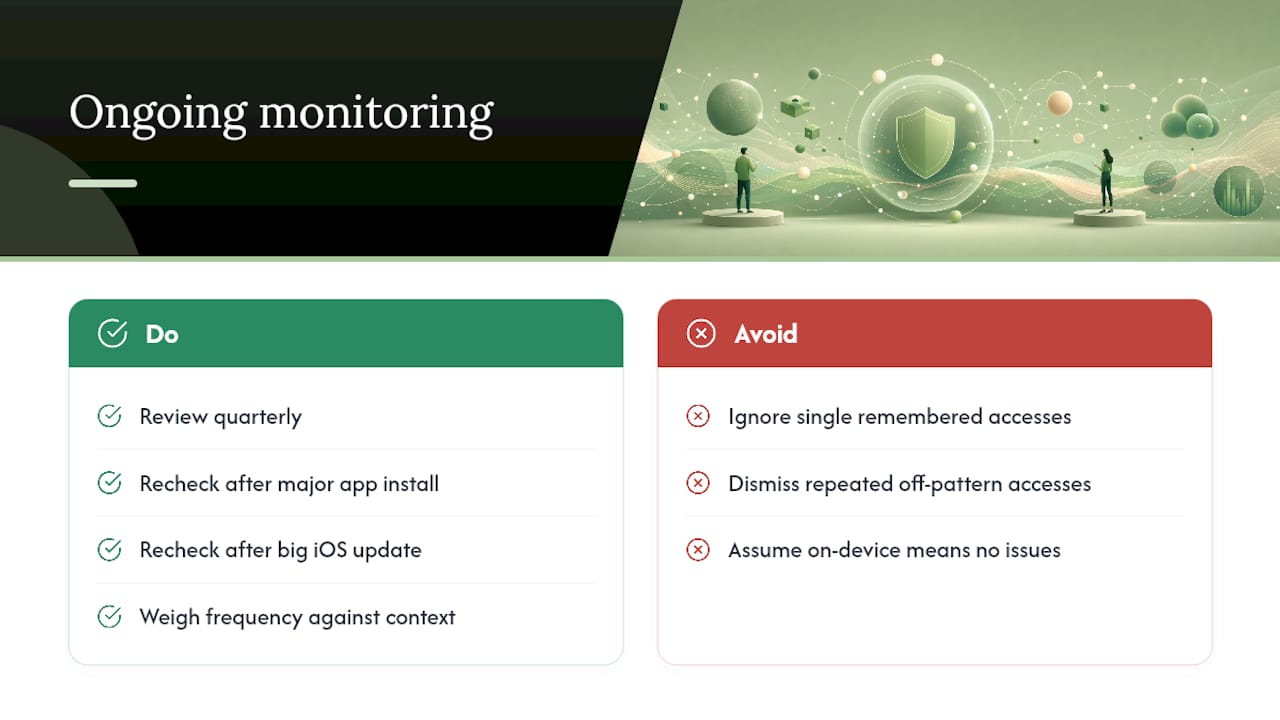
A quarterly review catches most problems before they become habitual. Check the report again after installing any major new app or pushing through a big iOS update, since permission requests tend to cluster around those moments.
When judging whether an entry deserves action, weigh frequency against context. A single access during a session you remember is low risk. Repeated contact outside your usage pattern is the signal to act on.
Obsidian Ridge Labs builds its own private AI apps for Apple devices around this same principle: on-device processing by design produces far fewer surprising entries in a report like this one, because there's less data leaving the device to log in the first place. For more on how that architecture holds up under scrutiny, our guide to verifying on-device privacy claims walks through what to look for.
Pro Tip: Pair App Privacy Report with the app's Privacy Nutrition Label every time you review it. One shows declared intent, the other shows observed behavior. Reading them together catches gaps that neither one reveals alone.
Why This Feature Deserves More Attention Than It Gets
Most people treat App Privacy Report as a one-time novelty. They enable it, glance at it once, and forget it exists. That's backward. The report's real value shows up over months, when you can compare what a newly installed app does in week one against what it's still doing in month six.
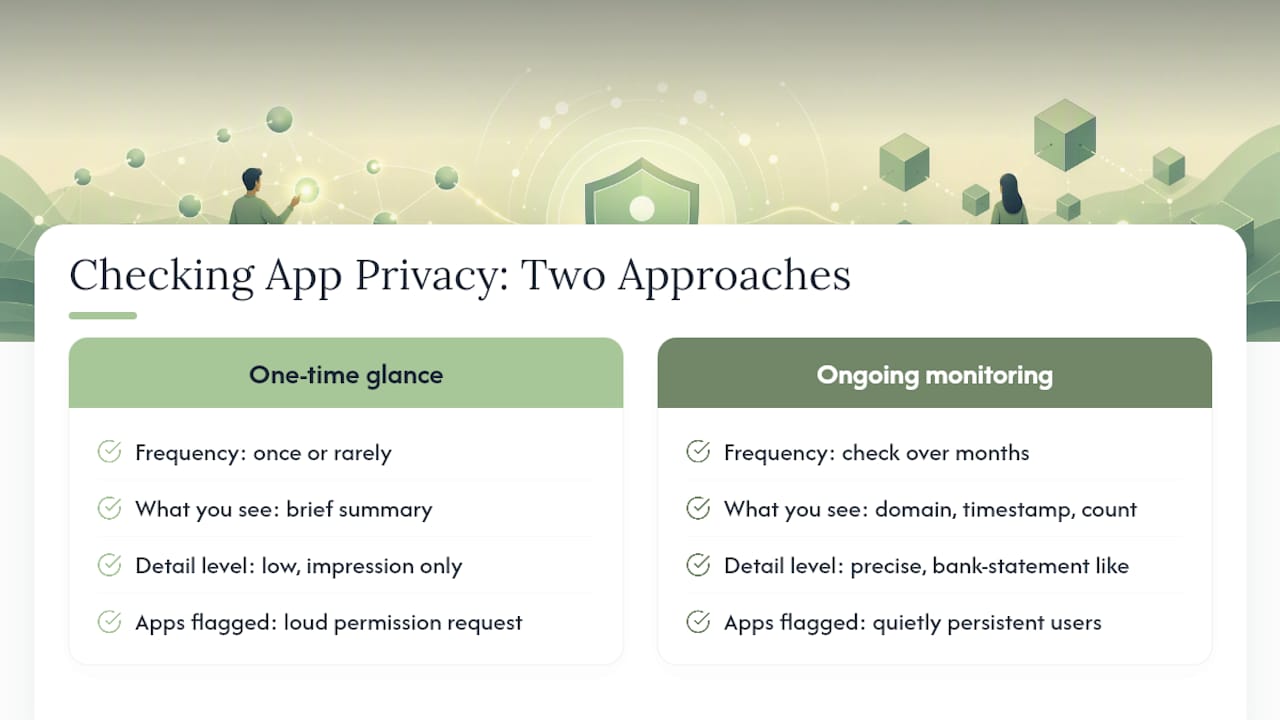
The conventional advice, "check your permissions occasionally," undersells how specific this tool actually is. It's not asking you to guess whether an app might be overreaching. It's showing you the domain, the timestamp, and the count. That level of detail makes the report closer to a bank statement than a general privacy checklist. You wouldn't skim a bank statement once and call it done.
What the reader should prioritize first isn't the report itself. It's building the habit of checking it. A tool this precise is wasted on a single glance. The apps worth worrying about are rarely the ones asking permission loudly. They're the ones that already have it and quietly keep using it long after you forgot you granted it.
— Alex
Sources
- App privacy features in Apple products
- How to use Apple’s App Privacy Report to monitor data tracking - Help Net Security