
Turn off Settings, then Privacy & Security, then Tracking, then switch off "Allow Apps to Request to Track." This treats every app as though you already selected "Ask App Not to Track" and cuts off its access to your device's advertising identifier. Open any app that previously showed a tracking prompt to confirm nothing appears.
TL;DR:
- Turning off "Allow Apps to Request to Track" prevents new tracking prompts and retroactively restricts existing tracking via the advertising identifier, but does not delete previously collected data.
- Managing individual app permissions allows granting or revoking tracking access at any time, with core app functions unaffected by denying tracking.
- Disabling tracking does not stop location sharing, which requires separate permission adjustments and can be set to limited, ask, or always options, with precise location sharing also customizable.
- Apps gather detailed profiles from permissions like photos, contacts, and microphone access, so restricting these minimizes data collection beyond tracking permissions.
- On-device processing remains vital for privacy, as it keeps sensitive data like voice and financial info local, reducing exposure even when tracking is blocked at the permission level.
Table of Contents
- How to stop apps tracking your iPhone with one master toggle
- How do I manage tracking permissions for each app?
- Should you also lock down location tracking?
- Which other app permissions build a profile over time?
- What does App Tracking Transparency actually block?
- How often should you check your privacy settings?
- Why on-device processing matters more than another toggle
- How do you check tracking through Safari and other browsers?
- How should you handle Facebook and Google login sign-ins?
- Do you need a VPN or third-party privacy app too?
- What matters most for keeping this working
- Obsidian Ridge Labs: apps built to keep your data off the cloud
- Where these instructions come from
- Sources
How to stop apps tracking your iPhone with one master toggle
The fastest fix lives inside a single switch, and once you know where to find it, the whole process takes under a minute. Apple built this master control specifically so users don't have to fight app by app.
Here's the exact path:
- Open Settings.
- Tap Privacy & Security.
- Tap Tracking.
- Turn off Allow Apps to Request to Track.
- Confirm the toggle is gray, not green.
That single switch controls whether apps can even ask for permission to track you across other apps and websites. With it off, apps stop requesting tracking permission altogether, and every future request is auto-treated as denied. The system doesn't just block new prompts. It retroactively restricts apps that previously got a "yes" from you, cutting their access to the advertising identifier going forward.
To verify the change worked, open an app you know has asked to track you before, maybe a shopping app or a game with an ad network baked in. If the toggle is off, you won't see the tracking prompt pop up again, and the app's entry under Tracking should show it can no longer request access.
One thing worth knowing: this toggle doesn't retroactively erase data already collected. It stops new collection through the IDFA channel, not what happened before you flipped it. If you want a technical breakdown of how this affects developers on the other side of that permission, Obsidianridgelabs's developer guide walks through what changes for them.
How do I manage tracking permissions for each app?
The master toggle is the blunt instrument. If you want more control, granting some apps limited tracking while blocking others, the per-app list is where that happens.
Go to Settings > Privacy & Security > Tracking and you'll see every app that has requested permission to track you, along with its current status. From there:
- Tap any app to see its current tracking permission.
- Flip the toggle off to revoke access, even if you previously said yes.
- Use the option to ask apps not to track going forward if they haven't requested yet.
- Review the list periodically, since new apps add themselves as you install and open them.
Apple's own documentation confirms these per-app toggles work in either direction at any time, so you're not locked into a choice you made during setup. You can grant one app access today and revoke it next month without reinstalling anything.
Deciding when to allow tracking versus when to block it comes down to what the app actually needs to function versus what it wants for advertising. A weather app asking to track you across other apps has no functional reason to need that. A shopping app that uses tracking to remember your size preferences across its own ecosystem might have a weaker but still real case. When in doubt, deny it. Apple has confirmed that core app functionality doesn't depend on tracking permission, so you're not trading away features by saying no.
Pro Tip: Revisit the Tracking list every time you install a new app you plan to keep. Fresh installs are the most common place old habits creep back in, since the prompt often appears the first time you open the app rather than during setup.
Should you also lock down location tracking?
Tracking permission and location permission are two separate systems, and disabling one does nothing to the other. A lot of people flip off the Tracking toggle and assume they're covered, then wonder why a fitness app still seems to know where they've been.
Location controls live at Settings > Privacy & Security > Location Services, and Apple gives you four permission levels per app instead of a single switch:
- Never: the app gets no location data, period.
- Ask Next Time: you get prompted again the next time the app wants location access.
- While Using the App: location data flows only when the app is open and active.
- Always: the app can pull your location even when closed, which is rarely necessary outside navigation or delivery-tracking apps.
For most apps that request location but don't need it constantly, "While Using the App" is the reasonable middle ground. Reserve "Always" for the handful of apps where background location genuinely improves the experience, and treat any app requesting "Always" without an obvious reason as a red flag.
There's also a toggle for Precise Location on the same screen, per app. Turning it off gives the app your general area rather than your exact coordinates, which is often plenty for weather or local search while denying an app the ability to pinpoint which building you're standing in. Apple documents these settings as distinct from the Tracking permission, which is exactly why both need separate attention.
Which other app permissions build a profile over time?
Tracking permission and location get the most attention, but apps build surprisingly detailed profiles from permissions most people grant without thinking twice. Photos, contacts, and microphone access all feed data pipelines that have nothing to do with the ATT prompt.
Head to Settings > Privacy & Security and scroll through each category: Photos, Camera, Microphone, Contacts, and Background App Refresh all list which apps currently have access.
- Photos: check whether an app really needs your full library or just the ability to select individual images.
- Contacts: very few apps need your entire address book to function.
- Microphone: revoke access for any app that isn't actively used for calls, voice notes, or dictation.
- Background App Refresh: turn this off for apps you rarely open, since it lets them sync and phone home even when closed.
The safest general rule is to grant only what an app needs for its core purpose, nothing extra "just in case." A journaling app needs the microphone if it transcribes voice entries. It doesn't need your contacts.
After revoking anything, reopen the app once to confirm it still works as expected, then check the permission screen again to make sure the toggle held.
What does App Tracking Transparency actually block?
App Tracking Transparency stops one specific, powerful mechanism: access to the IDFA, the advertising identifier that lets networks stitch your activity together across different apps and companies. When you choose "Ask App Not to Track," developers lose access to that identifier and can't use other signals like your email to link your behavior across apps or websites. That's a real, meaningful restriction. It's also not the whole picture.
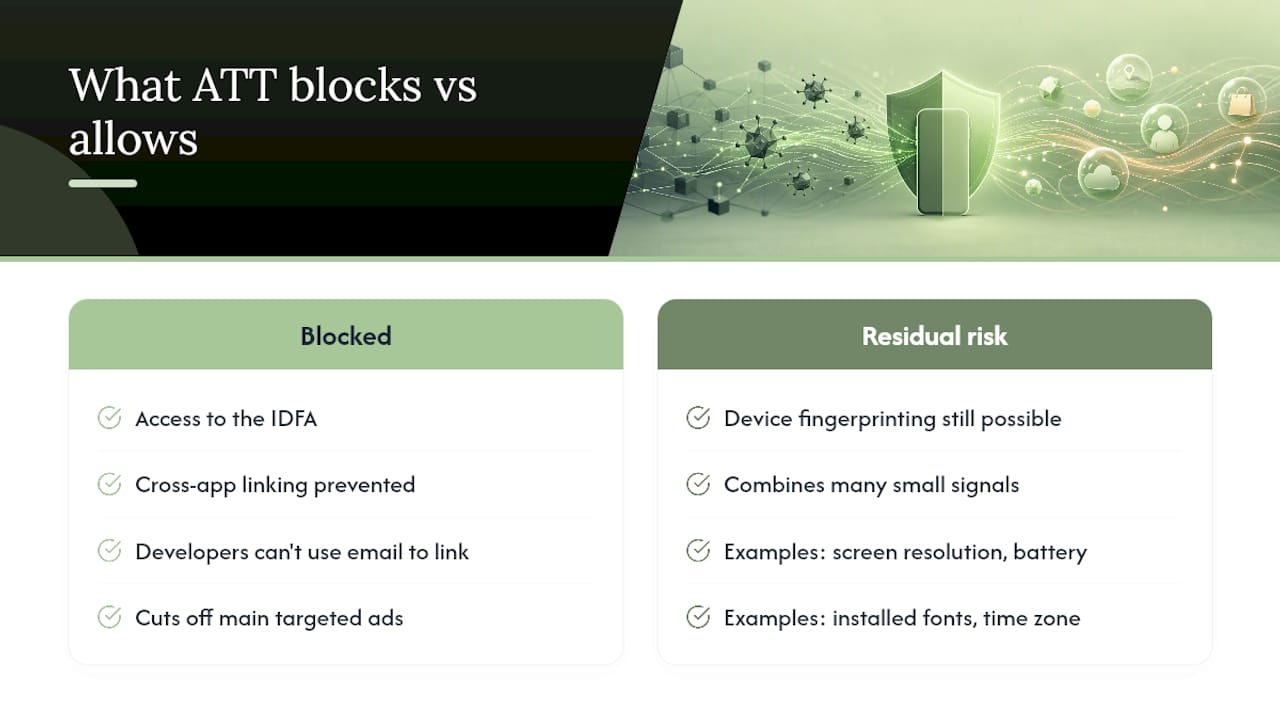
ATT gives users a built-in way to disrupt cross-app targeted advertising by cutting off the identifier advertisers relied on most heavily. What it doesn't stop is device fingerprinting, where an app or ad network infers who you are from a combination of signals: screen resolution, battery level, installed fonts, time zone, and dozens of other small data points that together form a unique enough pattern to re-identify a device. Apple's own guidance acknowledges this residual risk and recommends limiting other permissions as a partial countermeasure.
A common worry is that denying tracking will break app features, hide content, or degrade performance. It won't. Apps retain full functionality regardless of which tracking choice you make, because Apple's App Store guidelines require developers to keep their apps working the same way either way. If an app nags you or hides features after you deny tracking, that's the developer's choice, not a technical limitation.
Pro Tip: Fingerprinting resistance improves when you reduce the number of unique data points an app can read. Fewer granted permissions, generic location instead of precise, and a current iOS version all shrink your fingerprint.
How often should you check your privacy settings?
Privacy settings aren't a one-time chore. New apps add tracking requests, old apps update their permission asks, and iOS itself adds new controls with each release. A short recurring routine keeps things from drifting back toward exposure.
A workable cadence:
- Monthly, skim the Tracking list under Privacy & Security for new entries.
- Quarterly, walk through Location Services, Photos, Microphone, and Background App Refresh to catch permissions that crept back on after app updates.
- After any major iOS update, check Settings for new privacy toggles Apple has added, since these often ship without much fanfare.
Beyond the toggles themselves, a couple of network-level habits do meaningful extra work. iCloud+ subscribers get access to Private Relay, which obscures some of the network signals used for cross-site profiling by routing browsing traffic through two separate relays so no single party sees both your IP address and your destination. It's not a full VPN replacement, but it closes a gap ATT doesn't touch.
You can also restrict specific apps' network access entirely, denying cellular data or Wi-Fi to apps that have no business phoning home in the background. Obsidianridgelabs's guide to disabling app internet access covers the exact steps if you want to cut a chatty app off from the network altogether rather than just limiting what it can see.
Pro Tip: Pair your monthly Tracking review with a Background App Refresh sweep. Apps rarely need both permissions active at once, and disabling refresh for apps you check less than weekly barely changes how they feel to use.
Why on-device processing matters more than another toggle
Every setting covered so far manages permission, what an app is allowed to ask for. None of it changes where your data actually goes once an app has legitimate access. That's a separate question, and it's the one Obsidianridgelabs was built around.
Cloud-based apps, even ones that respect your tracking choice, typically still send your data to a server somewhere to process it. A transcription app might not track you across other apps, yet it could still upload your voice recordings to a remote server for processing. On-device processing skips that step entirely: the work happens locally on your iPhone, and nothing needs to leave the device for the app to function.
That distinction matters most for the categories where the content is genuinely sensitive: financial records, personal journal entries, voice transcripts. Obsidianridgelabs builds its transcription, finance management, and journaling tools around that principle, keeping processing local rather than routing it through a cloud pipeline. For a closer look at how on-device AI intersects with the settings covered in this guide, Obsidianridgelabs's iPhone AI privacy guide breaks down the technical differences in plain terms.
How do you check tracking through Safari and other browsers?
The Tracking toggle governs apps. Your browser handles a different, overlapping layer of tracking through cookies and cross-site scripts, and Safari has its own controls worth checking separately.
Open Settings, then Safari, and look for Prevent Cross-Site Tracking, which should be on by default. This blocks third-party cookies from following you between websites, similar in spirit to what ATT does for apps. Below that, Hide IP Address offers two levels: from trackers alone, or from trackers and websites, the latter routing traffic through Private Relay if you have iCloud+.
Safari also includes a Privacy Report, accessible by tapping the small icon on the left side of the address bar while browsing. It lists which trackers Safari blocked on the current site and gives you a running tally across your browsing history, which is a useful sanity check if you want to see the scale of what's being blocked without digging through Settings.
If you use a third-party browser like Chrome or Firefox on iPhone, check that browser's own privacy settings separately. iOS's system-level tracking controls apply to apps requesting the IDFA, not to a browser's internal cookie handling, so each browser needs its own privacy configuration reviewed on its own terms.
How should you handle Facebook and Google login sign-ins?
"Sign in with Facebook" and "Sign in with Google" feel convenient, but they hand a third party a persistent link between your identity on that platform and every app where you used the button to sign in.
The practical fix is using Sign in with Apple wherever it's offered as an alternative, since it lets you hide your real email address behind a relay address Apple generates per app. That breaks the connection between your Google or Facebook profile and the app you just logged into.
For accounts you've already created through Facebook or Google, check each platform's own connected-apps settings. Facebook keeps this under Settings, then Apps and Websites, where you can see everything linked to your account and revoke access individually. Google has an equivalent under its account's security section, listing third-party apps with access and letting you remove any you no longer use or don't recognize.
Removing an old connection doesn't retroactively delete data already shared, but it does stop new data from flowing through that link. If an app offers both a Facebook login and an email-based sign-up, the email option, especially paired with Sign in with Apple's email relay, keeps one fewer company in the loop on your app activity.
Do you need a VPN or third-party privacy app too?
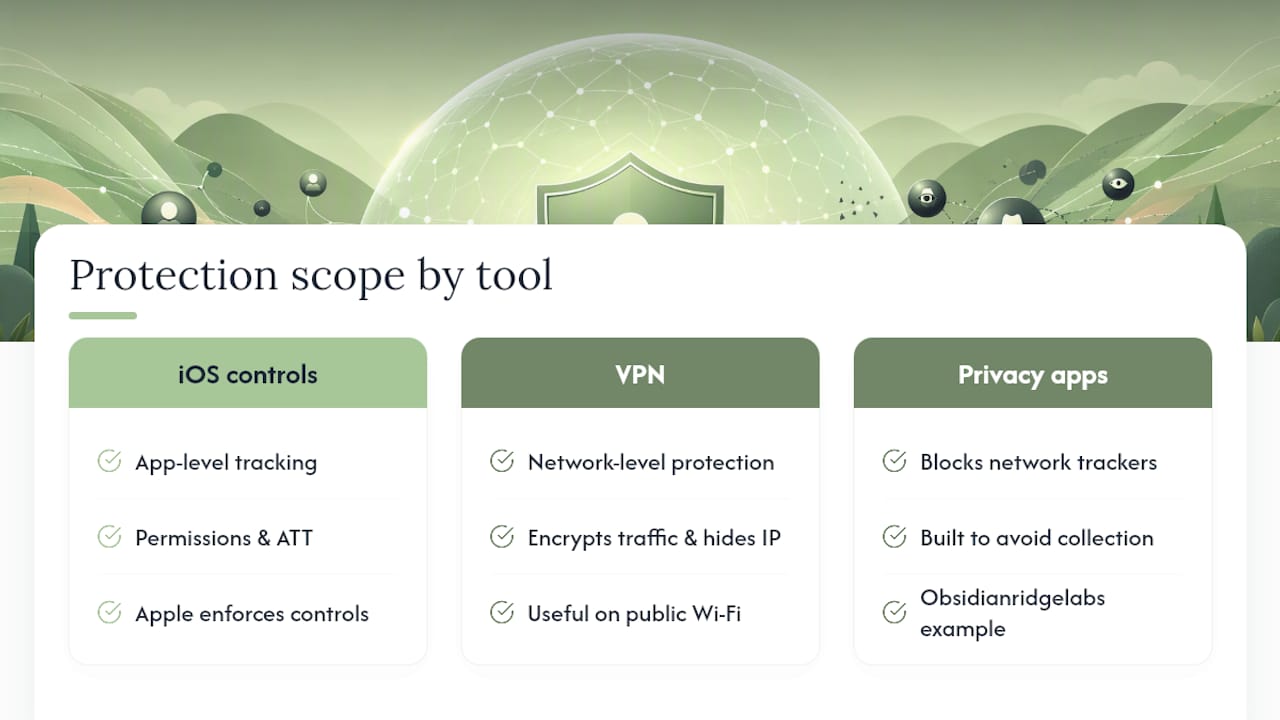
The built-in iOS controls handle the tracking channels Apple has direct authority over. A VPN or dedicated privacy app addresses a different layer: what your network provider or a website sees about your traffic, separate from what an app itself can access.
A reputable VPN encrypts your traffic and masks your IP address from your internet provider and any site you visit, which is a meaningful addition on public Wi-Fi where your traffic is otherwise visible to anyone else on the network. It won't touch app-level tracking permissions, since ATT and VPN protection solve different problems that happen to both fall under "privacy."
Third-party privacy apps generally fall into two camps: those that block trackers and ads at the network level, and those built from the ground up to avoid collecting your data in the first place. The second category is where Obsidianridgelabs's own approach fits, apps designed so sensitive information never leaves the device rather than apps that promise to handle your data responsibly after collecting it. If you're evaluating tools in this space, Obsidianridgelabs's roundup of private iPhone apps covers what to look for, and connectivity choices matter here too. How your device connects to different networks affects what signals are even available for a tracker to collect in the first place.
What matters most for keeping this working
If you only do three things, do these: flip the master Tracking toggle off first, since it has the widest reach for the least effort. Review Location Services second, because "Always" access sits on far more apps than actually need it. Third, treat Background App Refresh as a permission, not a convenience setting, and turn it off for anything you open less than once a week.
The single habit that keeps all of this from decaying is a short monthly check of the Tracking list and Location Services together, five minutes, no more. Settings drift as apps update and add new requests, and the people who stay protected long term aren't the ones who did one perfect setup pass. They're the ones who glance at the list occasionally and catch what crept back in.
— Alex
Obsidian Ridge Labs: apps built to keep your data off the cloud
Everything in this guide reduces what apps and networks can collect. Obsidianridgelabs takes that further by building the apps themselves so sensitive data never has a reason to leave your iPhone. Its suite covers transcription, finance management, personal journaling, and several other daily tools, all processed locally instead of on a remote server, which means there's no cloud database of your voice notes or budget entries to worry about in the first place.

That local-first design is the practical extension of every setting covered above: you can lock down Tracking and Location Services perfectly and still hand your financial details to a cloud app that stores them off-device. Obsidianridgelabs closes that gap by design rather than by permission. If you want to see how the processing claims hold up, the privacy verification guide walks through exactly what stays on the device and what, if anything, ever connects out. Check the full app lineup to see which tool fits the data you're most protective of.
Where these instructions come from
The Settings paths and permission behavior described here come directly from Apple's guide to controlling app tracking permissions and Apple's explanation of what happens when you deny a tracking request, both maintained as official Apple Support documentation. Additional context on how ATT changed advertising on iPhone comes from CNET's breakdown of the ad-tracking kill switch and ZDNet's walkthrough of the tracking toggle. Readers who want a technical deep dive into how ATT works from the developer's side can consult Obsidianridgelabs's implementation guide, and those comparing privacy-first app options more broadly can browse Obsidianridgelabs's journal.
Sources
- Control app tracking permissions on iPhone — Apple Support
- Your iPhone has an ad-tracking kill switch. Here's where to find it — CNET
- This one iPhone setting immediately stops all apps from tracking you — ZDNet