
Deleting an app is the only guaranteed way to remove its local Documents & Data from your iPhone. Tapping Delete App removes the app binary and all locally stored files in one step. Offload App only removes the binary and leaves your documents and data on the device. When an app offers its own in-app Clear or Reset option, that is the least disruptive path and should be your first choice, since it avoids signing you out or disrupting synced state.
The fastest recommended starting point for most users:
- Open Settings > General > iPhone Storage
- Identify the apps with the largest Documents & Data figures
- Choose the right method: in-app reset first, Offload if you want to preserve data, Delete if you want a full wipe
Quick reference for choosing:
- In-app reset/clear: Least disruptive, no sign-out, preserves account state
- Offload App: Frees the app binary only; data stays on device
- Delete App: Removes app binary and all local data; most storage reclaimed
Key Takeaways
Deleting an app removes its local Documents & Data, but a full removal requires a separate step to purge the app's iCloud backup entry.
| Point | Details |
|---|---|
| Delete App is the only full local wipe | It removes the app binary and all local Documents & Data; Offload App only removes the binary. |
| iCloud backup requires a separate step | Go to Settings > iCloud > Manage Storage > Backups to remove the app's cloud copy after local deletion. |
| Keychain items may survive deletion | Credentials stored in the iOS Keychain can persist across reinstalls unless the app explicitly clears them. |
| In-app reset is the least disruptive option | Use it first when available; it clears cache or downloads without signing you out or losing synced state. |
| Monthly storage review prevents buildup | Check iPhone Storage, clear Safari history, and delete large Messages attachments once a month. |
Table of Contents
- How do you delete or offload app data using iPhone Storage settings?
- Delete App vs. Offload App vs. in-app reset: which method removes what?
- App-specific cleanup for Safari, Messages, Photos, and other common space hogs
- How do you remove app data from iCloud backups after deleting an app?
- Why doesn't iOS have a universal "Clear Cache" button?
- Common problems when deleting app data and how to fix them
- How to keep app data under control going forward
- A practical perspective on app-data hygiene and privacy
- Sources
How do you delete or offload app data using iPhone Storage settings?
iPhone Storage gives you a per-app breakdown showing two figures: the App Size (the binary) and Documents & Data (locally stored files, caches, and user content). The Documents & Data number is what you are actually targeting when you want to free up iOS storage.
To offload or delete an app from iPhone Storage:
- Go to Settings > General > iPhone Storage
- Wait for the list to fully load, then tap the app you want to manage
- Review the App Size vs. Documents & Data split
- Tap Offload App to remove the binary while keeping your data, or tap Delete App to remove both
- Confirm the action when prompted
To find in-app storage controls:
- From the same app detail screen in iPhone Storage, some apps display a Website Data or Documents section you can clear directly
- For apps without that option, open the app itself and look under its own Settings or Account menu for a "Clear Cache," "Clear Downloads," or "Reset" option
Pro Tip: Check the Documents & Data figure before and after your action. If the number does not drop immediately, restart your iPhone. iOS sometimes delays updating the storage index after a deletion.
Delete App vs. Offload App vs. in-app reset: which method removes what?
| Method | What it removes | How to execute | Typical storage reclaimed | Risks and side effects |
|---|---|---|---|---|
| Delete App | App binary + all local Documents & Data | Settings > General > iPhone Storage > Delete App, or long-press icon > Remove App > Delete App | Full local footprint | Loses all local data; Keychain items may persist; iCloud backup copy remains |
| Offload App | App binary only | Settings > General > iPhone Storage > Offload App, or Settings > App Store > Offload Unused Apps | Binary size only | Documents & Data stays on device; offloading sometimes leaves large cached data untouched |
| In-app reset/clear | Cache, downloads, or specific data as defined by the developer | Inside the app's own Settings or Account menu | Varies by app | Minimal; may sign you out of the app depending on implementation |
Keychain persistence is a detail most users miss. When you delete an app, iOS does not automatically wipe the credentials that app stored in the system Keychain. Those items can persist across reinstalls, meaning your login may reappear the next time you download the app. According to security research on iOS Keychain behavior, apps must explicitly remove Keychain entries on uninstall, and many do not. If credential removal matters to you, use the app's own in-app wipe or reset function before deleting.
Choosing the right method by scenario:
- Temporary space needed, want to keep settings: Offload App
- Full wipe, privacy-sensitive removal: Delete App, then follow up in iCloud
- Preserve account state, just clear cached files: In-app reset
App-specific cleanup for Safari, Messages, Photos, and other common space hogs
These four apps account for a disproportionate share of storage on most iPhones, and each requires a different approach.
Safari
Clearing Safari's cache removes cookies, browsing history, and cached website data in one step. Go to Settings > Safari > Clear History and Website Data and confirm. Be aware that this action signs you out of most websites and removes saved form data. iOS offers time-range options for clearing browsing history in Safari itself (History > Clear), but the Settings path clears everything at once.
Messages
Large attachments accumulate quickly in Messages. To remove them:
- Go to Settings > General > iPhone Storage > Messages
- Tap Review Large Attachments to see photos, videos, and files sorted by size
- Swipe left on individual items and tap Delete, or tap Edit to select multiple
- Delete entire conversations by swiping left on them in the Messages list
Photos
The Recently Deleted album holds images for 30 days before permanent removal. Open Photos > Albums > Recently Deleted and tap Delete All to reclaim that space immediately. For ongoing management, enable Optimize iPhone Storage under Settings > [Your Name] > iCloud > Photos, which keeps full-resolution originals in iCloud and stores smaller device-optimized versions locally.
Other common offenders
Podcast episodes, offline music, downloaded video, and navigation maps are frequent storage hogs. Remove them inside each app: in Apple Podcasts, swipe left on downloaded episodes; in Apple Maps, go to Settings > Maps > Offline Maps to delete saved regions. Streaming apps like music or video services typically have a Downloads section in their own settings where you can bulk-remove offline content.
Pro Tip: From the iPhone Storage list, tap any app to jump directly to its storage detail screen. Some apps, including Messages and Photos, show actionable sub-categories there that you cannot reach as quickly from inside the app itself.
How do you remove app data from iCloud backups after deleting an app?
Deleting an app locally does not remove its data from iCloud backups. The backup copy persists until you remove it manually, and it can restore the app's data the next time you set up a device from that backup.
To remove an app's data from iCloud backups:
- Go to Settings > [Your Name] > iCloud > Manage Account Storage (or Manage Storage)
- Tap Backups, then tap your device name
- Under Choose Data to Back Up, locate the app and toggle it off
- Confirm when prompted to delete that app's backup data
Turning off an app's backup toggle removes its data from future backups and deletes the existing backup copy for that app. This is different from simply disabling the toggle going forward: the deletion is immediate and irreversible for the stored backup data.
Before removing iCloud backup data, confirm:
- You do not need to restore that app's data to a new device
- Any documents or files you want to keep are saved elsewhere (exported, emailed, or backed up via a third-party service)
- The app's in-app subscription is canceled separately, since deleting an app does not cancel active subscriptions; manage those under Settings > [Your Name] > Subscriptions
Why doesn't iOS have a universal "Clear Cache" button?
Apple's design intentionally omits a global cache-clearing control. The rationale is data persistence: a system-wide wipe would risk deleting files users did not intend to lose, so iOS delegates cache management to individual app developers. Each app is responsible for providing its own clear or reset controls when appropriate.
The Keychain issue compounds this. As noted in iOS Keychain security research, the Keychain is encrypted and survives app reinstalls by design. Developers must write explicit code to delete Keychain entries on uninstall, and many skip this step. The practical result: deleting an app does not reliably remove stored passwords or tokens unless the developer built that behavior in.
From a privacy standpoint, the two-step reality matters. Deleting an app on your device removes its local files, but the iCloud backup copy remains until you purge it manually. For a complete removal, both steps are required.
Pro Tip: For apps that handle sensitive data, look for a "Reset," "Wipe Data," or "Sign Out and Delete Data" option inside the app before deleting it. Then follow up in iCloud Manage Storage to confirm the backup entry is gone.
Common problems when deleting app data and how to fix them
Delete App option is missing:
- Go to Settings > Screen Time > Content & Privacy Restrictions > iTunes & App Store Purchases > Deleting Apps and set it to Allow
- If Screen Time is managed by a Family Sharing organizer, that person must make the change
Storage doesn't drop after deletion:
- Restart your iPhone; the storage index updates on reboot
- Confirm you tapped Delete App, not Offload App; offloading leaves Documents & Data in place
- Check iCloud Drive and iCloud backups, which are not reflected in the on-device storage figure
App data reappears after reinstalling:
- iCloud sync restored the data automatically; to prevent this, disable the app's iCloud sync toggle under Settings > [Your Name] > iCloud before reinstalling
- Keychain credentials may also restore automatically; use the app's in-app reset before the next install if you want a clean state
Quick fix checklist:
- Restart the device after any deletion
- Sign out of iCloud and back in if storage figures look wrong
- Remove the app's entry from iCloud Manage Storage
- Hard-delete large attachments in Messages and Photos manually
- Verify Screen Time restrictions are not blocking the Delete App option
How to keep app data under control going forward
A few settings changes prevent the next storage crisis before it starts.
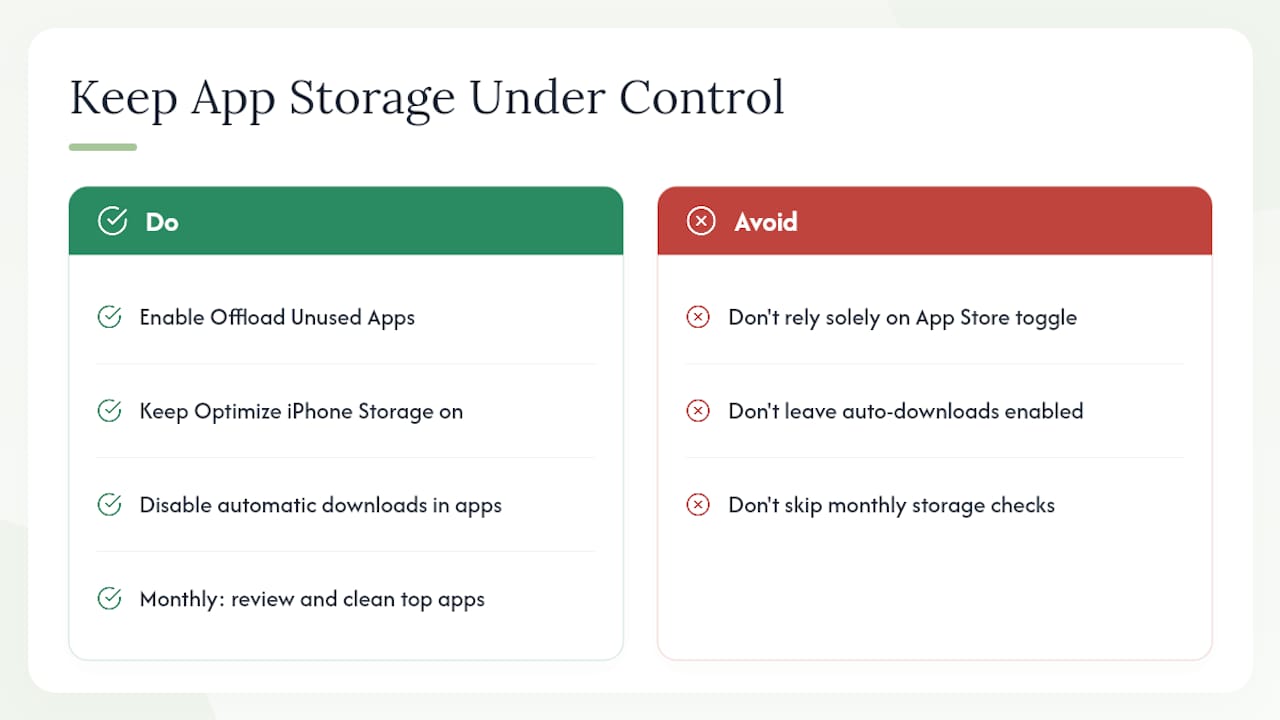
Enable Offload Unused Apps at Settings > App Store > Offload Unused Apps. iOS will automatically offload apps you have not opened recently, recovering binary space while keeping your documents and data intact. This is a practical middle ground: you get storage relief without losing app state.
For Photos, keep Optimize iPhone Storage on. Full-resolution originals stay in iCloud; your device holds compressed versions. The tradeoff is a brief download delay when you open an older photo, but the storage savings are significant for users with large libraries.
For media and streaming apps, disable automatic downloads. Many podcast, music, and video apps download content in the background by default. Check each app's settings and turn off auto-download or limit offline storage to a set number of episodes or gigabytes. The relationship between auto-downloads and storage bloat is easy to underestimate until you check the numbers.
Set a monthly habit: open Settings > General > iPhone Storage, sort by size, and review the top five apps. Clear Safari history, delete large Messages attachments, and empty Recently Deleted in Photos. Fifteen minutes once a month prevents the kind of storage pressure that forces rushed decisions.
Pro Tip: Disable automatic downloads in streaming apps under each app's own settings, not just in iOS Settings > App Store. The App Store toggle only controls app updates and app re-downloads, not in-app media.
A practical perspective on app-data hygiene and privacy
The conventional advice on this topic stops at "delete the app." That is incomplete, and for privacy-sensitive data it can be misleading.
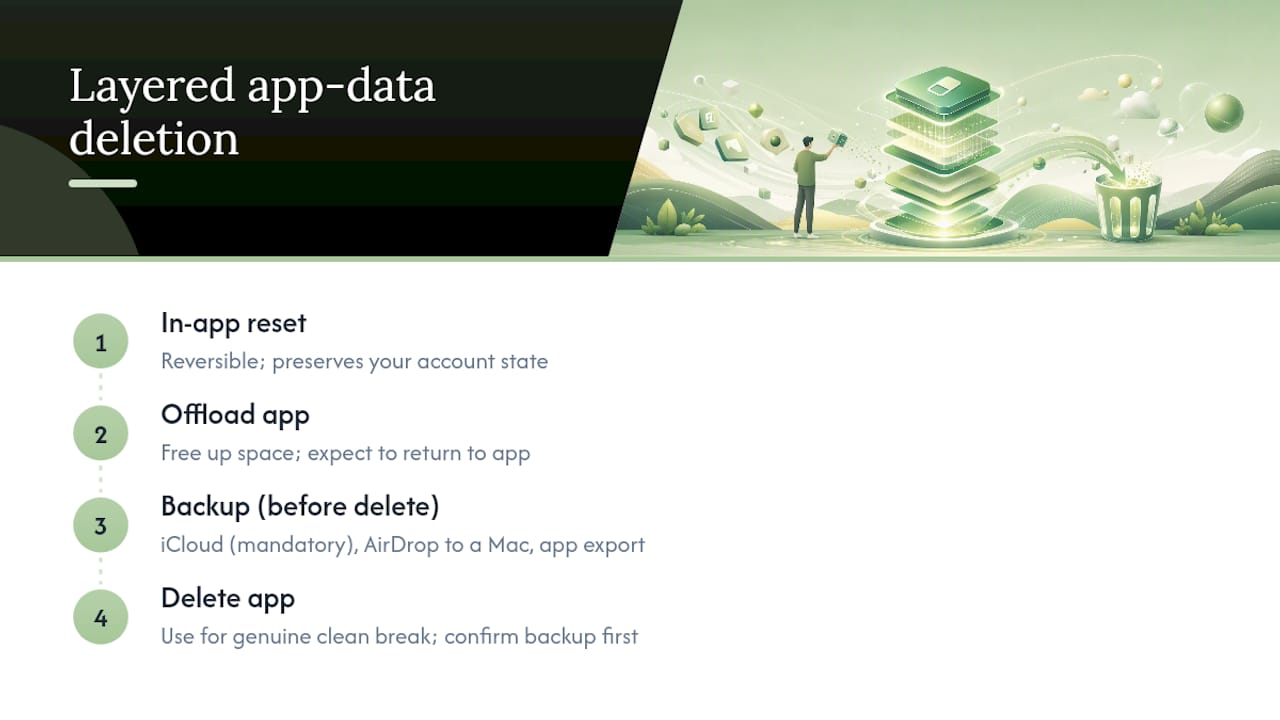
The more defensible approach is layered. Start with the in-app reset when one exists, because it is reversible and preserves your account state. Move to Offload when you need space but expect to return to the app. Reserve Delete for a genuine clean break, and when you use it, treat the iCloud backup step as mandatory, not optional. Leaving a backup copy in iCloud while believing the data is gone creates a false sense of removal.
At Obsidianridgelabs, this layered thinking shapes how we build private on-device apps for Apple devices. When an app processes sensitive data locally, the deletion path matters as much as the data path. Users of apps that handle transcription, finance records, or personal journals should know exactly what a delete action removes and what it leaves behind. That transparency is not a nice feature; it is a baseline expectation.
Before any irreversible deletion, back up what you need. iCloud, AirDrop to a Mac, or an app's own export function all work. Once you confirm the backup, proceed with confidence.
Sources
The following resources provide official instructions and deeper technical detail on the topics covered above.
- Manage storage on iPhone - Apple Support
- How to delete app data from your iCloud backup - Apple Discussions
- Clearing iOS App Data - MJTsai