You can block any app's cellular data in under 30 seconds using native iOS settings. Blocking Wi-Fi access for a specific app is a different story: iOS offers no built-in per-app Wi-Fi toggle for standard consumer iPhones, a limit confirmed across Apple's own community threads. That gap is real, and it shapes every method covered here.
Here is what you can do right now, without third-party tools:
- Block cellular data per app: Settings → Cellular → scroll to the app → toggle off
- Disable Background App Refresh: Settings → General → Background App Refresh → select the app
- Turn off iCloud sync for the app: Settings → [Your Name] → iCloud → See All → toggle the app off
For Wi-Fi restrictions, your realistic options are router-level domain blocking, a DNS filtering service like NextDNS or AdGuard, a self-hosted Pi-hole, or a local-VPN firewall app. If you manage a supervised or enterprise device, MDM gives you true per-app network control. Pick the path that matches your goal.
Key Takeaways
Blocking cellular data per app is native and immediate; blocking Wi-Fi per app on a standard iPhone requires a network-layer workaround or a supervised device with MDM.
| Point | Details |
|---|---|
| Cellular block is native | Settings → Cellular → toggle off any app; takes effect immediately with no third-party tools. |
| No consumer Wi-Fi toggle | iOS has no built-in per-app Wi-Fi block; router DNS filtering or a local-VPN firewall is the closest workaround. |
| DNS filters have limits | NextDNS, AdGuard, and Pi-hole block domains, not app sockets; apps using CDNs or hard-coded IPs can bypass them. |
| MDM is the only true block | Supervised devices with MDM (Jamf, Mosyle, Kandji) enable genuine per-app network rules, but require administrative setup. |
| Obsidianridgelabs | On-device AI apps minimize network surface by design, reducing the need to block connections in the first place. |
Table of Contents
- How to disable app internet on iPhone using native cellular settings
- Other built-in iOS controls that reduce an app's network activity
- How to block or limit an app on Wi-Fi: router-level blocking, DNS filtering, and Pi-hole
- VPN and local-VPN firewall apps that can filter traffic per device
- True per-app Wi-Fi blocking: supervised devices and MDM
- How to test and verify that an app's internet access is blocked
- Why choosing apps built for on-device processing matters
- Private apps that need no blocking in the first place
- Sources
How to disable app internet on iPhone using native cellular settings
Apple's cellular settings give you a clean, per-app toggle that takes effect immediately. Open Settings, tap Cellular, then scroll past the summary graphs to the app list. Every installed app appears here with a green or gray toggle. Flip the toggle off for any app, and that app loses cellular access entirely. It can still reach the internet over Wi-Fi, but the moment your phone drops to cellular, that app goes dark.
The practical consequence depends on the app. A podcast player will stop downloading new episodes on the go. A social app will fail to load its feed. A navigation app may still work if it cached maps locally, but live traffic data will be missing. Know what you are trading before you toggle.
Cellular Data Options and Data Mode: Apple's cellular data settings guide documents a separate control called Data Mode, found at Settings → Cellular → Cellular Data Options. Setting it to Low Data Mode restricts background network activity across all apps system-wide, which is useful when you want to reduce data use broadly rather than for a single app.
Pro Tip: Wi-Fi Assist is on by default in most iOS versions. It automatically switches to cellular when Wi-Fi quality drops, which can silently restore cellular access to an app you just blocked. Disable it at Settings → Cellular → scroll to the very bottom → Wi-Fi Assist → toggle off.
Other built-in iOS controls that reduce an app's network activity
Cutting cellular access is the bluntest tool. These three native controls let you reduce an app's network footprint without severing it completely.
Background App Refresh
When this is on, iOS lets apps fetch new content in the background while you are using something else. Turn it off for a specific app at Settings → General → Background App Refresh, then tap the app and select Off. The app will only pull new data when you actively open it. For most social, news, and email apps, this alone cuts a significant share of passive data use.
iCloud sync per app
Apple's iCloud settings let you stop any app from syncing to iCloud without signing out of your Apple ID. Go to Settings → [Your Name] → iCloud → See All under "Saved to iCloud," then toggle off the app you want to isolate. iOS will ask whether you want to Keep on My iPhone or delete the local copy. Choose "Keep on My iPhone" to preserve your data locally. If you choose to delete, that data is gone from the device.
The tradeoff is worth stating plainly: turning off iCloud sync means no cloud backup for that app's data. If your phone is lost or damaged, that data does not restore automatically. Back up important app data before making this change, and check your last backup time before toggling anything critical.
Privacy note: Disabling iCloud sync for apps you do not actively use, such as iCloud Drive, iCloud Photos, or third-party app containers you never check, reduces the amount of personal data leaving your device on a routine basis. The privacy rationale for selective iCloud sync is straightforward: fewer sync surfaces mean fewer points of exposure.
Notifications and in-app sync settings
Many apps include their own sync frequency controls buried in their settings menus. A journaling app might offer "sync every hour" vs. "sync manually." Turning off push notifications for an app also reduces the background wake-ups that trigger small data transfers. Neither of these replaces a network block, but together with Background App Refresh disabled, they meaningfully quiet an app's data behavior.
How to block or limit an app on Wi-Fi: router-level blocking, DNS filtering, and Pi-hole
Because iOS has no per-app Wi-Fi toggle for standard iPhones, blocking Wi-Fi access requires working at the network layer rather than the device layer. Three practical approaches exist for home and personal use.
Router-level blocking
Your home router can block specific domains or restrict a device entirely. Most modern routers, including those running firmware like DD-WRT, OpenWrt, or consumer interfaces from ASUS, Netgear, or TP-Link, include a domain blacklist or parental controls section. You identify the domains an app contacts (using a tool like Charles Proxy or your router's traffic log), then add those domains to the block list. The router drops requests to those addresses for every device on the network.
The limitation: this only works on your home network. The moment the phone connects to a different Wi-Fi or switches to cellular, the block disappears. Consult your router's vendor support documentation for the exact steps, since the interface varies by model.
DNS filtering with NextDNS and AdGuard DNS
DNS filtering services intercept domain name lookups before they reach the destination server. NextDNS and AdGuard DNS both offer free tiers with configurable blocklists. You apply them either at the router level (so every device on the network uses the filtered DNS) or directly on the iPhone at Settings → Wi-Fi → [Network name] → Configure DNS → Manual.
The key tradeoff: these services block domains and categories, not individual app processes. An app that contacts multiple domains, uses a CDN, or rotates IP addresses may partially bypass a DNS filter. Neither NextDNS nor AdGuard can see which app made a request; they see only the domain.
Pi-hole as a local DNS blocker
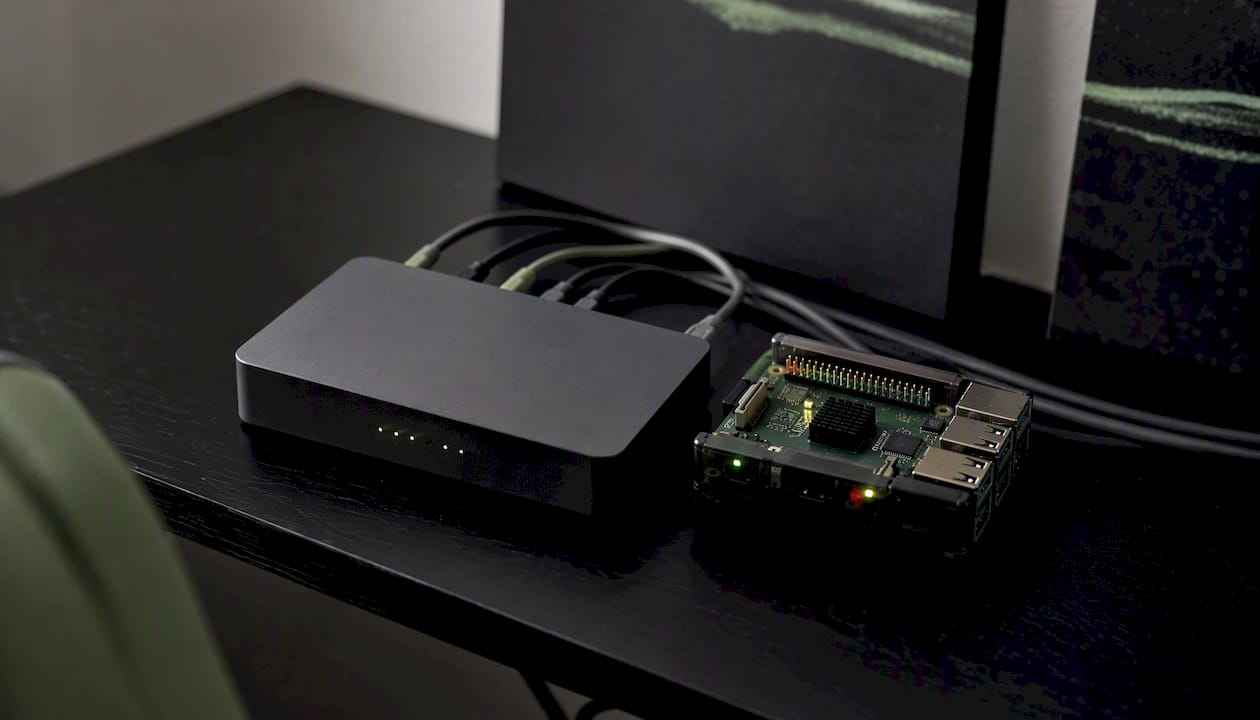
Pi-hole is a self-hosted DNS sinkhole that runs on a local device, typically a Raspberry Pi, and blocks ad and tracking domains for every device on your network. Setup involves installing Pi-hole on the host device, pointing your router's DNS to the Pi-hole's local IP address, and maintaining blocklists. It is more capable than a cloud DNS service for home use because you control the blocklists entirely and can inspect query logs in real time.
The maintenance overhead is real: blocklists need periodic updates, and legitimate domains occasionally get caught in filters, breaking app features without an obvious error message.
| Method | What it blocks | Scope | Bypassed by |
|---|---|---|---|
| Router domain block | Specific domains | Home network only | Cellular, other Wi-Fi |
| NextDNS / AdGuard DNS | Domains and categories | Network or device | CDN fallback, hard-coded IPs |
| Pi-hole | Domains (custom lists) | Home network only | Cellular, encrypted DNS |
- None of these methods block per-app sockets at the OS level.
- Apps using encrypted DNS (DoH/DoT) or hard-coded IP addresses can bypass DNS filters entirely.
- CDN-hosted apps may share domains with legitimate services, making domain blocks imprecise.
VPN and local-VPN firewall apps that can filter traffic per device
Two distinct models exist here, and conflating them leads to poor decisions.
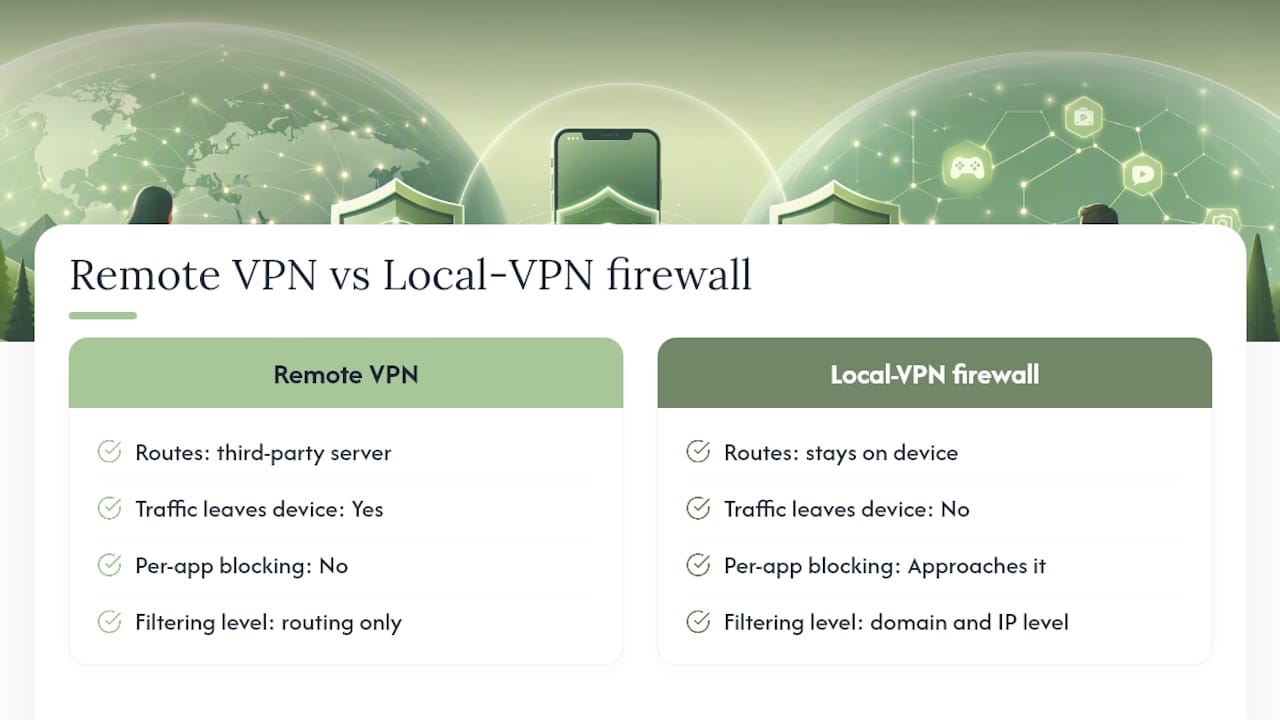
Remote VPNs route your traffic through a third-party server. They encrypt the connection between your phone and that server, but the VPN provider sees your traffic. They do not block specific apps from reaching the internet; they change where your traffic exits. Using a remote VPN for per-app blocking is the wrong tool for the job.
Local-VPN firewalls work differently. Apps like AdGuard for iOS or similar tools create a VPN tunnel that stays entirely on the device. No traffic leaves to a third-party server. Instead, the app intercepts DNS requests and outbound connections, applies blocklists, and drops requests matching blocked domains or IPs. This is the model that actually approaches per-app filtering for consumer iPhones.
The hard limit: Local-VPN firewalls still operate at the domain and IP level, not the app-socket level. An app that uses certificate pinning, encrypted DNS, or hard-coded IP addresses can bypass domain-based filtering. Effectiveness varies by app and technique, and some apps fall back silently to alternate domains when their primary domain is blocked, leaving you with the impression the block is working when it is not.
The trust question matters here. A firewall app that processes all your network traffic has significant access to your data path. Before installing any VPN or firewall app, verify that it uses a local VPN profile (visible under Settings → VPN & Device Management) and does not route traffic to an external server. Read the app's privacy policy and check whether it logs DNS queries.
True per-app Wi-Fi blocking: supervised devices and MDM
For anyone who needs genuine per-app network control, the only solution is a supervised iPhone managed through Mobile Device Management. This is not a consumer feature; it is an enterprise and institutional one.
A supervised device is an iPhone that was enrolled in supervision during setup, typically using Apple Configurator 2 or an MDM solution like Jamf, Mosyle, or Kandji. Supervision grants the MDM administrator a level of control that standard consumer profiles cannot access. Per-app network restrictions are among those controls.
Through MDM, administrators can configure:
- Per-app VPN: Route specific apps through a managed VPN tunnel while leaving others on the open network, or vice versa.
- Managed app configurations: Push network settings, proxy configurations, and access rules to specific apps.
- Network content filters: Apply system-level content filtering that operates below the app layer, blocking categories or domains for specific managed apps.
- Restrictions profiles: Prevent users from changing network settings, disabling Wi-Fi, or installing unapproved apps.
Pro Tip: Supervision is worth the administrative overhead only when you manage multiple devices, a child's device under parental controls, or a fleet of company-owned iPhones. For a single personal device, the setup cost, including a Mac running Apple Configurator 2 and an MDM subscription, exceeds what most users need. If you are considering a spare device for testing supervision, a refurbished iPhone 12 keeps the cost low.
How to test and verify that an app's internet access is blocked
A block that you cannot confirm is not a block you can trust. Run through these checks after applying any restriction.
- Open the app and trigger a network action: load a feed, send a message, or refresh content. A working block produces a timeout error, a "no connection" message, or cached content only.
- Check cellular data usage: Settings → Cellular → scroll to the app. If the byte count increases after you blocked cellular, the block is not working.
- Toggle Wi-Fi off and test cellular behavior: with Wi-Fi disabled, open the app. If it loads content, cellular is still active for that app.
- Check Wi-Fi Assist: Settings → Cellular → scroll to the bottom. If Wi-Fi Assist is on, a weak Wi-Fi signal can silently restore cellular access.
- Review router or Pi-hole logs: if you applied a DNS filter, check the query log for the app's domains. Blocked queries appear as dropped or redirected. Queries still resolving mean the app is using a domain not on your blocklist.
- Watch for background retries: some apps retry network requests silently. Check data usage again after 10–15 minutes of the app running in the background.
Common failure modes: Wi-Fi Assist re-enabling cellular, VPN exceptions that whitelist certain apps, CDN fallback to unblocked domains, and background refresh retrying after a short delay.
Why choosing apps built for on-device processing matters
Blocking network access is reactive. The more direct path to privacy is choosing apps that minimize network use by design.
Apps built around on-device processing have a smaller network surface by default. They do not sync to a cloud server unless you explicitly enable it, they behave predictably when offline, and they do not require constant background data transfers to function. The privacy benefit is structural: there is less to block because there is less leaving the device in the first place.
Obsidianridgelabs builds its entire suite of private AI apps on this principle. Transcription, journaling, finance tracking, and other tools run their core processing locally, with no mandatory cloud sync. You can verify this behavior using the Apple ecosystem privacy guide that documents what each app does and does not send off-device.
Pro Tip: When evaluating any app for privacy, look for explicit documentation of its optional sync behavior. An app that clearly states "sync is opt-in and uses end-to-end encryption" is meaningfully different from one that simply says "we take your privacy seriously." Specificity is the signal.
A note on pragmatic tradeoffs
Most people reading this article want one of two things: to stop a specific app from burning cellular data, or to prevent an app from phoning home over Wi-Fi. The cellular fix is genuinely easy and native. The Wi-Fi fix is genuinely hard and requires accepting a workaround with real limitations.
My recommendation is to apply conservative defaults: disable cellular for any app that does not need it, use a DNS filter like NextDNS for household-wide domain blocking, and reserve MDM for situations where you actually manage devices for others. Do not expect a DNS filter to be a perfect firewall; treat it as a meaningful reduction in network surface, not a guarantee. And when the goal is long-term privacy rather than a one-time block, the more durable answer is choosing apps that were built to keep data local.
Private apps that need no blocking in the first place
Router rules and DNS filters solve a symptom. If an app is constantly reaching out to servers you do not control, the underlying issue is that the app was built to depend on cloud infrastructure.
Obsidianridgelabs takes a different approach: private AI apps for Apple devices that run core processing on-device, with no mandatory cloud dependency. Transcription through Echo Chamber, journaling through Cove, and finance tools all keep sensitive data local. You do not need to configure a Pi-hole to stop them from syncing your notes to a server you have never heard of, because that sync does not exist by default.

For readers who want to go deeper on how on-device processing works and what to look for when evaluating any app's data path, the Obsidianridgelabs privacy journal covers the technical specifics without the marketing gloss. Browse the private AI app guides to find tools built around the same principle: your data stays on your device.
Sources
- Use cellular data on your iPhone or iPad - Apple Support
- How to restrict an app from accessing internet? - Apple Discussions