Apple's Journal app locks entries behind Face ID or your passcode, and that lock genuinely protects content from anyone picking up your unlocked phone. It does not, by default, protect against three things: iCloud backups landing on Apple's servers, photos you save into the main Photos app losing Journal's protection entirely, and Screen Time supervision on a managed device overriding the lock altogether. The real privacy work happens in a handful of Settings screens, not in the lock icon itself.
TL;DR:
- Journal's lock effectively secures entries only on the phone interface, but it does not prevent access via backups, exported copies, or photos stored outside Journaling app.
- Using Full Access permission for Photos unintentionally exposes your entire library, while switching to Selected Photos limits Journal's view to chosen images, though past imports remain accessible.
- Journal stores entries in an encrypted local container separated from iCloud unless explicitly synced, with backups and photo exports creating unprotected copies outside the app's security scope.
- Sharing, exporting, or saving images from Journal bypasses the lock, as most paths result in unencrypted copies that leave the app's control immediately.
- To improve privacy, disable automatic saving to Photos, switch photo permissions to Selected Photos, verify Face ID locking is active, and consider disabling iCloud Backup for Journal data.
Table of Contents
- How Journal Locks Entries and What That Lock Actually Protects
- Photo Access: Private Access vs. Full Photo Library Permission
- Where Journal Stores Your Photos, and How iCloud Changes the Picture
- What Happens When You Share or Export Journal Photos
- Does Screen Time Let Parents See a Teen's Journal Entries?
- Exactly Which Settings to Check Right Now
- What Developers and Auditors Look For in a Private Journaling App
- A Ten-Minute Privacy Hardening Pass
- Why Local-First Journaling Should Be the Default, Not the Upgrade
- A Privacy-First Alternative Worth Testing
- Primary Sources and Further Reading
- Sources
- FAQ
How Journal Locks Entries and What That Lock Actually Protects
Journal's lock relies on the same biometric gate as your banking apps: Face ID, Touch ID on older hardware, or your device passcode as a fallback. When you enable locking, Apple uses iOS's Data Protection framework, which ties file encryption keys to your passcode and device hardware. That's a meaningfully different security model than a simple in-app password screen bolted onto unencrypted files.
The lock protects one specific scenario extremely well: someone holding your unlocked or locked phone trying to open the Journal app through the interface. It does a poor job protecting against everything happening around that scenario.
Consider what the lock does not stop:
- A device that is already unlocked and connected to a computer, where forensic or backup software can sometimes access app data depending on trust settings and iOS version.
- A restored backup on a new device, where the entries may reappear without the lock re-enabling automatically.
- Screenshots or shared content taken before locking was ever turned on.
- Anyone with your Face ID or passcode, which is the same limitation every locked app on your phone shares.
Reporting on the Journal app has pushed back on early alarmist takes, noting that Apple built real biometric protection into the app rather than leaving entries exposed by default, as Tom's Guide clarified shortly after launch. The actual risk sits downstream of the lock, in backups and exports, not in the locking mechanism itself.
Pro Tip: Turn locking on the moment you create your first entry. Journal doesn't retroactively encrypt old entries differently once you flip the switch, so building the habit early matters more than fixing it later.
Photo Access: Private Access vs. Full Photo Library Permission
When Journal first asks for photo access, iOS offers three tiers, and the one you pick changes what the app can see, not just what it can do.
The three permission levels are:
- Full Access — Journal can browse your entire Photos library to generate suggestions and let you attach any image.
- Selected Photos (Private Access) — you hand-pick specific photos and albums; Journal only ever sees that limited set.
- Add Only — Journal can save new photos into your library but cannot read anything already there.
Most people land on Full Access without realizing it, because that's the permission iOS presents first and most prominently during setup. Selected Photos, sometimes called Private Access in Apple's own documentation, is the meaningfully tighter option: Journal can only reference the specific images you've approved, and it can't scan your camera roll for Journaling Suggestions material beyond that set.
Metadata behaves consistently across both modes. Location, timestamp, and device data embedded in a photo travel with it into Journal regardless of which permission tier you chose, since permission tiers control access scope, not metadata stripping.
Switching permissions later doesn't rewrite history. If Journal already imported a photo under Full Access, downgrading to Selected Photos afterward doesn't remove that copy from the entry. Apple's guidance confirms permissions apply going forward: switching from Full to Selected reduces future exposure but doesn't erase anything already copied in. Think of it as closing a door, not undoing what already walked through it.
Where Journal Stores Your Photos, and How iCloud Changes the Picture
Journal keeps entries, including attached photos and videos, in a local, encrypted container on your device by default. That's separate from your general Photos library and separate from iCloud unless you've turned sync on.
Two different cloud behaviors matter here, and people frequently confuse them:
- iCloud Backup is the general device backup that captures app data, including Journal's container, and stores it on Apple's servers, encrypted but recoverable through your Apple ID credentials.
- iCloud sync via CloudKit is Journal's own mechanism for keeping entries current across your iPhone, iPad, and Mac, which requires an explicit toggle rather than running automatically for everyone.
- Journaling Suggestions analysis happens locally on device using on-device intelligence about your photos, location, and activity. Apple's own documentation frames this as processing that stays on your phone rather than uploading raw photo data for analysis.
Local-first journaling projects illustrate the alternative architecture worth understanding here. Open-source examples like glimm store entries in a device database by default and treat iCloud sync as optional, offering ZIP exports with a metadata.json file instead of forcing dependence on a proprietary cloud. That pattern, storage local first, sync as a choice, export in an open format, is the benchmark to measure any journaling app against, including Apple's own.
The moment you save a Journal photo to your general Photos app, or export an entry through the share sheet, you've created a second copy that lives entirely outside Journal's encrypted container. That copy follows Photos' backup rules, not Journal's. If you want Journal content excluded from iCloud Backup specifically, you'd need to disable iCloud Backup for the device entirely or manage Photos-level iCloud sync separately, since iOS doesn't currently offer a per-app backup exclusion toggle for Journal.
What Happens When You Share or Export Journal Photos
Every photo you add to a journal entry has multiple exit paths, and most of them bypass the lock screen entirely.
- Share sheet exports hand a copy to whatever app or contact you select, and that copy carries none of Journal's encryption once it lands elsewhere.
- Third-party keyboards occasionally cache clipboard content, including pasted images, depending on the keyboard's own data practices.
- AirDrop transfers create an unlocked, unencrypted copy the instant it reaches the recipient's device.
- Screenshots of a journal entry save straight into your regular Photos library, fully exposed to whatever backup and sharing settings apply there.
- Saving to Photos, whether automatic or manual, is the single most common leak path, since it's one tap and easy to forget you did it.
The trade-off between saving to Photos and keeping media internal comes down to convenience versus containment. Saving to Photos makes images easy to find and edit later; keeping them internal keeps them inside Journal's encrypted, locked space where they started.
Pro Tip: Check Journal's setting for automatically saving photos to your Photos app, and turn it off if you want images to stay contained. Apple's own settings guide walks through exactly where that toggle lives.
Does Screen Time Let Parents See a Teen's Journal Entries?
Screen Time's Content & Privacy Restrictions can block the Journal app outright on a managed device, preventing a child from opening it at all. What Screen Time cannot do is bypass Face ID or passcode locking to reveal entries that are already inside an unlocked, permitted Journal app.
That distinction trips up a lot of parents expecting supervision tools to double as a viewing window.
- Parents can restrict Journal access entirely through Screen Time > Content & Privacy Restrictions > Allowed Apps, removing it from the device.
- Parents cannot use Screen Time to read the contents of entries a teen has locked with their own Face ID or passcode.
- Family Sharing and Screen Time reports show app usage time, not journal content, so a parent sees that Journal was opened, never what was written inside it.
- Disabling Journal's lock feature is a decision that has to happen on the device itself, and a tech-savvy teen can typically re-enable it.
Families that need real oversight are better served by an open conversation about what Journal protects than by relying on Screen Time to function as a monitoring tool it wasn't built to be. The lock exists specifically to keep personal entries private from anyone else holding the device, parents included.
Exactly Which Settings to Check Right Now
Run through these in order; the whole checklist takes about five minutes.
- Open Settings > Journal and confirm Lock Journal is toggled on, then verify it's set to Face ID rather than a weaker fallback if your device supports it.
- Go to Settings > Privacy & Security > Photos, tap Journal, and check whether it's set to Full Access, Selected Photos, or Add Only, then downgrade to Selected Photos if you haven't already.
- Return to Settings > Journal and review Journaling Suggestions, toggling it off entirely if you'd rather Journal not analyze your photo and location history at all.
- Check whether Save to Photos is enabled in the same Journal settings screen and turn it off if you want images to stay inside Journal's container.
- Visit Settings > [Your Name] > iCloud > iCloud Backup to see whether device backups are running, since that governs whether Journal's local data gets copied to Apple's servers.
| What to check | Where | Why it matters |
|---|---|---|
| Lock Journal | Settings > Journal | Confirms Face ID/passcode gate is active |
| Photos permission | Settings > Privacy & Security > Photos > Journal | Controls how much of your library Journal can read |
| Journaling Suggestions | Settings > Journal | Governs on-device analysis of photos and location |
| Save to Photos | Settings > Journal | Determines whether entries create duplicate, unprotected copies |
| iCloud Backup | Settings > [Name] > iCloud | Decides whether Journal's container gets backed up to Apple's servers |
To verify your setup actually works, add a test photo to an entry, save it to Photos if that's enabled, then revoke Photos permission and check whether the copy still sits in your Photos app. If it does, you've confirmed Journal wrote a separate, permanent copy rather than a linked reference.
What Developers and Auditors Look For in a Private Journaling App
Technical reviewers checking whether a journaling app's privacy claims hold up look past the marketing copy and into three specific signals, as explained in this plain English guide on business data safety with AI tools.
First, explicit on-device processing language matters more than vague "your data is safe" statements. Apps that name their architecture, local database, on-device model inference, optional CloudKit sync, give auditors something concrete to verify rather than take on faith.
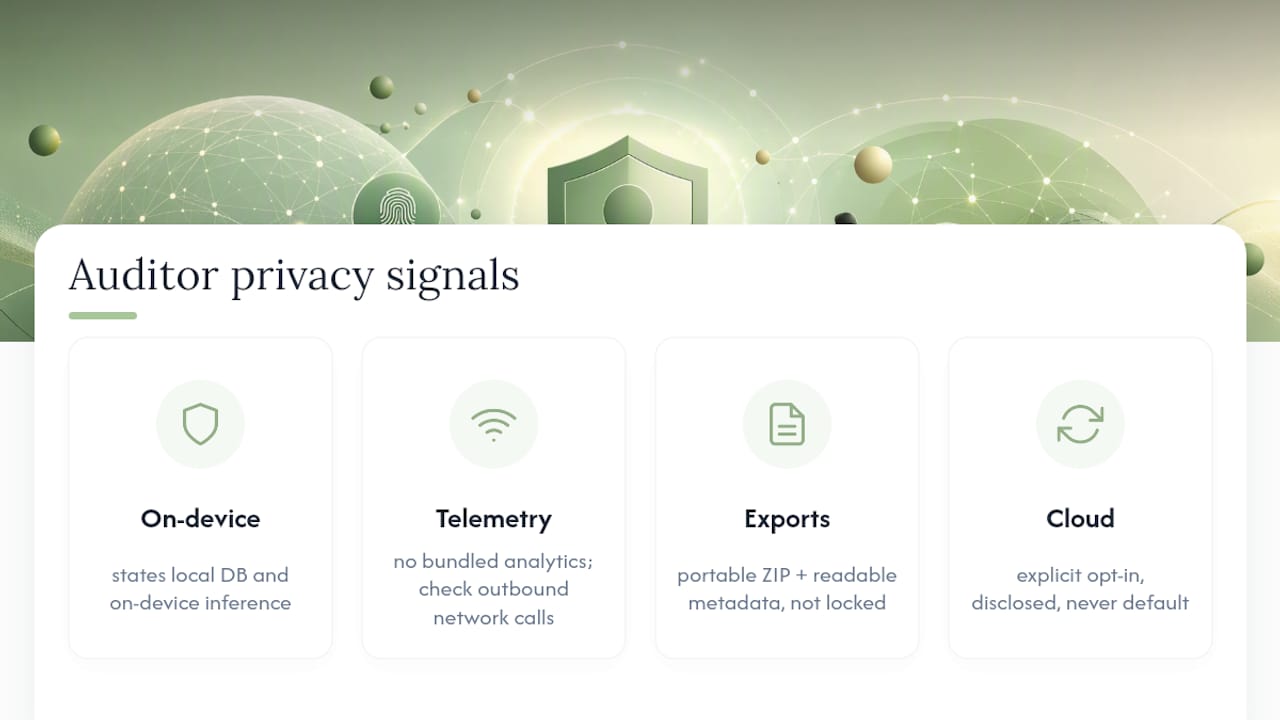
Second, analytics SDKs undermine local-storage claims even when photos themselves never leave the device. An app can store every image locally and still transmit usage patterns, timestamps, and device identifiers through a bundled analytics library. Developers checking for this kind of exposure typically inspect an app's network requests through a proxy tool, looking for unexpected outbound connections that suggest telemetry running alongside the advertised local-first design.
Third, export design reveals a lot about a developer's actual priorities. Apps offering portable, non-proprietary exports, ZIP archives with a readable metadata file rather than a locked format only that app can open, signal that the developer isn't building toward vendor lock-in.
The strongest privacy signal isn't the absence of a cloud option. It's whether that option is optional, disclosed, and never the default a user has to discover by accident.
Obsidian Ridge Labs builds its own suite of Apple-exclusive apps around this same standard: on-device processing as the default, cloud connections as an explicit opt-in, and no bundled analytics profiling behavior behind the scenes. That's the bar worth holding any journaling app to, Apple's included.
A Ten-Minute Privacy Hardening Pass
Run these five actions today if you want Journal's photo and video handling locked down properly.
- Switch Photos permission from Full Access to Selected Photos in Settings > Privacy & Security.
- Confirm Face ID locking is active under Settings > Journal.
- Turn off automatic Save to Photos so entries stay inside Journal's encrypted container.
- Check whether iCloud Backup is running and decide if you're comfortable with Journal's container included in it.
- Run the test-photo verification: add, save, revoke, confirm.
Document any exports you make deliberately, and delete duplicate copies from Photos once you've confirmed you no longer need them there. Secure deletion on iOS means removing an item from Photos and emptying the Recently Deleted album, since photos linger there for up to 30 days by default.
Why Local-First Journaling Should Be the Default, Not the Upgrade
I think the industry has the framing backwards. Local-first storage gets treated as the privacy-conscious power-user option, something you opt into after reading an article like this one. It should be the baseline every journaling app starts from, with cloud sync as the deliberate add-on for people who want it.
Manual, intentional exports beat automatic syncing every time sensitive images are involved. Test your settings this week rather than assuming defaults protect you the way you'd hope.
— Alex
A Privacy-First Alternative Worth Testing
If you've read this far, you already know that "encrypted" and "private" aren't the same promise, and that most of the risk in photo journaling comes from what happens after the lock screen, not the lock itself. Obsidianridgelabs built Echo Chamber Pro around closing that gap: journaling with on-device AI processing, no automatic cloud sync you didn't choose, and no bundled analytics tracking your usage in the background. Backups stay manual and explicit rather than happening on Apple's schedule.
Pricing details for Echo Chamber Pro are available on the Echo Chamber Pro page. If the settings audit above left you wanting a journal built with these defaults from the start rather than retrofitted through five menus, that page is the place to compare plans and start today.
Primary Sources and Further Reading
- Change your Journal settings on iPhone — Apple Support: Apple's own walkthrough of every Journal setting, including Journaling Suggestions, Save to Photos, and notifications.
- Get started with Journal — Apple Support: Apple's foundational guide to creating and managing entries, useful for cross-checking interface labels.
- No, the iOS 17 Journal app isn't a privacy risk — Tom's Guide: Reporting that clarifies Journal's biometric protections against early privacy concerns.
- qyinm/glimm — GitHub: An open-source local-first journal app illustrating storage, export, and sync design patterns.
- Data ownership and third-party SDK risk — Countly blog: Technical explanation of how analytics SDKs can leak usage data independent of where photos are stored.
Sources
- Change your Journal settings on iPhone — Apple Support
- Data ownership and third-party SDK risk — Countly blog
- No, the iOS 17 Journal app isn't a privacy risk — Tom's Guide
- qyinm/glimm — GitHub
FAQ
How Private Is the Journal App on iPhone?
Journal locks entries behind Face ID or your passcode using iOS's Data Protection encryption, which effectively blocks casual access on a locked or even unlocked device. The remaining exposure comes from iCloud backups, exported copies, and permissions you've granted, not from the lock itself.
Is Journaling on iPhone Safe for Sensitive Content?
It's reasonably safe for sensitive content as long as you enable locking, limit Photos access to Selected Photos, and disable automatic saving to your general Photos library. Apps like Obsidianridgelabs's Echo Chamber Pro extend that same on-device approach without any cloud dependency by default.
What Is the Best App for Keeping Photos Private on iOS?
The best options combine device-level encryption with a locked entry screen, minimal or no analytics SDKs, and export controls that don't force reliance on a proprietary cloud, a standard Journal partially meets and dedicated privacy-first apps meet more fully by design.
Are Photo Vaults Really Private?
A photo vault is only as private as its weakest link, usually backup behavior or bundled analytics rather than the lock screen itself. Auditing for on-device processing and checking network requests for hidden trackers, as outlined in Countly's data ownership analysis, reveals whether a vault's privacy claims hold up in practice.