Yes. Apple's Journal app encrypts entries on your device, and syncs them through end-to-end encryption in iCloud once your Apple ID meets Apple's security requirements. That's the verdict. But "private by default" doesn't mean "private without configuration," and the gap between those two ideas is where most exposure happens.
Three moves close that gap immediately:
- Lock the Journal app with Face ID, Touch ID, or a passcode.
- Review Journaling Suggestions settings to control what data feeds your entries.
- Turn on two-factor authentication for your Apple ID, since it's a prerequisite for iCloud's end-to-end encryption.
One clarification worth front-loading: the "Discoverable by Others" setting uses Bluetooth to count nearby devices for suggestion purposes. It does not transmit your name, your location, or anything you've written.
Key Takeaways
Journal entries stay encrypted on-device by default, and reach end-to-end encryption in iCloud only when two-factor authentication and a device passcode are both active.
| Point | Details |
|---|---|
| Lock the app first | Enable Face ID, Touch ID, or a passcode under Settings, Journal, Lock Journal, with immediate timing for sensitive use. |
| Confirm 2FA is active | Two-factor authentication on your Apple ID is required for iCloud end-to-end encryption of synced entries. |
| Bluetooth counting isn't a leak | Discoverable by Others logs local proximity counts only; it never shares your name, location, or content. |
| Check App Privacy Report regularly | Review sensor access and contacted domains to catch unnecessary data collection early. |
| Consider a local-first app | Obsidian Ridge Labs' Cove keeps journaling entirely on-device with no cloud sync dependency at all. |
Table of Contents
- Journal privacy iOS: how the app actually handles your data
- How do you lock and harden Journal and its suggestions?
- Can you verify what Journal and other apps are doing with your data?
- When does iCloud sync your Journal, and is it encrypted end-to-end?
- What advanced steps do privacy-focused users take beyond the defaults?
- Sources
Journal privacy iOS: how the app actually handles your data
Apple built Journaling Suggestions to run through what it calls Private Access, meaning the suggestion engine processes your activity, photos, and location history directly on your iPhone rather than shipping it to a server for analysis. Apple's Journaling Suggestions & Privacy page states plainly that suggestions rely on on-device processing, and that the data behind them stays local.
Five categories currently power those suggestions: Activity, Media, Contacts, Photos, and Significant Locations. Each can be toggled independently, and Apple's own documentation confirms the counts and rankings used to prioritize suggestions are stored on the device, not shared with Apple or anyone else.
Entries themselves get encrypted at rest on your iPhone. If you sync through iCloud, that encryption extends end-to-end, but only when two conditions are met: two-factor authentication is active on your Apple ID, and your device has a passcode set. Skip either one, and you lose the stronger protection tier, even though your entries still sync.
Discoverable by Others and its sibling toggle, Prefer Suggestions with Others, deserve a closer look because they generate the most confusion online. Both use Bluetooth to detect nearby iPhones and log a local proximity count. Apple's legal page reinforces this: nothing about your identity, your whereabouts, or your journal content leaves the device through this mechanism. A ZDNet investigation into the feature confirmed the same thing after early social media posts claimed otherwise: the data is a local count, not a broadcast.
How do you lock and harden Journal and its suggestions?
Securing Journal takes about three minutes once you know the paths. Work through these in order:
- Lock the app itself. Go to Settings, then Journal, then Lock Journal. Choose Face ID, Touch ID, or your device passcode as the unlock method. You can also set lock timing to immediately or after a short delay, according to MacRumors' walkthrough of the feature. Immediate locking is the tightest setting. The 15-minute option trades some security for convenience if you journal frequently throughout the day.
- Adjust Journaling Suggestions. Head to Settings, then Privacy & Security, then Journaling Suggestions. From there you can disable individual categories, clear suggestion history entirely, or revoke an app's access outright, following the steps Apple Support documents for managing the feature.
- Turn off Bluetooth proximity counting. If you'd rather not have your device counted by nearby iPhones at all, disable Discoverable by Others and Prefer Suggestions with Others in the same settings menu.
- Reduce on-screen exposure. Suppress notification previews for Journal and consider hiding the app icon if you share a device or leave it unattended often.
Pro Tip: Set Lock Journal to "immediately" if you write about anything sensitive, then rely on Face ID rather than a passcode. Face ID leaves no residue on the screen the way a passcode can leave a smudge pattern.
Can you verify what Journal and other apps are doing with your data?
Settings tell you what an app is allowed to do. App Privacy Report tells you what it's actually done, which is a meaningfully different question. Enable it under Settings, then Privacy & Security, then App Privacy Report, and give it a few days to accumulate data before checking.
Once it's running, look for three things:
- Sensor access timestamps showing when an app used your camera, microphone, or location.
- Network domains contacted, especially any unfamiliar third-party domain for an app that should have no reason to phone out.
- Frequency patterns, since a journaling app accessing your microphone every few minutes with no dictation feature is a red flag worth investigating.
Security researchers at Help Net Security point to this report as an early warning system for exactly this kind of unnecessary data collection. Pair it with the Privacy Nutrition Labels on each App Store listing, which disclose what data types a developer says it collects and links to your identity versus what stays anonymous.
When does iCloud sync your Journal, and is it encrypted end-to-end?
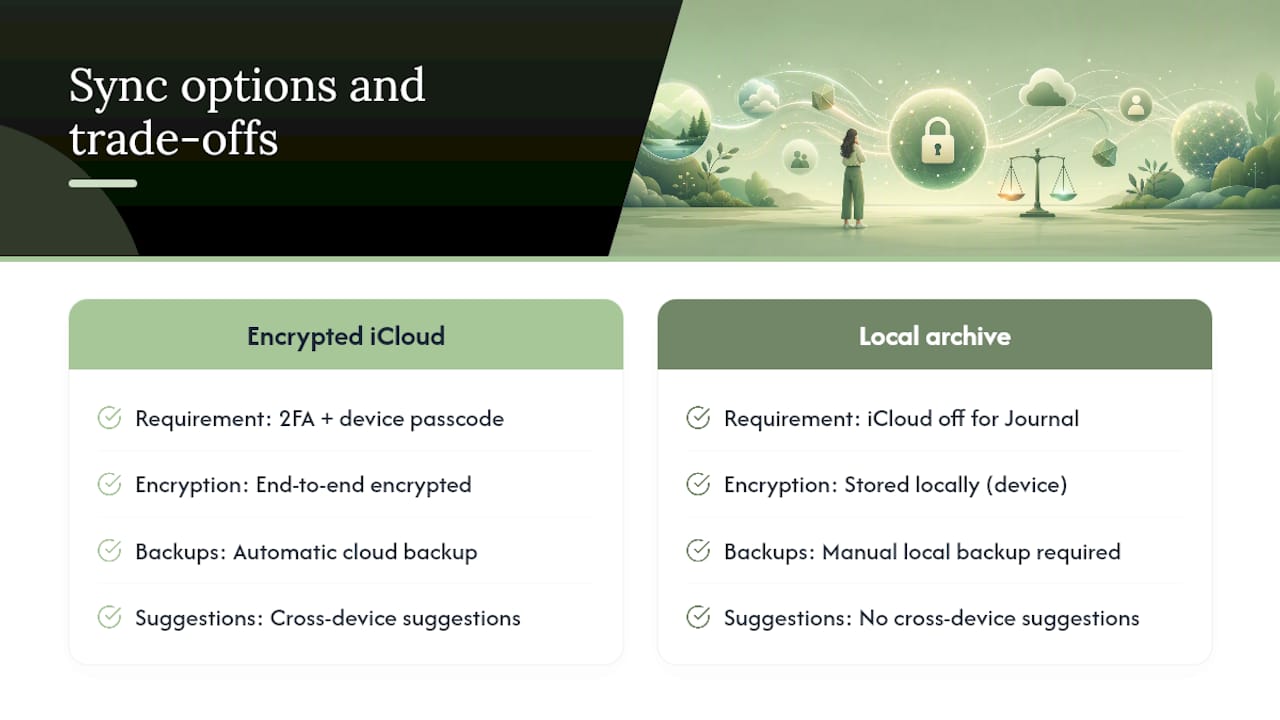
Journal entries and their suggestion data sync across your iPhone, iPad, and Mac automatically once iCloud is enabled for the app. That sync becomes end-to-end encrypted specifically when your Apple ID has two-factor authentication turned on and your device carries a passcode, the same requirement covered in Apple's Journaling Suggestions & Privacy documentation.
If you'd rather keep everything local, you can disable iCloud sync for Journal in Settings under your Apple ID, then iCloud, then Saved to iPhone or a similar toggle depending on your iOS version. The trade-off is real: no cross-device suggestions, no automatic cloud backup, and you're now responsible for backing up manually through Finder or a local encrypted backup on your Mac. For most privacy-conscious users, encrypted iCloud sync with strong 2FA hits a reasonable balance. For anyone handling especially sensitive material, disabling sync and keeping the archive local is the more conservative choice.
What advanced steps do privacy-focused users take beyond the defaults?
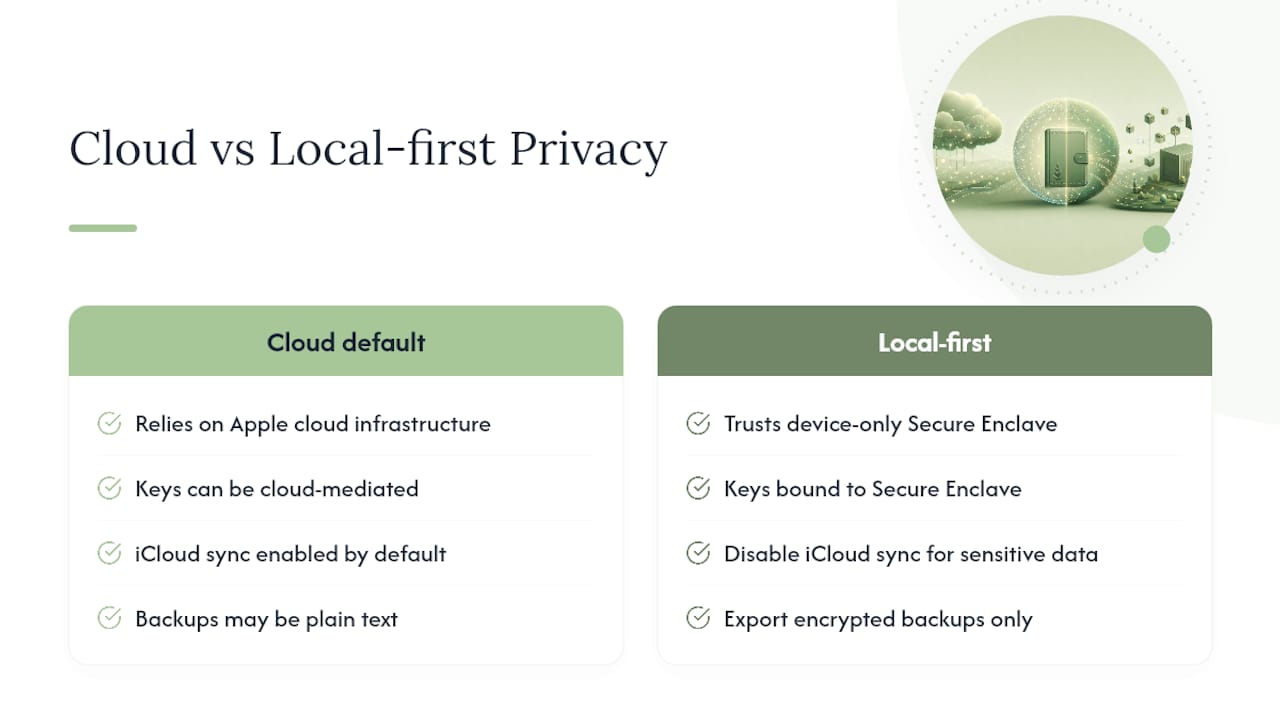
Every layer above assumes Apple's cloud infrastructure as part of the trust chain. Power users who want to remove that assumption entirely lean on a narrower principle: keep encryption keys bound to hardware that never leaves the device, specifically the Secure Enclave, rather than trusting any cloud-mediated key exchange.
Practical steps that follow from this: use a strong alphanumeric passcode instead of a six-digit PIN, disable iCloud sync for anything genuinely sensitive, export backups as encrypted files rather than plain text, and audit any third-party integrations a journaling app offers before turning them on.
Local-first apps that bind encryption keys to the Secure Enclave and never transmit those keys to the cloud represent the strongest privacy posture available on iOS today, according to practitioners who prioritize maximum data control over cross-device convenience.
Pro Tip: If you export a journal entry to share with a therapist or collaborator, export it as an encrypted PDF rather than plain text. Plain text exports strip away the device-level protections entirely.
Obsidian Ridge Labs builds specifically around this local-first model for its suite of on-device apps, treating the Secure Enclave as the anchor point for every sensitive workflow rather than an optional add-on.
Trade-offs and priorities for privacy-conscious users
If you take one thing from this guide, take the order of operations: lock the app first, enable 2FA second, tighten Journaling Suggestions third, and check App Privacy Report periodically after that. Convenience costs you something at every step, and that's fine as long as you're choosing the cost, not stumbling into it. Readers who want to skip the cloud trust chain entirely should look at local-first journaling apps instead of hardening a hybrid system.
A private, on-device alternative for readers who want zero cloud dependency
Every setting in this guide hardens a system that still, by design, offers you a cloud option. If you'd rather remove that variable entirely, Obsidian Ridge Labs built Cove as a journaling app where processing never leaves your iPhone. No optional sync path to configure around, no iCloud dependency to evaluate, no server-side analysis to trust or distrust.

Cove's architecture keeps entries and any AI-assisted features local to the device, using the same Secure Enclave principle described above, rather than a permission toggle you have to remember to check every few months. That's the practical difference: Apple's Journal app makes privacy something you configure, while Cove makes it the starting condition. The trade-off runs the other way, too. Apple's Journal ships free with every iPhone; Cove is a purchase through the App Store. For anyone who's just read through six sections of settings and decided that's more maintenance than they want, visit Obsidian Ridge Labs to see whether a local-first app fits better than a hardened hybrid one.
Sources
- Journaling Suggestions & Privacy (Apple legal)
- Change your Journal settings (Apple Support)
- How to lock Journal on iPhone (MacRumors how-to)
- The Journal app makes your iPhone discoverable by others by default — how to disable it (ZDNet)