
Five changes protect you more than all the others combined: turn on two-factor authentication and switch to a custom alphanumeric passcode, open Settings > Privacy & Security to strip unnecessary app permissions, disable tracking requests and enable App Privacy Report, activate Find My and Stolen Device Protection, and turn on Advanced Data Protection if you want your iCloud data encrypted end-to-end, everything else on your iPhone's privacy menu is refinement. These five settings are the foundation.
Apple ships the iPhone with defaults tuned for convenience, not privacy, so the burden of configuration falls on you. That's not a flaw exactly. It's a tradeoff, and once you see it that way, the rest of this guide is just a sequence of deliberate choices.
Start here, in order:
- Enable two-factor authentication on your Apple ID and verify your recovery contacts are current.
- Set a custom alphanumeric passcode instead of a six-digit PIN.
- Go to Settings > Privacy & Security and revoke permissions apps don't need.
- Turn off tracking requests and enable App Privacy Report to see what's happening in the background.
- Enable Find My and Stolen Device Protection so a lost phone can't become a compromised identity.
Pro Tip: Do the passcode change first. Everything else, including Stolen Device Protection, depends on having a strong authentication baseline in place before you touch anything else.
TL;DR:
- Turning on two-factor authentication and setting a strong alphanumeric passcode are essential first steps before adjusting other privacy settings.
- Revoking unnecessary app permissions and enabling App Privacy Report help monitor and limit background data sharing and tracking activities.
- Keeping Find My and Stolen Device Protection activated ensures remote device recovery and identity security if the phone is lost or stolen.
- Enabling Advanced Data Protection provides end-to-end encryption for iCloud data but requires a recovery key, as Apple cannot restore access without it.
- Most privacy leaks originate from cloud-based data sharing; on-device AI processing reduces exposure and minimizes breach risk.
Table of Contents
- How Do You Find iPhone Privacy Settings and Audit Them?
- Should You Limit Location Services and Significant Locations?
- Which App Permissions Deserve the Closest Scrutiny?
- How Do You Stop Apps From Tracking You Across the Web?
- What Passcode, Biometric, and Account Settings Actually Protect You?
- What Safari, Mail, and Backup Settings Should You Change?
- Do You Need Advanced Data Protection, Lockdown Mode or Safety Check?
- What's the Fastest Way to Run a Full Privacy Audit?
- Why On-Device Processing Changes the Privacy Equation
- Key Takeaways
- Where to Verify These Settings Yourself
- What Most Privacy Guides Get Wrong About iPhone Settings
- Sources
How Do You Find iPhone Privacy Settings and Audit Them?
Every iPhone privacy setting worth checking lives in one place: Settings > Privacy & Security. Open it and you'll see a list of data categories, Location Services, Contacts, Photos, Microphone, Camera, Bluetooth, and more, each showing exactly which apps have requested that permission. Apps don't appear in a category until they've asked for it, so a short list under "Microphone" usually means good news, not a broken menu.
Here's how to run a first-pass audit:
- Open Settings > Privacy & Security and tap each category one by one.
- For every app listed, ask whether it genuinely needs that access to function. A flashlight app requesting contacts access does not.
- Toggle off anything that fails that test.
- Check App Privacy Report near the bottom of the same menu (turn it on if it's not already active) to see which domains apps have actually contacted and how often.
- If a permission list has become an unmanageable mess of stale approvals, use Reset Location & Privacy at the bottom of Privacy & Security to wipe every permission back to zero and rebuild deliberately.
Apple's own documentation confirms this structure: Privacy & Security lists which apps have access to each data category, and you can grant or revoke access directly from that screen. The permission count next to each category isn't just informational. It's a running record of every app that has ever asked, which is exactly why App Privacy Report matters. It turns a static permissions list into a log of actual behavior.
When an app requests a sensitive permission, iOS often gives you three choices instead of a blunt yes or no: Allow Once, While Using the App, and Always Allow. Default to "Allow Once" for anything you're testing for the first time, and reserve "Always Allow" for apps like Find My or a mapping app you use for turn-by-turn navigation. Most apps have no legitimate reason to run in the background collecting your location.
Should You Limit Location Services and Significant Locations?
Location access comes in layers, and the biggest privacy leaks usually hide in the layer people forget: system-level services rather than individual apps. Under Settings > Privacy & Security > Location Services, you'll see both your apps and, further down, System Services, which includes things like Significant Locations, Location-Based Suggestions, and Find My.
Keep Find My's location access on. It's the backbone of theft recovery and Stolen Device Protection, and disabling it defeats both. Significant Locations is a different story. It's the feature that quietly builds a map of places you visit often, home, work, the gym, and uses it to power suggestions in Maps, Calendar, and Photos. Useful, but it's also a detailed behavioral record stored on your device.

To review or clear it: go to Settings > Privacy & Security > Location Services > System Services > Significant Locations, authenticate with Face ID or Touch ID, and you'll see the actual list of places iOS has logged. Tapping Clear History wipes it.
For app-level permissions, match the access level to what the app actually does:
- Weather and news apps rarely need more than While Using the App, and often work fine on Approximate Location, which reports your general area instead of GPS-precise coordinates.
- Navigation and rideshare apps genuinely need Precise Location and sometimes Always, since they're useless without it.
- Social and shopping apps almost never need location access beyond "While Using," if that.
Pro Tip: Approximate location is enough for most apps that just want to localize weather or content. It cuts precision to roughly a city-sized area, which stops an app from ever knowing you were at a specific address.
Which App Permissions Deserve the Closest Scrutiny?
Camera, microphone, photos, contacts, Bluetooth, and motion sensors carry the highest privacy stakes because they capture something intimate: your surroundings, your voice, your social graph, or your physical movement. Here's how to handle each one.
- Photos — Instead of granting full library access, choose Selected Photos whenever an app offers it. This lets you pick individual images per session rather than exposing your entire camera roll. Privacy Guides recommends this as a default practice, not an exception.
- Microphone and camera — Check the small colored dot in your status bar (orange for microphone, green for camera) whenever an app is running; it confirms live access in real time. If an app has camera or microphone access it doesn't use for its core function, revoke it under Privacy & Security.
- Contacts — Only grant full contacts access to apps that need to match you with real-world connections, like messaging or calling apps. Everything else should get no access at all; there's rarely a middle ground here.
- Bluetooth — Many apps request Bluetooth not for headphones but for proximity-based tracking or ad targeting. Deny it unless the app pairs with a specific accessory.
- Motion & Fitness — Fitness and health apps have a legitimate claim here. Games and social apps almost never do, and motion data can reveal activity patterns you'd rather not share.
How Do You Stop Apps From Tracking You Across the Web?
App Tracking Transparency is the setting that determines whether apps can follow you across other companies' apps and websites to build an advertising profile. Under Settings > Privacy & Security > Tracking, you'll find a master toggle labeled "Allow Apps to Request to Track." Turn it off, and apps stop being able to ask entirely, which is cleaner than declining each prompt individually.
App Privacy Report is the tool that makes this concrete instead of theoretical. Once enabled (Settings > Privacy & Security > App Privacy Report), it shows exactly which domains each app has contacted in the past seven days and how frequently. Apple frames this as part of a broader set of granular privacy controls designed to make data flows visible rather than assumed. That distinction matters because most people's sense of what an app "does in the background" is a guess. App Privacy Report replaces the guess with a log.
A few additional toggles worth checking:
- Settings > Privacy & Security > Apple Advertising — turn off Personalized Ads to stop Apple's own ad network from using your activity for targeting.
- Look for Privacy Preserving Ad Measurement in Safari settings and disable it if you'd rather not participate in aggregated ad analytics at all.
- If App Privacy Report shows an app contacting domains that have nothing to do with its stated function (a calculator app pinging analytics servers, for instance), that's your cue to revoke permissions or delete it outright.
What Passcode, Biometric, and Account Settings Actually Protect You?
Your Apple ID and passcode are the two locks that everything else depends on. If either is weak, permission audits and tracking toggles are decoration.
- Enable two-factor authentication on your Apple ID under Settings, tap your name, then Sign-In & Security, and confirm your trusted phone number and recovery contacts are accurate.
- Switch your passcode from a six-digit PIN to a custom alphanumeric code via Settings > Face ID & Passcode > Passcode Options. A longer, mixed-character passcode is meaningfully harder to brute-force than a numeric one, and the setup process invalidates your old passcode the moment the new one is confirmed.
- Turn on Find My (Settings, your name, Find My) to preserve Activation Lock and remote-erase capability if the device is ever lost or stolen.
- Enable Stolen Device Protection under Settings > Face ID & Passcode. This feature requires biometric authentication, no passcode fallback, for sensitive actions like viewing saved passwords or turning off Find My when you're away from familiar locations such as home or work. For major account changes, it can add a one-hour security delay before the change takes effect, giving you a window to notice and stop unauthorized activity.
Pro Tip: Stolen Device Protection requires 2FA, a passcode, and Significant Locations to be active before you can turn it on, so tackle those first if the toggle is grayed out.
What Safari, Mail, and Backup Settings Should You Change?
Safari and Mail both leak more information by default than most people realize, and both have straightforward fixes.
In Settings > Safari, confirm Prevent Cross-Site Tracking is on. It blocks the cookies and trackers that follow you from site to site building an ad profile. Below that, enable Hide IP Address (listed under Advanced or Privacy in recent iOS versions) to mask your IP from trackers and, optionally, from the websites themselves. Also turn on Require Face ID (or Touch ID) for Private Browsing, so a locked private tab stays locked even if someone picks up your unlocked phone.
In Mail, go to Settings > Apps > Mail > Privacy Protection and enable Protect Mail Activity. This hides your IP address from senders and blocks the invisible tracking pixels that let marketers confirm when and where you opened an email.
For backups, decide deliberately rather than by default:
- Standard iCloud Backup is convenient but stores most data with keys Apple can access under legal process.
- Advanced Data Protection extends end-to-end encryption to nearly all iCloud categories, including backups, photos, and notes, meaning even Apple can't read them.
- If you'd rather not encrypt everything, you can selectively disable iCloud backup for specific apps under Settings, your name, iCloud, Manage Account Storage, without touching the rest.
Do You Need Advanced Data Protection, Lockdown Mode or Safety Check?
Not every reader needs every advanced defense, and knowing which one applies to your situation matters more than enabling all three.
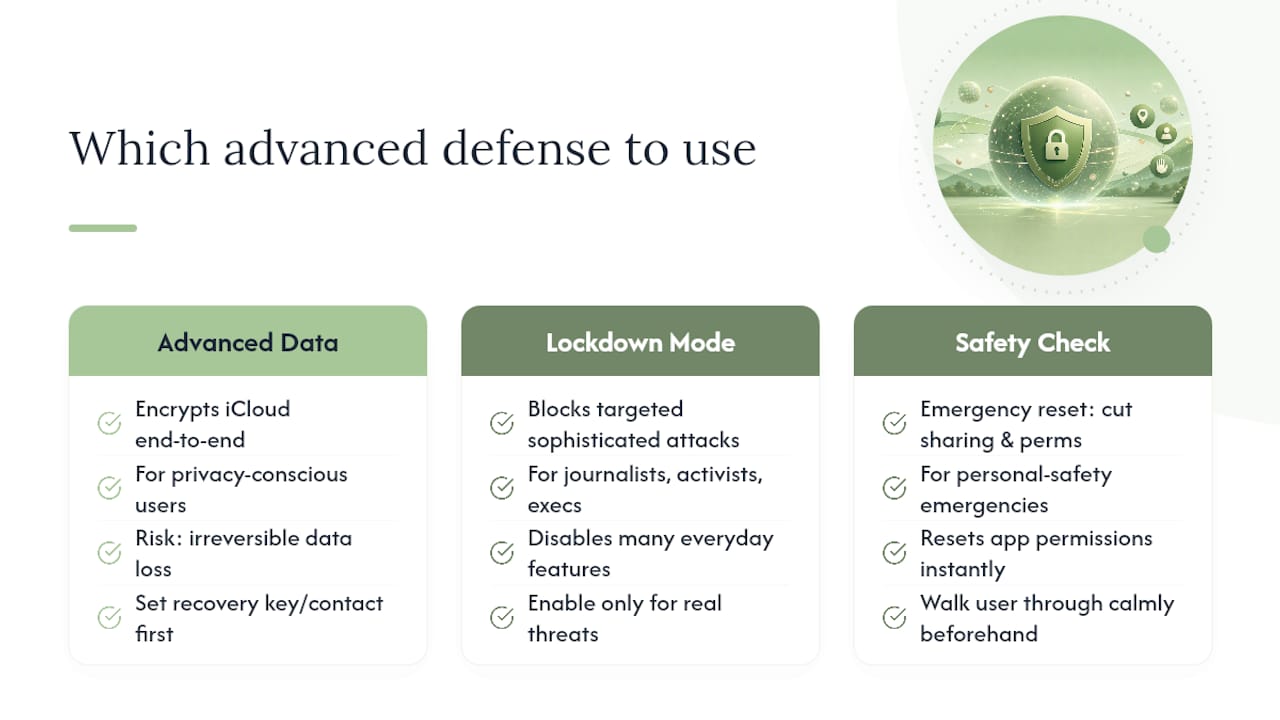
Advanced Data Protection is the one most privacy-conscious users should seriously consider. It encrypts most iCloud data end-to-end, meaning the keys live only on your trusted devices. The tradeoff: if you lose access to all your devices and recovery contacts, Apple genuinely cannot help you recover that data, so set up a recovery key or recovery contact first.
Lockdown Mode is not for general use. Apple designed it for people facing targeted, sophisticated attacks, journalists, activists, executives handling sensitive negotiations, and it disables a long list of everyday features, from message attachments to certain web technologies. Turn it on only if your threat model genuinely calls for it.
Safety Check matters most in personal-safety emergencies. Its Emergency Reset function instantly cuts off everyone you've shared your location or data with and resets app permissions, which can be critical in situations involving domestic abuse or a controlling partner. Find it under Settings > Privacy & Security > Safety Check.
Pro Tip: If you're setting up Safety Check for someone else, walk them through Emergency Reset while things are calm. It's not a feature you want to be learning for the first time under stress.
What's the Fastest Way to Run a Full Privacy Audit?
You can work through the highest-impact iPhone privacy settings efficiently by following this order:
You can approach these steps one by one, spending a moderate amount of time on each to complete your privacy audit comprehensively.
Why On-Device Processing Changes the Privacy Equation
Every setting above manages exposure. It doesn't eliminate it, because most apps still send your data somewhere off-device to function. That's the structural difference with on-device AI: when transcription, journaling, or finance tracking happens locally, there's no server to breach and no telemetry stream to audit in the first place.
At Obsidianridgelabs, this is the entire premise behind our design choices. A private transcription tool that never uploads audio has a fundamentally smaller attack surface than one that processes speech in the cloud, no matter how good that cloud provider's security team is. The same logic applies to journaling apps that store entries locally instead of syncing plaintext to a server.
- Fewer cloud round-trips mean fewer opportunities for interception or breach.
- Local processing means there's no server-side log of your voice, your finances, or your private notes to subpoena, leak, or misconfigure.
- Our guide to AI privacy on iPhone walks through how these architectural choices map to the settings covered above.
| Approach | Data Exposure |
|---|---|
| Cloud-based AI transcription | Audio and text leave the device and reside on third-party servers |
| On-device AI transcription | Audio and text never leave the device |
Key Takeaways
Securing an iPhone comes down to five actions: strong authentication, a locked-down permissions list, disabled tracking, active theft protections, and encrypted backups.
| Point | Details |
|---|---|
| Fix authentication first | Enable two-factor authentication and switch to a custom alphanumeric passcode before touching other settings. |
| Audit permissions by category | Review Camera, Microphone, Photos, Contacts, and Bluetooth in Settings > Privacy & Security and revoke what's unnecessary. |
| Turn on App Privacy Report | Use it weekly at first to catch apps contacting domains unrelated to their function. |
| Enable theft protections | Find My and Stolen Device Protection add remote-erase ability and biometric-only access away from familiar places. |
| Consider end-to-end encryption | Advanced Data Protection encrypts most iCloud data, but requires a recovery key since Apple can't restore access without one. |
Where to Verify These Settings Yourself
For readers who want to check these steps against primary sources or dig deeper into specific features, these are the references worth bookmarking:
- Apple Support: privacy and Location Services in iOS, iPadOS, and watchOS
- Apple Support: Stolen Device Protection for iPhone
- Apple: Privacy Control overview
- PIRG: How to use iPhone privacy settings
- Privacy Guides: iOS overview
- AppleInsider: how to manage privacy settings
What Most Privacy Guides Get Wrong About iPhone Settings
Most advice on this topic treats every toggle as equally urgent, which buries the handful of settings that actually change your risk profile under a pile of marginal ones. Disabling Bluetooth scanning for a random game matters far less than fixing a weak six-digit passcode or skipping two-factor authentication. The order matters as much as the completeness.
The bigger blind spot, though, is that settings audits only manage risk at the permission layer. They don't address the fact that most apps still ship your data to a server somewhere, however carefully permissioned. That's the gap conventional advice tends to skip: a perfectly configured privacy settings menu still sits on top of an architecture built for cloud processing. Reviewing permissions is necessary work, but it's damage control for a system designed to send your information outward by default.
If there's one thing worth prioritizing beyond the checklist, it's asking, app by app, whether a cloud dependency is actually necessary for what that app does. For journaling, transcription, or budgeting, the honest answer is usually no.
— Alex
Sources
- About privacy and Location Services in iOS, iPadOS, and watchOS - Apple Support
- About Stolen Device Protection for iPhone - Apple Support
- Privacy - Control - Apple
- How to use iPhone privacy settings - PIRG