
For most Mac users, the best mac transcription app is one that keeps your audio on your device. Echo Chamber by Obsidian Ridge Labs is the recommended pick: it runs transcription models locally on Apple silicon, sends no audio to the cloud by default, and delivers accurate transcripts for professionals who cannot afford data exposure.
TL;DR:
- Echo Chamber processes audio entirely on-device, so your recordings never leave your Mac.
- macOS and Apple silicon integration means low latency and no subscription to a cloud service you do not control.
- Available through the App Store with a one-time purchase or subscription option. See Echo Chamber on the product page.
Table of Contents
- Why does on-device vs. cloud transcription matter on a Mac?
- What features actually change which Mac transcription app you should pick?
- How do you choose the right Mac transcription app for your needs?
- How to set up and optimize transcription workflows on macOS
- What do pricing models and hidden data costs actually look like?
- Echo Chamber: Obsidian Ridge Labs' private on-device transcription for Mac
- When is Apple's built-in dictation or transcription actually sufficient?
- Key Takeaways
- Why privacy-first transcription is the right default for Mac professionals
- Echo Chamber is the private transcription path for Mac users who need it
- Authoritative sources and further reading
Why does on-device vs. cloud transcription matter on a Mac?
The decisive tradeoff is data control. Cloud transcription routes your audio through a third-party server, which means your recordings are subject to that vendor's retention policy, data-use terms, and security posture. On-device transcription keeps the entire data path local: audio in, text out, nothing transmitted.
For professionals handling sensitive material, that distinction is not abstract. A 2026 legal advisory from Goodwin Law highlights regulatory scrutiny of AI transcription tools and recommends minimizing unnecessary data sharing for sensitive recordings. Lawyers, clinicians, journalists, and researchers are the most exposed, but any user whose recordings contain personal or confidential information faces the same risk.
When cloud transcription makes sense:
- Very large batch jobs where a cloud model's size advantage outweighs privacy concerns.
- Multi-language bulk processing where the vendor's language coverage exceeds what fits on-device.
- Workflows where the audio is already non-sensitive and turnaround speed is the only priority.
When on-device wins:
- Client confidentiality is required (legal, medical, therapy, journalism).
- No reliable network connection is available.
- Predictable, fixed costs matter more than marginal accuracy gains.
- You want to verify the data path yourself.
Modern on-device models running on Apple M-series chips have closed much of the accuracy gap that once made cloud the default choice. The tradeoff is no longer "privacy or accuracy." For most professional use cases, it is "privacy or a slightly larger model vocabulary."
Pro Tip: Use a USB condenser microphone or an audio interface with direct monitoring instead of the built-in Mac mic. Better input quality improves on-device accuracy more reliably than switching to a cloud model.
What features actually change which Mac transcription app you should pick?
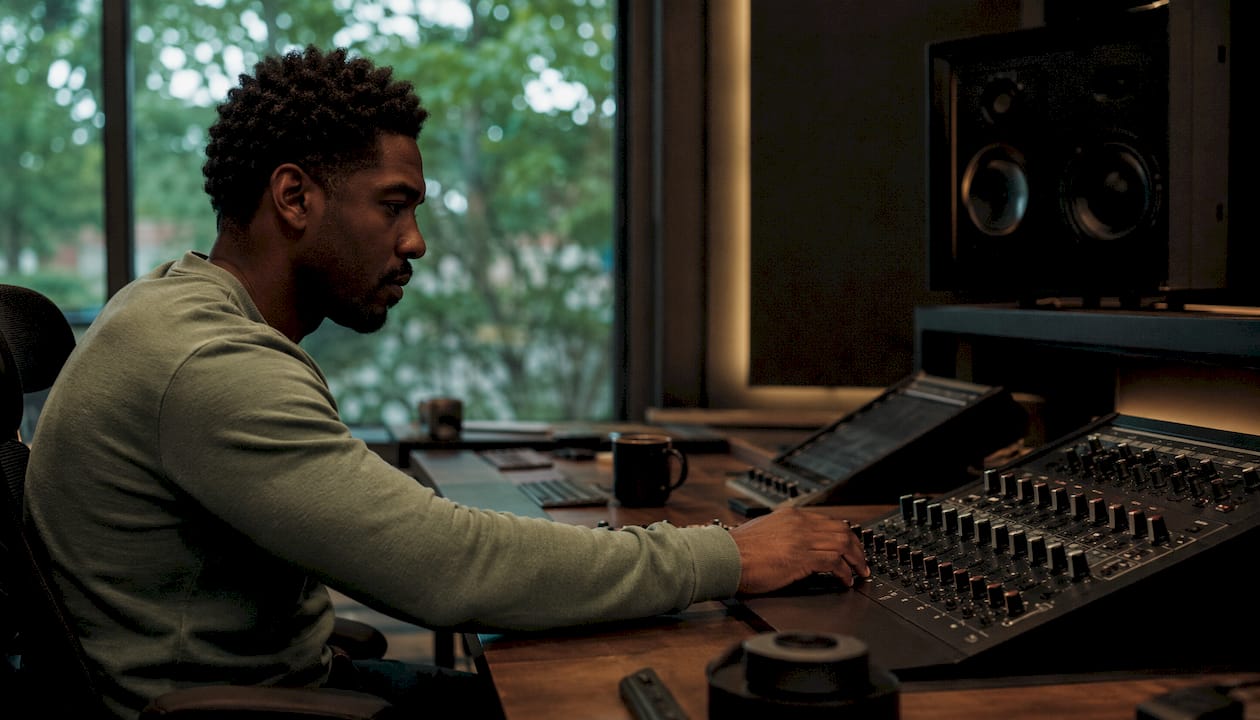
Three features determine whether an app fits your workflow: privacy and data handling, accuracy with speaker diarization, and export format flexibility. Everything else is secondary.
| Feature | What to look for | Why it matters |
|---|---|---|
| Accuracy | Verbatim vs. clean-read modes; accuracy on accented speech | Determines how much editing you do post-transcription |
| Speaker diarization | Automatic speaker labeling; accuracy with overlapping voices | Critical for interviews and multi-participant recordings |
| Timestamps | Word-level or sentence-level; exportable with transcript | Needed for video captions (SRT/VTT) and legal records |
| Live dictation latency | Delay from speech to text on screen | Affects real-time note-taking and captioning workflows |
| Batch transcription | File queue support; processing speed per hour of audio | Determines throughput for podcasters and researchers |
| Language coverage | Number of supported languages; dialect handling | Matters for multilingual interviews or non-English content |
| Export formats | TXT, SRT, VTT, DOCX, PDF | Determines compatibility with editing and publishing tools |
| macOS integration | Shortcuts support, Services menu, file-type associations | Affects how smoothly transcripts flow into your existing apps |
| On-device vs. cloud setting | Explicit toggle; default behavior | The privacy control point — must be transparent |
| Pricing model | One-time, subscription, per-minute | Determines total cost of ownership over time |
Practical notes on three features that trip people up:
- Speaker diarization accuracy drops when speakers overlap or have similar vocal profiles. No app handles this perfectly; on-device models tend to be more conservative in their labeling, which reduces false positives.
- Timestamps vary in granularity. Word-level timestamps are necessary for SRT caption files; sentence-level is usually sufficient for interview transcripts. Check the export spec before committing.
- macOS Shortcuts integration is the feature most buyers overlook. An app that supports Shortcuts can wire into a fully automated pipeline: record → transcribe → export to Obsidian, Notes, or a shared folder, all without manual steps. That workflow integration is often the difference between an app you use daily and one you abandon.
How do you choose the right Mac transcription app for your needs?
The single deciding factor is whether you need guaranteed on-device processing. If the answer is yes, your shortlist shrinks immediately to apps that explicitly run models locally and document where audio goes.
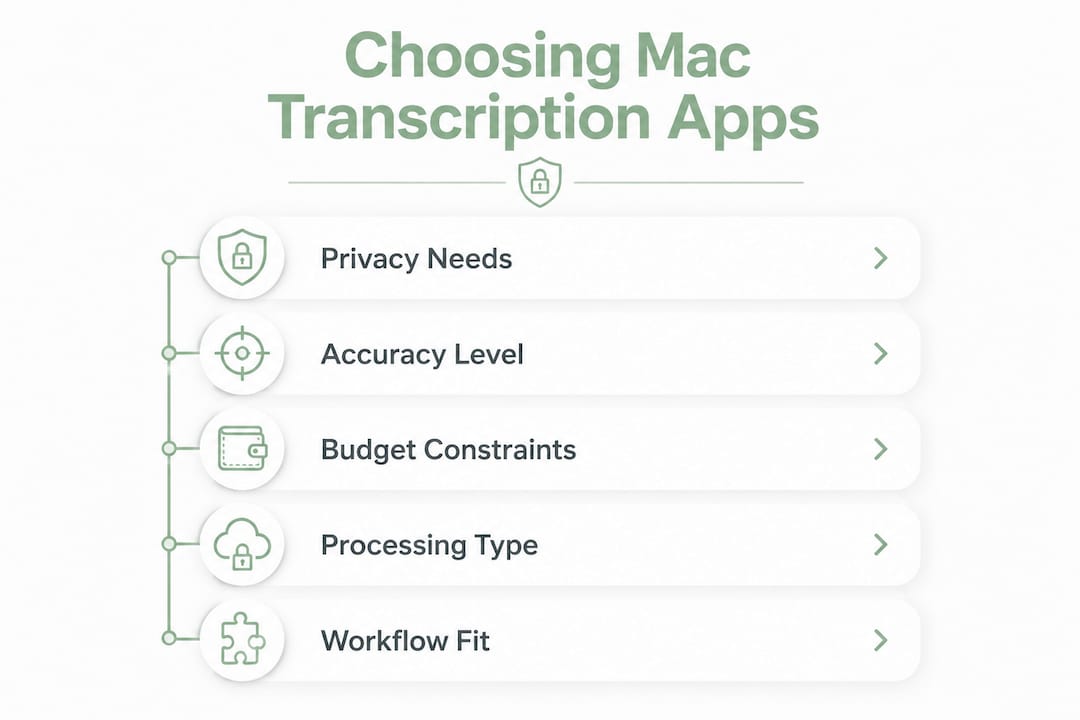
Decision path:
If privacy is the priority, look for apps that run models on Apple silicon, document their data path clearly, and offer an explicit offline mode. Ask the vendor or check the App Store listing for answers to these questions before downloading:
- Where is audio sent during transcription? Is there a network request at any point?
- What is the data retention policy for uploaded audio?
- Are cloud features opt-in or opt-out?
- What model version runs on-device, and how is it updated?
- What export formats are supported, and are there format-specific charges?
- What is the support policy if the app stops receiving updates?
If budget-driven bulk processing is the priority and privacy is less critical, cloud pay-as-you-go models can be cost-effective for high-volume, non-sensitive audio; the per-minute rates vary widely across providers.
If you need a hybrid workflow, look for apps that make the cloud/local toggle explicit and auditable. Vague language like "may use cloud processing for improved accuracy" is a red flag. Transparent opt-in is the standard to hold vendors to.
Red flags to watch for:
- Privacy policy that does not specify where audio is processed or stored.
- Pricing that lists a low headline rate but charges separately for export formats or longer files.
- No offline mode or no documentation of what happens without a network connection.
- Per-minute charges that are not disclosed until checkout.
- App permissions that request network access with no explanation in the privacy policy.
The Obsidianridgelabs privacy verification guide walks through specific steps for auditing on-device processing and permission behavior in macOS apps, which is useful when evaluating any transcription tool.
How to set up and optimize transcription workflows on macOS
The easiest accuracy wins come from microphone quality, input routing, and recording format, in that order. A high-quality mic feeding a clean signal to the transcription engine will outperform a mediocre mic paired with the best model.
Setup steps:
- Select the right input device. Open System Settings > Sound > Input and choose your external microphone or audio interface. Avoid the built-in MacBook mic for anything longer than a quick note.
- Set up an Aggregate Device if needed. Open Audio MIDI Setup (Applications > Utilities), create an Aggregate Device combining your mic input and system audio output if you need to capture both your voice and app audio simultaneously.
- Choose the right recording format. For on-device transcription, 44.1 kHz or 48 kHz, 16-bit WAV or AIFF gives the model clean input. Compressed formats like MP3 at low bitrates can reduce accuracy on consonants.
- Configure microphone permissions. Go to System Settings > Privacy & Security > Microphone and confirm the transcription app has access. For on-device apps, this is the only permission that should be required.
- Toggle macOS Accessibility Dictation if needed. System Settings > Keyboard > Dictation enables Apple's built-in dictation for quick inline text entry, but this is separate from a dedicated transcription app's pipeline.
- Wire exports with macOS Shortcuts. Open the Shortcuts app, create an automation that triggers after a transcription file is saved, and routes the output to Notes, Obsidian, Pages, or a designated folder. This removes the manual copy-paste step from every session.
- Test with a sample recording. Run a 2-minute test clip through the app before committing to a long session. Check timestamp accuracy, speaker labels, and export format fidelity.
Pro Tip: To reduce background noise without a hardware solution, open Audio MIDI Setup and set your input sample rate to 48 kHz, then use macOS's built-in Voice Isolation mode (available in Control Center during calls and compatible apps) to filter ambient noise before it reaches the transcription model. For maximum control, a USB audio interface with a hardware gain knob prevents clipping, which is the single most common cause of transcription errors in home-office recordings.
What do pricing models and hidden data costs actually look like?
The true cost of a transcription app is often in recurring cloud minutes, not the headline price. A $10/month subscription that includes only 300 minutes of transcription costs more per hour of audio than a one-time purchase that runs unlimited sessions locally.
| Pricing archetype | Typical cost range | Data exposure | Best for |
|---|---|---|---|
| One-time purchase (local-only) | $10 one time | None by default | Privacy-first users, predictable budgets |
| Monthly subscription with quota | subscription options available | Cloud processing | Moderate-volume users, team sharing |
| Pay-as-you-go (per-minute) | per-minute rates vary widely | Cloud processing | Infrequent, high-volume bursts |
| Enterprise seat-based | Custom pricing | Varies by contract | Organizations with compliance requirements |
| Hybrid (local + optional cloud) | monthly base fees vary | Opt-in cloud only | Users who want flexibility with control |
Hidden costs to audit before subscribing:
- Data harvesting for model tuning. Some vendors use uploaded audio to improve their models. This is usually disclosed in the terms of service, not the pricing page.
- Export format charges. A few services charge extra for SRT or VTT output versus plain TXT.
- Priority queue fees. Faster turnaround on cloud jobs sometimes costs more per minute.
- Third-party connector fees. Integrations with Zoom, Slack, or Google Drive may require a higher-tier plan.
To estimate your real monthly cost: count your average transcription minutes per week, multiply by four, then apply the per-minute rate or check whether your subscription quota covers it. A journalist doing several interviews per week can incur substantial monthly costs at typical cloud per-minute pricing. A one-time local app purchase pays for itself in under a month at that volume.
Legal advisors increasingly flag that cloud transcription tools can obscure data-harvesting or unclear retention policies, adding a non-monetary cost that does not appear on any invoice.
Echo Chamber: Obsidian Ridge Labs' private on-device transcription for Mac
Echo Chamber is Obsidian Ridge Labs' dedicated transcription app for Apple devices, built on a single design principle: audio never leaves your device unless you explicitly choose otherwise. Transcription models run locally on Apple silicon, which means the app works fully offline and produces no outbound network traffic during a standard session.
Core features:
- Local model inference on Apple M-series chips, with no cloud dependency for standard transcription.
- Support for audio file import and live dictation, covering both batch and real-time workflows.
- Export to clean text, SRT, and other formats for direct use in editing and publishing tools.
- macOS Shortcuts integration for automated post-transcription workflows.
- Available via the App Store with one-time purchase and subscription options.
- Opt-in cloud features are explicitly labeled, so you always know when a network connection is involved.
Privacy guarantees:
- Audio data does not leave the device by default.
- No background telemetry on recording content.
- Transparent opt-in design: any cloud feature requires an affirmative action from the user.
- Compatible with air-gapped or network-restricted environments for the most sensitive use cases.
Who uses it:
- Journalists conducting source interviews where confidentiality is non-negotiable.
- Attorneys and clinicians transcribing session notes under professional privilege.
- Podcasters who edit locally and want transcripts without uploading audio to a third-party server.
- Students and researchers who need private, searchable notes from lectures and interviews.
Obsidian Ridge Labs documents its design philosophy around local processing and transparent opt-in cloud features, which is the same architecture that underlies Echo Chamber's privacy model.
Pro Tip: For a typical interview-to-publish pipeline: record in a lossless format (WAV at 48 kHz), import into Echo Chamber for local transcription, use the built-in transcript editor to correct proper nouns and speaker labels, then export as clean TXT or SRT. Wire a Shortcut to move the exported file directly into your writing app. The entire process stays on your Mac.
When is Apple's built-in dictation or transcription actually sufficient?
Apple's built-in transcription covers a real range of use cases. Notes on Mac with M1 or later can record audio and produce searchable, transcribed text entirely on-device, with no third-party app required. On iPhone, the same feature lets you copy or export transcribed text from a note.
What Apple's built-in transcription handles well:
- Quick personal notes and reminders.
- Short recordings (a few minutes) where editing is minimal.
- Single-speaker content in a supported language.
- Searchable transcripts within the Notes ecosystem.
- Users on M1 or later Macs who want on-device processing without installing anything.
Where it falls short:
- Multi-speaker interviews: no speaker diarization, so all speech appears as a single block.
- Export formats: output stays in Notes; no SRT, VTT, or structured transcript export.
- Language support is tied to your device language setting, which limits flexibility for multilingual workflows.
- Editing tools are basic; there is no word-level timestamp or transcript editor.
- Privacy guarantees are Apple's, not a documented third-party audit, which may not satisfy professional compliance requirements.
For casual note-taking, Apple's built-in option is a reasonable starting point. When the workflow involves multiple speakers, structured exports, or stricter privacy documentation, a dedicated on-device app like Echo Chamber is the appropriate next step.
Key Takeaways
On-device transcription on a Mac is the most privacy-protective and cost-predictable approach for professionals, and Echo Chamber by Obsidian Ridge Labs is the recommended app for users who need local model execution with no default cloud data path.
| Point | Details |
|---|---|
| Decide on privacy requirements first | On-device processing eliminates cloud data exposure; cloud tools require careful vendor vetting. |
| Audit the true cost | Per-minute cloud pricing can exceed a one-time local app purchase within a single month for regular users. |
| Match features to your workflow | Speaker diarization, timestamp granularity, and Shortcuts integration matter more than headline accuracy numbers. |
| Apple's built-in tools have real limits | Notes transcription on M1+ Macs works for simple use cases but lacks diarization, export formats, and editing tools. |
| Echo Chamber for privacy-first users | Obsidian Ridge Labs' Echo Chamber runs models locally on Apple silicon with explicit opt-in for any cloud features. |
Why privacy-first transcription is the right default for Mac professionals
The conventional wisdom in transcription software has long been that cloud equals better: bigger models, faster updates, more languages. That framing made sense when on-device hardware could not run capable models. Apple silicon changed the equation. M-series chips can run models that would have required a server rack five years ago, and they do it with the audio staying entirely on the device.
What gets underestimated is the compounding risk of cloud transcription for professionals. Every session uploaded to a vendor's server is a potential exposure point: a data breach, a policy change, a subpoena, or simply a terms-of-service update that permits training on user audio. Most professionals do not read those updates. The risk accumulates silently.
Obsidian Ridge Labs built Echo Chamber, and its broader suite of private Apple apps, around the premise that local processing should be the default, not a premium feature. That design choice means users are not opting out of data sharing; they are opting in if they choose cloud features. The asymmetry matters. It puts the user in control of the data path rather than requiring them to trust a vendor's retention policy.
For Mac users who handle sensitive audio, the question is not whether on-device transcription is good enough. The question is whether the marginal accuracy difference of a cloud model justifies the data exposure. For most professional workflows, it does not.
Echo Chamber is the private transcription path for Mac users who need it
Most transcription tools ask you to accept cloud processing as the default and trust that the vendor handles your audio responsibly. Echo Chamber inverts that: local processing is the default, and any cloud feature requires your explicit choice.

For journalists, attorneys, clinicians, and researchers who record sensitive conversations, that design is not a feature. It is the baseline requirement. Echo Chamber delivers accurate, on-device transcription on Apple silicon, exports to the formats your workflow needs, and integrates with macOS Shortcuts so the transcript moves where you need it without manual steps.
If you have been relying on a cloud tool because you assumed on-device accuracy was not good enough, it is worth testing that assumption. Download Echo Chamber from the App Store and run it against your own audio. The data stays on your Mac either way.
Authoritative sources and further reading
- Record and transcribe audio in Notes on Mac (Apple Support): Documents hardware requirements (M1+), supported languages, and the on-device transcription capability in macOS Notes. Referenced in the built-in transcription section.
- Record and transcribe audio in Notes on iPhone (Apple Support): Covers the iOS equivalent of Notes transcription, including copy and export options. Referenced in the built-in transcription section.
- AI transcription tools under scrutiny (Goodwin Law): 2026 legal advisory on regulatory scrutiny of AI transcription tools and data-handling risks. Referenced in the privacy, pricing, and decision-flow sections.
- Echo Chamber: Private On-Device Transcription (Obsidian Ridge Labs): Primary product page for Echo Chamber, covering features, privacy design, and App Store availability. Referenced throughout the spotlight section.
- 5 Private & Offline Transcription Apps Compared (Obsidian Ridge Labs): Client blog post comparing offline and private transcription options for Apple devices, including workflow integration notes. Referenced in the features and setup sections.
- On-Device AI on iPhone: A Privacy Verification Guide (Obsidian Ridge Labs): Practical guide for auditing on-device processing and permission behavior in macOS and iOS apps. Referenced in the decision-flow and setup sections.
- Why We Build Private On-Device AI (Obsidian Ridge Labs): Company philosophy page explaining the design rationale for local processing and transparent opt-in cloud features. Referenced in the Echo Chamber spotlight and perspective sections.