Lock down calendar privacy on iOS by opening Settings > Privacy & Security > Calendars and setting every untrusted app to "None" or "Add Events Only," then deleting any subscribed calendar you don't recognize. Do this before you touch a single link inside a suspicious event. iOS 17's three-tier permission system gives you the control to stop most calendar spam at the source, but only if you actually use it.
TL;DR:
- Setting app calendar permissions to "None" or "Add Events Only" prevents future reads but does not delete past events created by apps with full access.
- Regularly review and revoke calendar access for apps that no longer need it, especially those with full access or long-standing permissions.
- Deleting suspicious subscriptions requires removing the entire feed from the subscribed calendars section, and checking all devices linked to the same account to prevent re-syncing.
- Limiting calendar data sharing to encrypted or local-only options can enhance privacy but may affect usability and cross-device access.
- Using password protection, two-factor authentication, and minimizing app permissions reduces the risk of calendar-related scams and unauthorized access.
Table of Contents
- What Are Calendar Privacy Settings on iOS 17?
- How Do You Audit Every Account Syncing to Your Calendar?
- How Do You Remove Calendar Spam Without Making It Worse?
- Which Private Calendar Options Actually Protect Your Data?
- Why On-Device Privacy Tools Change the Calculation
- A Different Way to Protect Sensitive Personal Data
- Sources
What Are Calendar Privacy Settings on iOS 17?
Apple rebuilt calendar permissions in iOS 17 around three distinct tiers, and understanding what each one actually exposes is the difference between a minor inconvenience and a real privacy problem. You manage all three from Settings > Privacy & Security > Calendars, where every app that has ever asked for calendar access gets listed with a toggle.
The tiers work like this:
- None blocks the app from touching your calendar at all. No reads, no writes.
- Add Events Only lets an app create new events but never lets it read your existing schedule, invitees, notes, or location data. This is a write-only door.
- Full Access grants complete read and write permission, meaning the app can see every appointment, every attendee's name, every location tied to an event, and every note you've attached.
That distinction matters more than most people realize. A restaurant reservation app or a fitness app that just wants to drop a workout reminder on your calendar has no legitimate reason to see your therapy appointments or your kid's pickup schedule. Apple's own developer guidance recommends that developers request the minimum access level needed, and the write-only API introduced in iOS 17 means many apps can function perfectly well on Add Events Only. If an app still demands Full Access for a task that doesn't require reading your calendar, that's worth questioning.
Revoking access doesn't erase what an app already wrote. Events an app created before you changed its permission stay put until you delete them manually. Switching a booking app from Full Access to Add Events Only, for instance, stops future reads but leaves past entries exactly where they are.
Apple's App Privacy Report, buried in the same Privacy & Security menu, tracks how often each app has actually accessed your calendar data, which can help identify patterns of access.
Pro Tip: Run through your calendar permission list once a quarter. Apps you installed for a one-time task, like a conference schedule or a wedding RSVP tool, often keep Full Access long after you've deleted the event and forgotten about the app entirely.
How Do You Audit Every Account Syncing to Your Calendar?
Deleting a spam subscription doesn't matter much if a second sync source keeps feeding the same event right back in. Before you clean anything up, find every account and subscription connected to your calendar, because iOS pulls events from more places than most people expect.
Head to Settings > Calendar > Accounts to see the full list, iCloud, Google, Outlook, and any subscribed calendar feed all show up here. Each account type carries its own risk. A Google or Outlook work account synced for convenience can also be a vector if that account's password has been compromised elsewhere. A subscribed calendar, meanwhile, is often the source of recurring scam alerts, because subscriptions don't go through App Store review the way apps do, according to security researchers tracking recent calendar-based scam campaigns.
Work through this sequence:
- Open Settings > Calendar > Accounts and note every listed account.
- Tap Subscribed Calendars under the same menu and review each entry for anything you don't recognize.
- Delete any subscription you didn't add yourself, especially ones with vague names like "Holidays" or "Events."
- Change the password on any account you're unsure about, and turn on two-factor authentication where it isn't already active.
- Check other Apple devices signed into the same iCloud account, since a subscription removed on your iPhone can reappear if it's still active on an iPad or Mac.
If the account list includes anything tied to work, a service you don't recall approving, or a login you haven't touched in years, that's your starting point to ensure you protect your Mac with endpoint security.
Pro Tip: Two-factor authentication on your Apple ID closes off the most common way attackers hijack an iCloud calendar in the first place, and it takes about two minutes to set up if it isn't already on.
How Do You Remove Calendar Spam Without Making It Worse?
The instinct to click "decline" on a suspicious invite is exactly what attackers count on. Interacting with a spam calendar event, even to reject it, can confirm to whoever sent it that your address is active, according to Avast's security researchers, which often triggers a fresh wave of follow-up phishing attempts. The safe move is to remove the source without touching the event itself.
Follow this sequence instead:
- Open the Calendar app and tap Calendars at the bottom of the screen.
- Scroll to the Subscribed section, where malicious feeds typically live separately from your personal calendars.
- Tap the info icon next to any calendar you don't recognize.
- Select Delete Calendar to remove the entire feed, along with every event it generated, in one action.
- Repeat on any other device signed into the same account, since the subscription can resync from there.
Security researchers tracking a recent wave of fake calendar invite campaigns confirm this is the correct removal method: delete the subscription, don't engage with the content inside it.
If spam keeps coming back after you've deleted the obvious subscription:
- Check every device tied to your iCloud account, not just the one showing the spam.
- Rotate the password on your Apple ID and any calendar-connected accounts.
- Revoke calendar access for any app you don't fully trust, even if it hasn't caused a problem yet.
- Contact Apple Support directly if you suspect your account itself has been compromised rather than just spammed.
Persistent spam after a clean removal usually points to a secondary sync source you haven't found yet, according to Apple's own migration guidance for calendar access levels, which is why checking every signed-in device matters more than it seems.
Which Private Calendar Options Actually Protect Your Data?
Tightening permissions on your existing calendar solves most spam and access problems, but it doesn't change where your data lives. If you want a different privacy posture entirely, you're choosing between four real categories, each with a genuine trade-off attached.
iCloud with tightened permissions is what most of this guide has already covered: keep using Apple's built-in calendar, but restrict every app to the minimum access it needs. This is the lowest-effort option and works well for most people, since it keeps sharing, invites, and cross-device sync fully intact.
End-to-end encrypted cloud calendars promise that even the provider can't read your event details, which sounds ideal until you factor in the trade-offs. Sharing an encrypted calendar with someone outside the same service can be clumsy, and invite compatibility with standard calendar formats varies by provider.
Local-only calendars never sync to any cloud service at all. Your data stays on the device, full stop, but you lose automatic access across your iPhone, iPad, and Mac unless you manually export and import.
Privacy-first apps that avoid cloud sync by design sit closest to the local-only model but are typically built for a narrower use case than a full calendar replacement, more often paired with journaling or note-taking than shared scheduling.
Before adopting any new calendar app, run it through a short checklist:
- Does it make a specific, verifiable encryption claim, or just say "secure" without detail?
- What does its App Privacy label on the App Store actually disclose about data collection?
- Is the security architecture documented, or better yet, has the code been audited or open-sourced?
- Is it a genuine native iOS app, or a web wrapper pretending to be one?
Calendar data is denser with personal detail than most people give it credit for, location history, meeting attendees, medical appointments, work schedules, all sitting in one feed, which is exactly why privacy researchers flag it as worth auditing regularly rather than setting once and forgetting.
Test any new calendar app with a handful of throwaway events before migrating your real schedule. If sync breaks, sharing fails, or an invite doesn't render correctly for the person on the other end, you want to find that out with a fake lunch meeting, not your actual life.
Why On-Device Privacy Tools Change the Calculation
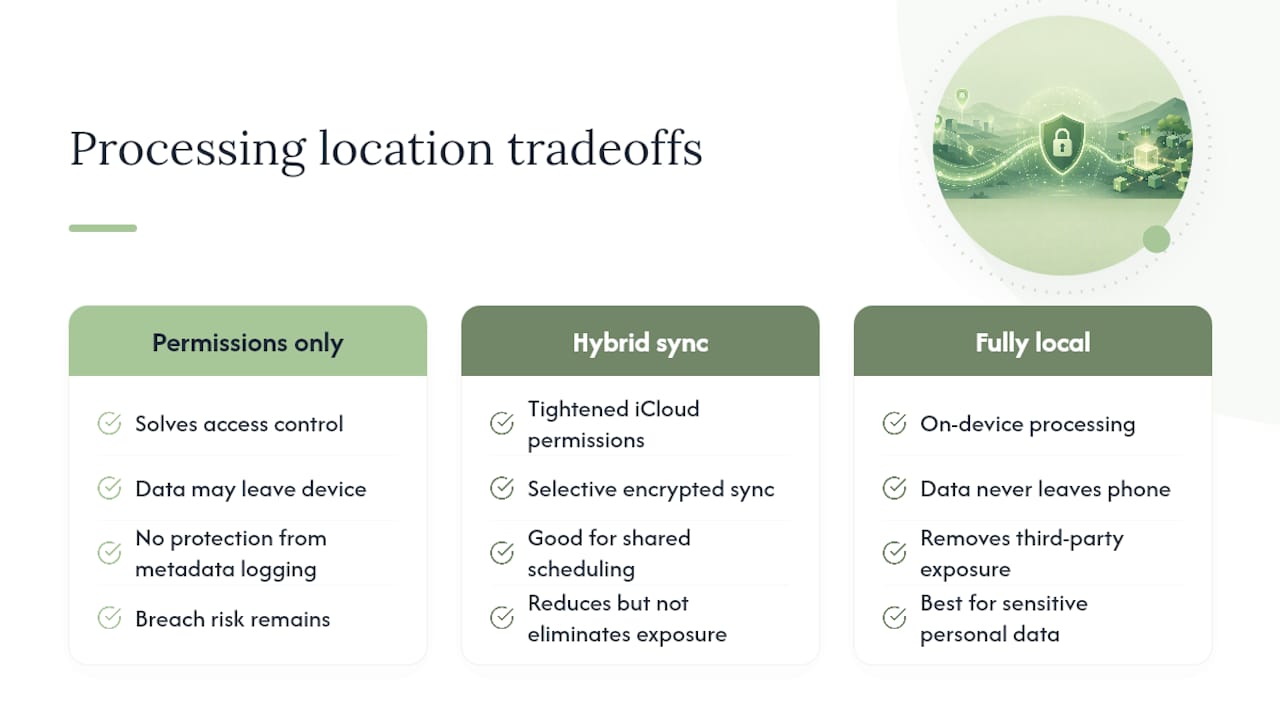
Calendar permissions solve access control, but they don't solve where sensitive data ultimately gets processed. That's the gap Obsidian Ridge Labs was built around: on-device processing means your information never has to leave your phone to be useful, which removes an entire category of exposure, third-party servers, metadata logging, breach risk, that no permission toggle can fully close.
A hybrid approach, tightened iCloud permissions plus selective encrypted sync, works well for shared scheduling. But for genuinely sensitive personal data, journaling entries, financial notes, transcribed conversations, a fully local workflow is often the more sensible default. Readers who want the deeper architecture behind that choice can explore how on-device AI privacy works on iPhone.
— Alex
A Different Way to Protect Sensitive Personal Data
The steps above handle calendar spam and permission sprawl directly, but they're only part of the picture. Calendar data usually sits alongside other sensitive information, notes, financial records, personal reflections, that also deserves protection Apple's default settings don't fully provide.

There are on-device apps for transcription, finance management, and personal journaling designed to never send your data to a cloud server to function. This isn't a calendar replacement. It's the next layer for the information your calendar touches but doesn't protect: the meeting you transcribed, the budget you tracked, the private note you attached to an appointment. Once your calendar permissions are locked down using the steps above, take a look at Obsidian Ridge Labs' private AI apps to see how the same local-first principle applies to the rest of your sensitive data, and check the full app comparisons and guides if you want to evaluate options before committing to one.
Sources
- iOS 17: How to Control Which Apps Have Access to Calendars - MacRumors
- Accessing the user’s calendar using EventKit and EventKitUI - Apple Developer
- Fake calendar invites are spreading. Here’s how to remove them and prevent more | Malwarebytes
- Spam alert in iPhone calendars — what are the risks? | Avast Blog
- Your iPhone Is Not Protected Pop-Up Alert Scam, Removal guide - MyAntiSpyware