
For the most private task management on iPhone or iPad, use an offline-first task app or Apple Reminders with Advanced Data Protection turned on, then lock down your device settings and store your recovery key somewhere durable. That single toggle change and app choice eliminate most of the exposure ordinary sync-heavy task apps create. The tradeoff is real: without a saved recovery key, encrypted data becomes permanently unrecoverable if you lose access to your account.
TL;DR:
- Using offline-only or Apple Reminders with Advanced Data Protection offers the strongest privacy, but losing your recovery key results in permanent data loss if forgotten.
- Zero-knowledge and local-first apps are more resilient against breaches but typically lack automatic cross-device sync and full-text search.
- Enabling Advanced Data Protection for iCloud and restricting background refresh and notifications significantly reduces data exposure on Apple devices.
- Sync options range from easy iCloud with advanced encryption for Apple users to complex self-hosted protocols like TaskChampion, with tradeoffs in setup effort and device compatibility.
- Third-party integrations and Siri shortcuts pose privacy risks if not carefully evaluated, as they can leak task data outside the core app's encryption boundary.
Table of Contents
- What "Task Manager Privacy on iOS" Actually Means
- How Syncing Changes Privacy: iCloud, CalDAV, and Self-Hosting
- Locking Down Task Privacy on Your iPhone or iPad
- The Real Cost of Strong On-Device Privacy
- How Obsidian Ridge Labs Approaches On-Device Privacy
- A Quick Decision Checklist for Your Privacy Workflow
- What App Tracking Transparency Does and Doesn't Protect
- Handling Third-Party Integrations Without Leaking Task Data
- Author perspective: when the tradeoffs are worth it
- Try a Task Tool Built Privacy-First from the Ground Up
- Sources
What "Task Manager Privacy on iOS" Actually Means
Privacy claims from software vendors are not interchangeable, even when they use the same buzzwords. A task app can be private in at least four distinct ways, and knowing which one applies to your data determines how safe your to-do list actually is.
Server-side encryption means your data is encrypted while stored on a company's servers, but the company holds the decryption keys. It can read your tasks if it wants to, or if it is compelled to by a subpoena. This is the default model for most mainstream productivity apps, and it is the weakest privacy guarantee of the four, even when marketing copy calls it "secure."
End-to-end encryption (E2E) means only your devices hold the keys needed to decrypt your data. The server that syncs your tasks between your iPhone and iPad sees only encrypted blobs. This is a meaningfully stronger guarantee, but it depends entirely on correct implementation. A vendor can claim E2E while still leaking metadata like task counts, timestamps, or device identifiers.
Zero-knowledge architecture goes a step further: the provider is architected so it cannot access your data even if compelled to by law enforcement, because it never possesses the keys and typically never sees identifying account information tied to content. The Privacy Guides knowledge base notes that this model intentionally forecloses server-side recovery. Lose your key, lose your data. No support ticket fixes that.
Offline-only (local-first) apps skip the server question entirely. Your tasks never leave the device unless you manually export them. This is the strongest model by default, since there's no network path for a breach to exploit, but it sacrifices automatic cross-device sync.
Here's a quick way to sort claims you'll encounter in app store descriptions and privacy policies:
- "We encrypt your data" (server-side, weak): the vendor holds the keys.
- "End-to-end encrypted" (stronger): only your devices decrypt, but verify no backdoor key escrow exists.
- "Zero-knowledge" (strongest server-based model): the vendor architecturally cannot read your content.
- "No account required" or "processes on-device": the most privacy-protective claim, if the policy confirms no telemetry is collected.
Even the strongest models leak something. Push notification previews travel through Apple's servers in some form, task counts and timestamps can appear in app analytics, and the mere existence of an account (even a zero-knowledge one) sometimes ties to an email address or device fingerprint. Privacy Guides' tools index recommends checking whether a privacy policy specifically addresses metadata retention, not just content encryption, before trusting an app's marketing.
How Syncing Changes Privacy: iCloud, CalDAV, and Self-Hosting
Your choice of sync method matters as much as your choice of app. A perfectly private task app connected to a leaky sync backend is only as private as its weakest link.
Apple's iCloud with Advanced Data Protection is the most accessible strong option for most iPhone and iPad owners. By default, iCloud encrypts many data categories, but Apple retains keys for several of them so it can help with account recovery. Turning on Advanced Data Protection expands end-to-end encryption to cover more categories, including device backups and, notably, Reminders. This is a meaningful upgrade, but it only protects data actually synced through Apple's services, and it requires you to actively enable it. It's a system-level toggle, not something on by default. Apple Reminders under Advanced Data Protection becomes a genuinely private, zero-configuration option for readers who don't want to manage a third-party app at all.
CalDAV and Nextcloud give you a different kind of control. Instead of trusting Apple's infrastructure, you run or rent your own sync server and connect standard CalDAV-compatible task apps to it. Nextcloud, the most common self-hosted option, lets you decide exactly where your data physically lives and who has administrative access to the server. The tradeoff is operational: you or someone you trust must maintain that server, apply security patches, and manage backups. A misconfigured Nextcloud instance can leak data just as easily as a poorly built cloud app, so this route rewards technical competence more than it rewards good intentions.
Self-hosting with a protocol like TaskChampion, the sync engine behind Taskwarrior, sits at the far technical end of the spectrum. It's an open sync protocol, and the taskwarrior-ios client demonstrates that end-to-end encrypted sync between a private server and an iOS client is genuinely achievable. Setup typically requires matching a client ID and encryption secret between your device and your self-hosted server, which is more configuration than most users will want to touch. This path fits people who already run their own infrastructure and want tasks integrated into it.
- iCloud + Advanced Data Protection: easiest, strong E2E coverage, but Apple ecosystem only.
- CalDAV/Nextcloud: user-controlled server, cross-platform, requires maintenance.
- TaskChampion/self-hosted protocol sync: maximum sovereignty, steepest setup curve.
- Offline-only: zero sync risk, but no automatic cross-device continuity.
Pro Tip: Before choosing a sync method, ask yourself how many devices actually need real-time task access. If it's just an iPhone and one iPad you carry together, offline-only with manual export removes the sync question entirely, and you lose nothing you were actually using.
Locking Down Task Privacy on Your iPhone or iPad
Choosing the right app matters, but the settings around it determine how much data leaks regardless of which app you pick. Work through these in order.
- Turn on Advanced Data Protection. Go to Settings, tap your name, then iCloud, then Advanced Data Protection, and enable it. This is the single highest-impact step for anyone using Apple's own apps or iCloud sync.
- Restrict Background App Refresh. Under Settings > General > Background App Refresh, disable it for any task app that doesn't need constant syncing. Fewer background processes mean fewer opportunities for data to move without your awareness.
- Hide notification content on the lock screen. In Settings > Notifications, select your task app and set "Show Previews" to "When Unlocked" or "Never." A task titled with a sensitive detail shouldn't be readable by anyone glancing at your locked phone.
- Review Siri & Dictation permissions. If you use voice input to add tasks, check Settings > Siri & Search for what data Siri can access, and consider whether dictation processing happens on-device or is sent to a server for transcription.
- Turn off Analytics sharing. Under Settings > Privacy & Security > Analytics & Improvements, disable "Share iPhone Analytics." This stops diagnostic data, which can include app usage patterns, from leaving your device.
- Enable app-level vault or offline modes. Many privacy-focused task apps include an explicit offline or local-only mode in settings. Turn it on rather than assuming it's the default.
- Set a local passcode or biometric lock inside the app itself, separate from your device passcode, if the app supports it. This protects your tasks even if someone unlocks your phone.
- Disable optional cloud features you don't use, like calendar syncing or third-party integrations bundled into the app, since each one is a separate potential data path.
- Control widgets carefully. A home screen widget showing your next three tasks is convenient, but it's also visible to anyone who picks up your device. Remove task-content widgets from the lock screen specifically.
- Export and store an encrypted backup, and save the recovery key somewhere durable, like a password manager's secure notes feature or a physical safe, not a screenshot in your camera roll.
Pro Tip: Test your recovery process before you need it. Export a backup, then simulate account access loss by trying to restore from just the recovery key and the export file. If you can't recover your own data in that test, you won't be able to when it actually matters.
The Real Cost of Strong On-Device Privacy
Privacy-first task management is not free of downsides, and pretending otherwise does readers a disservice. Understanding the actual tradeoffs helps you decide where to compromise and where not to.
Server-side search disappears or gets weaker. Cloud-based task apps often offer instant full-text search across years of history because the server indexes everything. On-device and zero-knowledge apps generally have to rebuild that index locally on each device, which can mean slower search on older hardware or a delay after installing on a new device.
There is no password reset in the traditional sense. With zero-knowledge and offline-first apps, losing your key or forgetting your passphrase can mean permanent data loss, since there's no customer support team who can access your account to reset it for you. A password manager isn't optional here; it's the only realistic safety net.
Collaboration gets harder. Sharing a task list with a family member or coworker is trivial in server-side apps because the server mediates access. Privacy-first apps that support sharing typically require an explicit key exchange or a separate encrypted channel, which adds friction most casual collaborators won't tolerate.
Some platform conveniences don't translate. Cross-device handoff, Siri Shortcuts that pull live data from a server, and certain widget behaviors can be less seamless when everything happens locally.
- Search: slower or index-limited without server assistance.
- Recovery: no support-desk reset, recovery key is mandatory.
- Collaboration: requires deliberate key sharing, not automatic.
- Platform features: some Shortcuts and widget integrations behave differently offline.
None of these tradeoffs are dealbreakers for most single-user task management, but they matter if you regularly share lists with a partner or team.
How Obsidian Ridge Labs Approaches On-Device Privacy
Obsidian Ridge Labs builds its Apple apps, including its focus and task management tools, around local processing rather than cloud-first architecture. Instead of routing task data through remote servers by default, the core processing happens on the device itself, which removes the most common data exposure point entirely, the network transfer.
On-device design means the app has no cloud dependency to fail, leak, or be subpoenaed for your task content in the first place. Any connection to an external service is optional and disclosed, not a hidden default.
The company's privacy verification guide walks through concrete steps for confirming that an app is actually doing what it claims, rather than asking users to take a privacy policy at face value. That kind of documentation matters, because "on-device processing" is a claim, and claims should be checkable.
A short engineering checklist worth applying to any app claiming privacy-first design, including Obsidian Ridge Labs' own products:
- Local encryption of stored data, not just encryption in transit.
- Optional, clearly disclosed network connections rather than silent background calls.
- Exportable encrypted backups the user controls, not backups locked to a proprietary cloud.
- A privacy policy that specifically addresses metadata retention, not just message content.
- No mandatory account creation for core local functionality.
On the technical side, key derivation deserves a plain explanation. When an app encrypts your data locally, the encryption key is usually derived from a passphrase or device-level secret rather than stored in plain form. This is why a password manager matters so much for zero-knowledge and offline-first tools: if the key derivation depends on a passphrase only you know, and you lose that passphrase, there is no backdoor. The Obsidian Ridge Labs product overview documents this approach across its suite of transcription, finance, and journaling apps, all built on the same local-first premise.
A Quick Decision Checklist for Your Privacy Workflow
Match your situation to one of three paths rather than trying to evaluate every app feature individually.
- Offline-only, no sync at all. Choose this if you use a single device, or you're comfortable manually exporting and importing between devices. This is the strongest privacy posture available, since there's no server in the picture to trust or misconfigure.
- Device-backed end-to-end encryption with personal sync (CalDAV/Nextcloud or a protocol like TaskChampion). Choose this if you need real-time sync across multiple devices, including non-Apple ones, and you're willing to either run your own server or trust a specific, vetted host you control. This path also fits users who want cross-platform flexibility Apple's ecosystem doesn't provide.
- Apple's iCloud with Advanced Data Protection. Choose this if you're fully inside the Apple ecosystem, want zero server maintenance, and are comfortable trusting Apple's implementation of end-to-end encryption for iCloud data, including Reminders and backups.
Whichever path you pick, hold every app to the same minimum bar before trusting it with task content:
- The privacy policy states plainly whether an account is required, and why.
- There's no key escrow, meaning the vendor genuinely cannot decrypt your data on request.
- Backups can be exported in an encrypted format you control, not locked into one company's cloud.
- Metadata handling (notification content, timestamps, analytics) is addressed explicitly, not glossed over.
- The app discloses every network connection it makes, optional or otherwise.
Community-maintained lists like the Privacy Guides forum's discussion of task management tools are worth checking periodically, since community vetting tends to surface implementation problems faster than official documentation does.
What App Tracking Transparency Does and Doesn't Protect
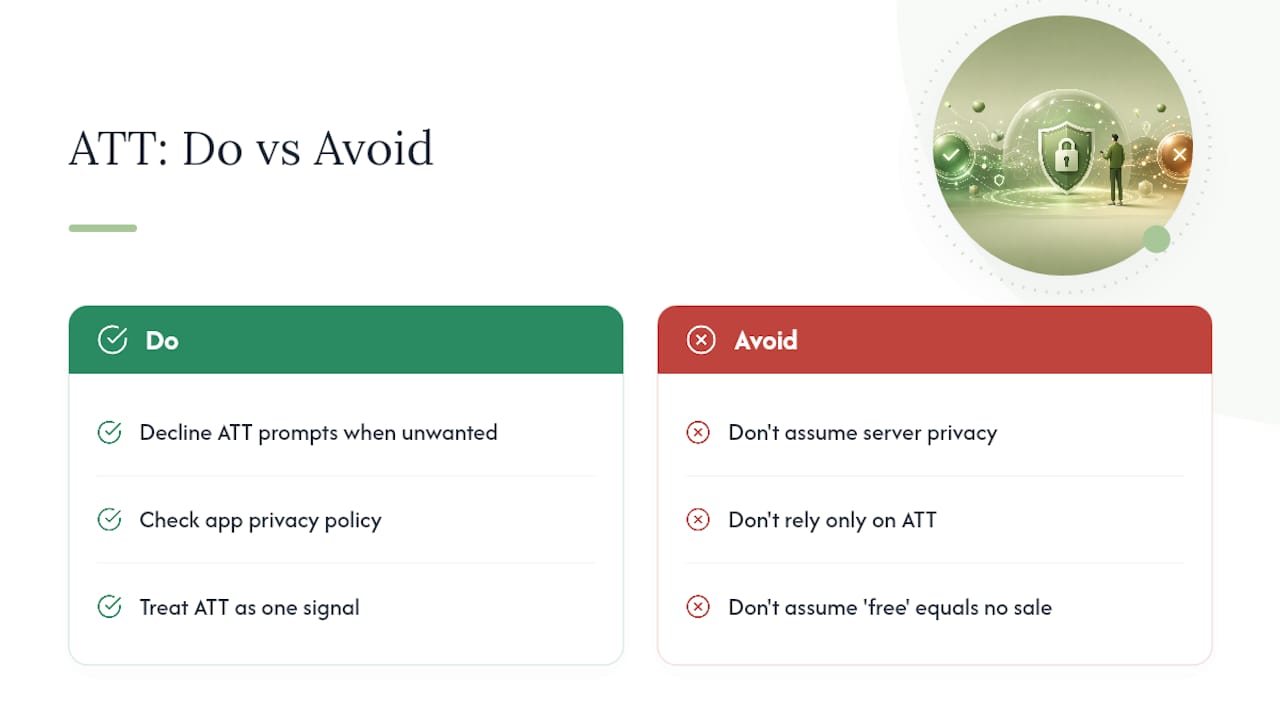
Apple's App Tracking Transparency framework, introduced to control cross-app tracking, requires apps to ask explicit permission before tracking your activity across other companies' apps and websites for advertising purposes. For task management apps specifically, ATT matters less than people assume, and understanding why prevents false confidence.
ATT governs tracking for advertising and data broker sharing. It does not restrict what a task app does with your data on its own servers, and it says nothing about whether that app encrypts your content or retains it indefinitely. A task app can decline to request tracking permission entirely (many do, since they have no advertising business model) while still storing every task you write in a plaintext database on a server it fully controls.
What ATT does add is a layer of consent friction for apps that monetize through advertising or sell usage data to third parties. If a "free" task app requests ATT permission, that's a signal worth noting: it suggests a data-sharing business model exists somewhere in the background, even if your task content itself isn't the product being sold. Declining the ATT prompt limits cross-app tracking, but it does nothing to change how the app's own servers handle your task data. Treat ATT as one input among several, not a substitute for reading the actual privacy policy.
Handling Third-Party Integrations Without Leaking Task Data
Third-party integrations are where privacy-conscious setups most often quietly fail. A task app can be architecturally sound and still expose data the moment you connect it to a calendar service, an automation platform, or a Siri Shortcut that pulls data from elsewhere.
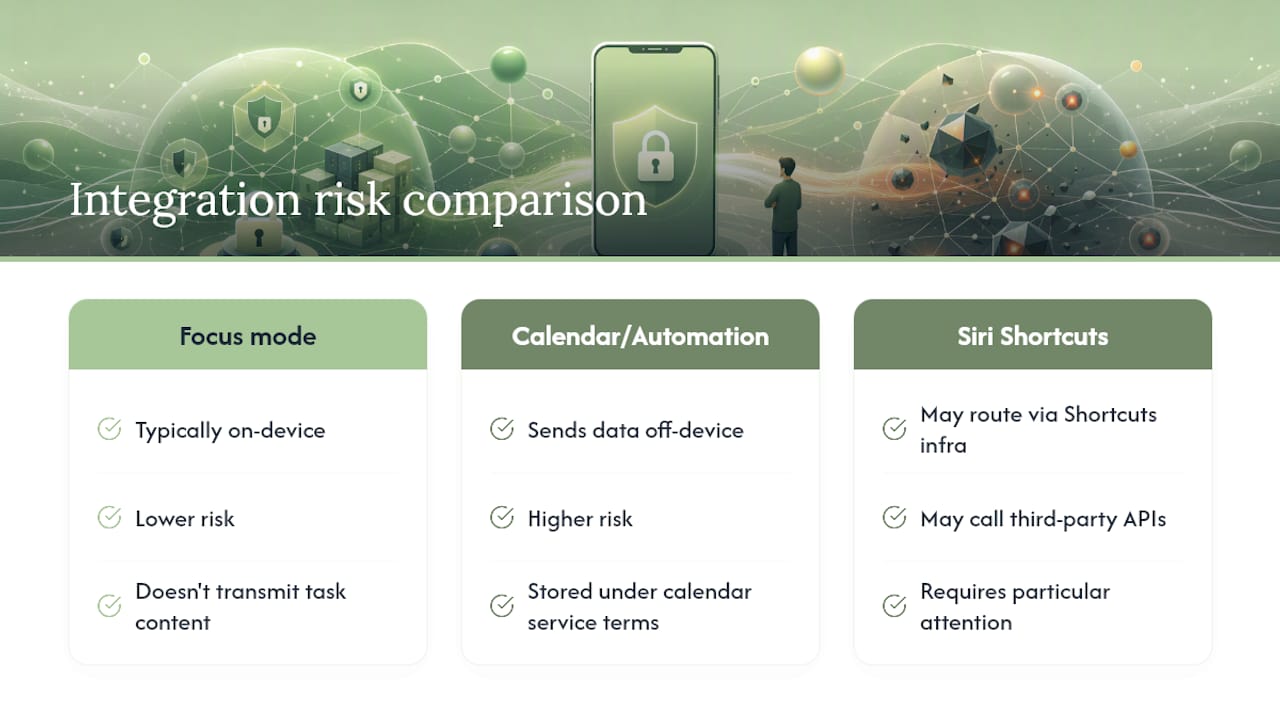
Every integration should be evaluated as its own separate trust decision, not bundled into your trust of the core app. Connecting a task app to a calendar sync service, for instance, means your task titles and due dates now also live wherever that calendar service stores its own data, under that service's own privacy terms.
Before enabling any integration, check three things: what data actually flows through the connection, whether that data is encrypted in transit, and whether the integration can be disabled without breaking the app's core functionality. Siri Shortcuts deserve particular attention, since a shortcut that reads and writes tasks may route data through Apple's Shortcuts infrastructure or a third-party API depending on how it's built.
Focus mode integrations are generally safer, since they typically operate entirely on-device to filter which notifications appear, without transmitting task content anywhere. Calendar and automation integrations carry more risk simply because they require sending data somewhere for the integration to function. When in doubt, disable an integration you're not actively using rather than leaving it connected "just in case."
Author perspective: when the tradeoffs are worth it
Most privacy advice treats every inconvenience as unacceptable, and that's not realistic. If your task list is genuinely mundane, grocery runs and gym schedules, the friction of offline-only mode or self-hosted sync probably isn't worth it. Save the strongest protections for the lists that actually carry sensitive content: medical follow-ups, legal deadlines, financial to-dos, anything you wouldn't want visible on a stolen or seized device.
Where I think the conventional advice gets it backwards is the recovery key. People treat it as an afterthought, something to deal with after they've already fallen in love with an app's privacy features. It should be the first thing you set up, before you've entered a single real task. Test the recovery process immediately, while the stakes are zero, not months later when you actually need it.
Go turn on Advanced Data Protection if you haven't. It is quick and free to enable.
— Alex
Try a Task Tool Built Privacy-First from the Ground Up
Obsidian Ridge Labs designs its focus and task management tools around the same principle covered throughout this guide: your data should never need to leave your device to be useful. Core processing runs locally, network connections are optional and disclosed rather than silent defaults, and backups export in formats you control rather than locking you into a proprietary cloud.

That checklist from earlier, local encryption, no mandatory account, exportable encrypted backups, a policy that actually addresses metadata, is the same standard Obsidian Ridge Labs holds its own products to across transcription, journaling, and finance tools, not just task management. Pricing follows the standard App Store model: one-time purchases or subscriptions depending on the app, with no hidden data-sharing tier disguised as a "free" option.
If you want to confirm any of these claims yourself rather than take them on faith, the privacy verification guide walks through exactly how to check what an app is really doing on your device. Visit the Obsidian Ridge Labs product page to see the current lineup and try the approach on your own iPhone or iPad.