
The safest way to keep gym logs private on iOS is to use a local-first app that doesn't force an account, then lock HealthKit and Motion & Fitness permissions to opt-in only. Check Settings > Privacy & Security > Health, turn on App Privacy Report, and choose apps that store your workout history on-device by default. Obsidian Ridge Labs builds tools around exactly this principle: process locally first, connect to the cloud only when you choose to.
TL;DR:
- Use local-first gym logging apps that store data on-device by default and avoid mandatory cloud sync options tied to third-party servers.
- Review and restrict Health app permissions, Motion & Fitness access, and Tracking settings within iOS privacy menus to limit data exposure.
- Enable and analyze the App Privacy Report after regular workouts to verify that the app contacts few or no external domains related to workout data.
- Test the app in airplane mode during logging to confirm core functions work offline and no server communication occurs during standard use.
- Export existing cloud-stored logs, revoke sync, and request data deletion to fully regain control over workout history and prevent future background data sharing.
Table of Contents
- What to Look for in a Privacy-First Gym Log App
- What iPhone Settings Actually Limit Fitness Data Exposure?
- Which App Type Fits Your Privacy Needs?
- How Do You Verify an App Actually Keeps Data Local?
- How to Export and Delete Old Cloud-Stored Workouts
- Why On-Device Architecture Matters More Than Marketing Claims
- The Real Gap in Most Gym Privacy Advice
- A Local-First Alternative Built Around These Exact Principles
- Sources
What to Look for in a Privacy-First Gym Log App
Most workout apps ask for an account before you've logged a single set. That's the first tell. A privacy-respecting gym log should let you start tracking immediately, with cloud sync as an optional add-on rather than a gate.
The strongest signal is where the data lives. Apps built on local storage keep your workout history in a database on your device, not on a company's server, and they keep working with the phone in airplane mode. If an app breaks the moment you lose signal, it's leaning on a server it hasn't told you about.
Look for these markers before you grant a single permission:
- Local storage by default with full offline functionality, no forced sign-in screen.
- Optional cloud sync, not mandatory, and tied to your own iCloud account rather than a third-party server.
- No embedded analytics or ad SDKs bundled into the app binary; permission requests should be minimal and tied to actual features.
- Encrypted backups with keys you control, not a vendor-managed cloud you have to trust blindly.
- A short, readable privacy policy that states data retention and sharing plainly, not buried in eight pages of boilerplate.
- Open-source or independently reviewable code, which isn't required but is a meaningful trust bonus.
- A fast logging workflow. Privacy that slows you down at the squat rack gets abandoned within a week.
Privacy-focused directories consistently rank local storage, no mandatory account, and encrypted backups above brand recognition or interface polish when evaluating health apps, and that ordering holds up well for gym logs specifically.
Pro Tip: Before downloading anything, read the App Store's "App Privacy" section on the product page. If it lists "Data Linked to You" for Health & Fitness data, treat that as a red flag worth investigating further.
What iPhone Settings Actually Limit Fitness Data Exposure?
Three menus in Settings do most of the real work here, and almost nobody checks all three.
- Review Health app permissions. Go to Settings > Privacy & Security > Health, tap any app listed, and see exactly which data categories (workouts, heart rate, weight) it can read or write. Revoke anything that doesn't match what the app actually needs.
- Limit Motion & Fitness access. Settings > Privacy & Security > Motion & Fitness controls which apps can read step counts and fitness activity. Turn this off globally if you don't use step tracking, or per-app if only one log needs it.
- Turn on App Privacy Report. Found at Settings > Privacy & Security > App Privacy Report, this feature logs every network domain an app has contacted over the past seven days, along with which sensors and permissions it accessed.
- Check Tracking permissions. Settings > Privacy & Security > Tracking shows which apps have asked to track you across other apps and websites, and lets you revoke that access retroactively.
- Decide on iCloud Health sync deliberately. The toggle lives in the Health app under your profile icon, not in the main Settings app. Syncing to iCloud means Apple's on-device encryption still protects that data, but it also means a lost iCloud password becomes a bigger liability.
- Lock the device itself. A strong passcode, Face ID or Touch ID, and two-factor authentication on your Apple ID are the baseline. None of the app-level privacy work matters if someone can unlock the phone directly.
App Privacy Report is the one setting almost everyone skips, and it's the single most useful audit tool built into iOS for this exact problem. It doesn't just tell you an app could access your network; it shows the actual domains it did contact, turning a privacy policy's promises into something you can verify yourself. For a deeper walk-through of these toggles, see the iPhone privacy settings that actually matter.
Which App Type Fits Your Privacy Needs?
Not every privacy-conscious lifter needs the same setup. The right choice depends on how much you value convenience versus control, and the three main categories handle that trade-off differently.
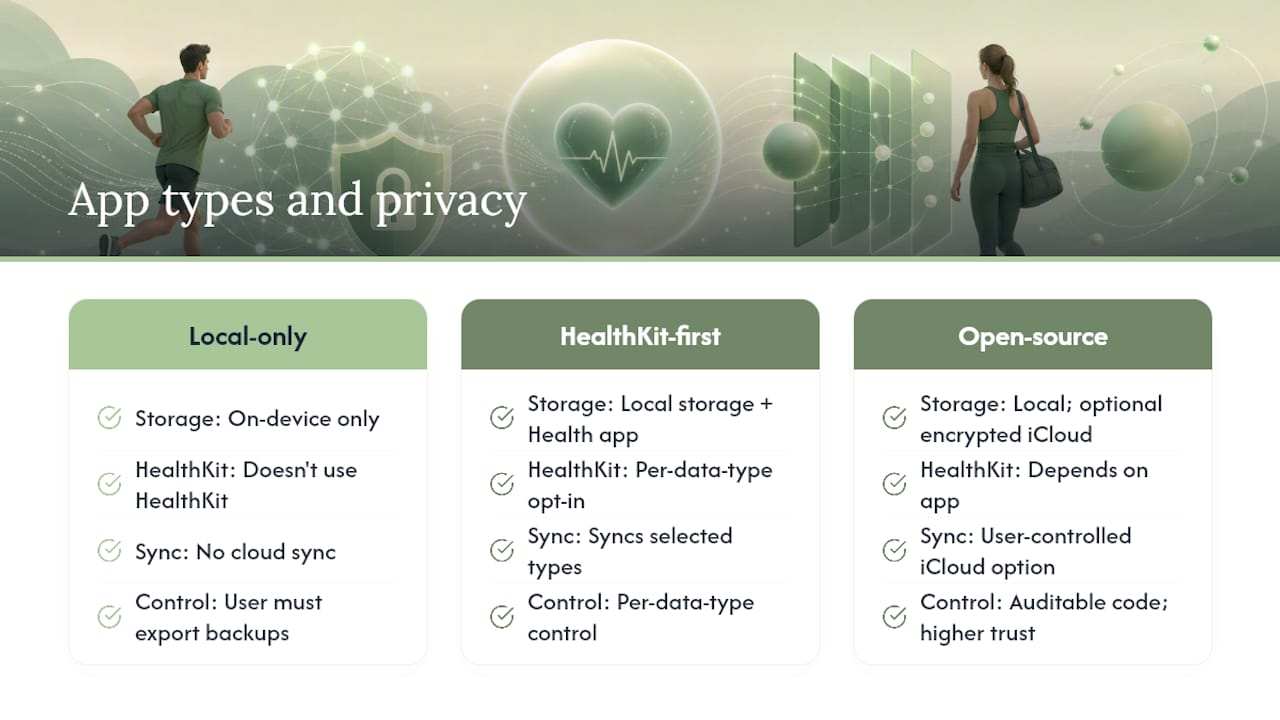
Local-only apps store every set, rep, and weight entirely on the device. There's no server round-trip during your workout, which also makes them noticeably faster to use mid-set. The tradeoff is that you own backups entirely: set a weekly reminder to export your log to a file (HealthKit export or the app's native JSON/CSV export) and move it into an encrypted folder or your own iCloud Drive.
HealthKit-first apps that still process on-device sync specific data types, like workouts or heart rate, into Apple's Health app, but do the actual coaching logic and storage locally. Since HealthKit access requires explicit, per-data-type opt-in, you decide exactly which categories flow through, and you can enable workouts while declining sleep or reproductive health data entirely.
Open-source or independently documented apps let you (or someone you trust) actually check what the code does instead of taking a privacy policy at its word. This matters more for fitness apps than people assume, since heart rate and workout timing data can reveal a surprising amount about someone's daily schedule and health status. A documented example is Private Workout Logger, which stores logs locally and offers optional encrypted iCloud sync tied to the user's own Apple ID rather than a third-party server.
As a rule of thumb: skip cloud sync entirely if you only need one device. If you train across an iPhone and iPad, prefer encrypted, user-controlled sync over any vendor-hosted account system. For a comparison of how mainstream coaching apps handle these permissions differently, see this breakdown of tracking apps and their HealthKit models.
How Do You Verify an App Actually Keeps Data Local?
Claims in a privacy policy are cheap. Verification takes about fifteen minutes and requires no special tools.
- Enable App Privacy Report and use the app normally for two or three full gym sessions. Then check which domains it contacted. A genuinely local-first log should show minimal to no outbound network activity tied to your workout data.
- Read the App Store's privacy labels on the product page. Look specifically at whether "Health & Fitness" data is marked as "Linked to You" or "Used to Track You." Neither should apply to a properly designed local-first app.
- Run the airplane mode test. Turn on airplane mode, then log a full workout: sets, reps, weights, rest timers. If everything works and syncs later without complaint, the core function truly doesn't depend on a server.
- Scan the privacy policy for SDK mentions. Search for terms like "analytics," "third party," or specific ad network names. Their absence is a good sign; their presence tells you exactly what's being shared and with whom.
- Email the developer directly if export or deletion practices aren't documented. A responsive, specific answer about encryption and data retention is itself a trust signal; a vague or defensive one is a warning.
A practical verification routine looks like this: enable the report, run three typical sessions while watching network requests, then repeat the airplane mode test before trusting any app with months of training history.
Pro Tip: Run the airplane mode test again after any major app update. Developers sometimes add analytics SDKs in later versions that weren't present at launch.
How to Export and Delete Old Cloud-Stored Workouts
Moving off a cloud-dependent app requires more than just deleting it from your home screen. The data usually stays on the vendor's servers until you take direct action.
- Export first. Use the app's built-in export (often CSV or JSON) or pull your history through HealthKit if the data was synced there. Open the exported file to confirm dates, weights, and exercise names transferred correctly before deleting anything.
- Turn off sync, then confirm no new workouts are uploading by checking App Privacy Report a day later.
- Request account and data deletion directly from the developer or through the app's account settings. GDPR-style deletion requests aren't limited to European users; most US-based developers honor deletion requests as a matter of policy.
- Verify deletion by checking App Privacy Report again after a week; lingering network activity to the same domain is a sign the request hasn't fully processed.
- Store the exported file in an encrypted archive, either an encrypted folder on-device or a password-protected zip in your own iCloud Drive, and set a simple retention rule: keep raw exports for as long as you might need progressive-overload history, then delete.
Why On-Device Architecture Matters More Than Marketing Claims
On-device processing eliminates the transmission step entirely, which eliminates most of the attack surface that matters for a gym log. There's no server breach to worry about if there's no server holding your data.
Enterprise fitness platforms are told to run AES-256 encryption at rest, TLS 1.3 in transit, and hardware-backed secure storage for exactly this reason: every network hop is a place data can leak, get logged, or get subpoenaed. A local-first gym log skips most of that risk by design, not by promise.
The apps worth trusting share the same signals: clear App Store privacy labels, documented encryption, an account model that's optional rather than mandatory, and a privacy policy you can read in under two minutes. When a developer explains the tradeoff between convenience and exposure instead of hiding it, that's usually the app worth keeping.
Cloud features aren't inherently bad. Cross-device sync and remote coaching genuinely need a server somewhere. But for a gym log, where the core function is writing down a number after a set, on-device design is almost always sufficient, and it removes an entire category of risk the reader never has to think about again.
The Real Gap in Most Gym Privacy Advice
Most privacy advice treats iOS settings and app selection as separate problems. That's backwards. Locking down Motion & Fitness permissions means nothing if the app you installed ignores those boundaries and phones home anyway, and choosing a local-first app means less if you never reviewed what iCloud sync is quietly uploading in the background.
The advice that's overrated: chasing "zero permissions" as a goal. A gym log that can't read Motion & Fitness data at all just means you're manually typing what the phone already knows. The better standard is matched permissions, where every access request maps to a feature you actually use.
What deserves more attention is App Privacy Report. It's been sitting in Settings for years, and most people who care deeply about their data have never opened it. Checking it takes less effort than reading a privacy policy, and it tells you the truth instead of the pitch.
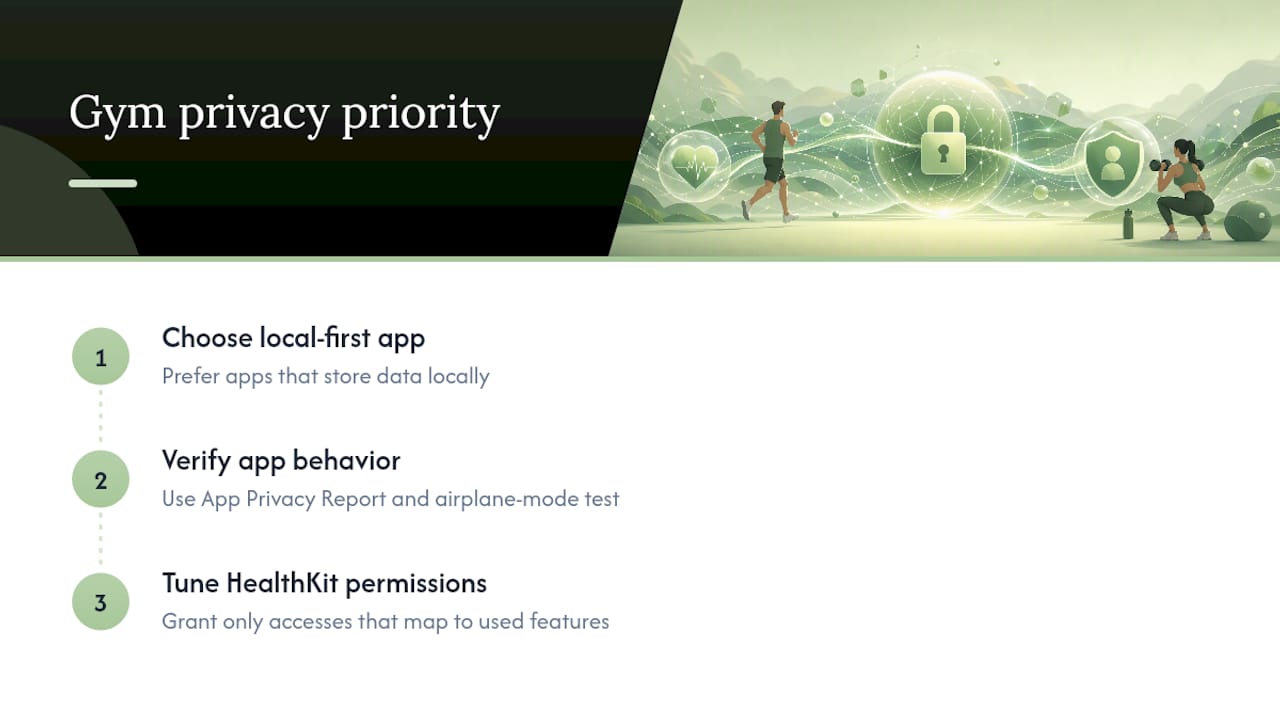
Prioritize in this order: pick a local-first app, verify its behavior with App Privacy Report and the airplane mode test, then tune HealthKit permissions to match only what you use. Skip straight to permissions tuning without verification, and you're just trusting a different set of claims.
— Alex
A Local-First Alternative Built Around These Exact Principles
Every criterion covered above, local storage by default, optional sync, minimal permissions, a privacy policy you can actually finish reading, is the design brief Obsidian Ridge Labs works from across its entire app suite. There's no account wall on first launch, no analytics SDK quietly phoning home, and no cloud dependency for core functionality to work.

After installing, expect a local-first experience from the first tap: your data stays on the device unless you explicitly turn on an encrypted export or your own iCloud sync. There's no mandatory sign-up screen and no dark pattern nudging you toward cloud storage you didn't ask for. If you want to see exactly how that verification works in practice, the on-device privacy verification guide walks through the same App Privacy Report checks covered here, applied to Obsidian Ridge Labs' own apps. Start there, or go straight to the Obsidian Ridge Labs app suite to see which tool fits your workflow.
Sources
Apple's HealthKit developer documentation and Health and Fitness Apps Privacy overview cover permission design directly. For App Privacy Report mechanics, see Help Net Security's explainer, and for broader platform security context, NewAgeSysIT's fitness data guidance.
- Protecting user privacy — HealthKit (Apple Developer)
- Apple App Privacy Report helps monitor data tracking — Help Net Security
- Health & privacy resources — PrivacyTools