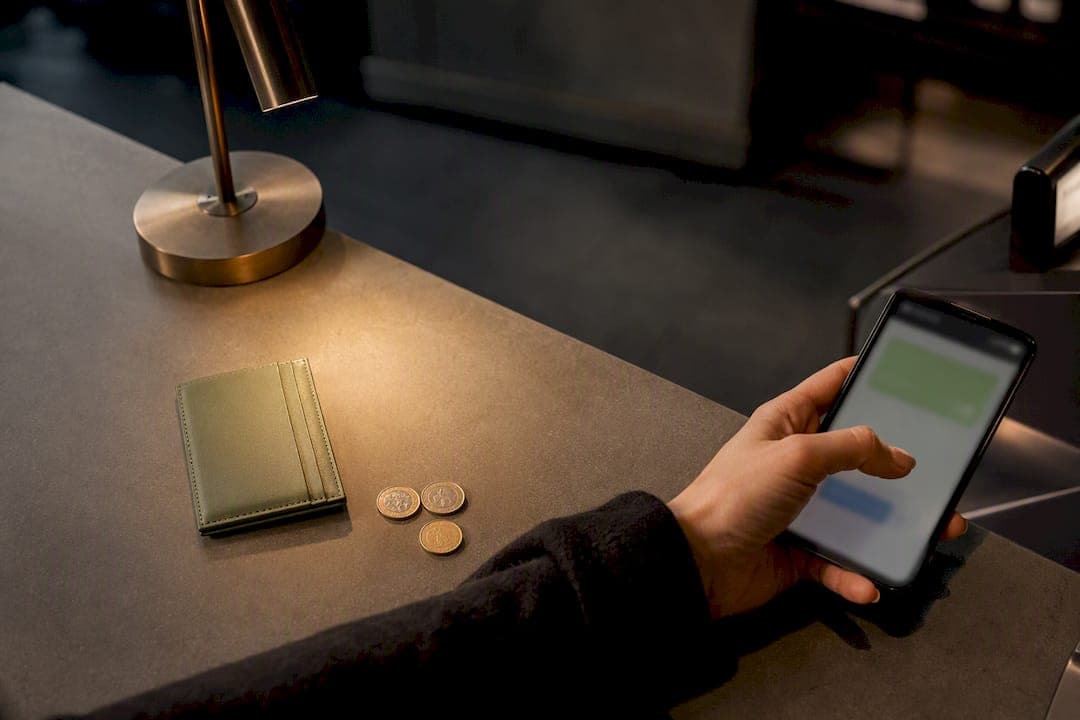
Yes, you can run a complete household budget on iPhone without linking a single bank account. The fastest workflow combines manual quick-add entries, Siri voice logging, receipt OCR, occasional CSV imports, and recurring transactions for fixed bills. Done consistently, this approach gives you more privacy than bank-synced apps and, for most people, a clearer picture of where money actually goes.
TL;DR:
- Manual budgeting on iPhone keeps your transaction data stored locally, significantly reducing privacy risks compared to bank-linked apps that share live feeds with third parties.
- Using templates, Siri voice logging, receipt OCR, and weekly CSV imports can make manual expense entry quick and efficient, often taking less than a minute per purchase.
- Prioritizing local storage, minimal permissions, transparent backups, and on-device AI ensures the app’s privacy claims are genuine and data remains under your control.
- Weekly reconciliation of your app’s totals against your bank balance is essential for accuracy, especially when using a hybrid of manual entries and CSV imports.
- The best privacy-focused apps support easy data export, fast entry methods, and clear privacy policies, making them suitable for long-term manual budgeting workflows.
Table of Contents
- What Does Manual Budgeting on iPhone Actually Look Like?
- What Are the Fastest Ways to Log Expenses Manually?
- How Do You Verify an App's Privacy Claims?
- How Do You Build a Weekly Manual Budgeting Routine?
- How Should You Choose a Private Budgeting App?
- Why I Trust Manual, On-Device Tracking Over Bank Syncing
- A Private Finance App Built for This Exact Workflow
- Sources
- FAQ
What Does Manual Budgeting on iPhone Actually Look Like?
Manual budgeting means you type, speak, or scan each transaction into an app yourself, rather than letting a bank-linked service pull it automatically. The difference matters more than it sounds. Automatic import apps require you to hand over banking credentials to a third-party aggregator, which then holds a live feed of every purchase you make. Manual entry keeps that feed entirely under your control.
The trade-off is honest: manual tracking takes a few minutes a day instead of zero. In exchange, you get two things bank-synced apps rarely offer. First, privacy: your spending data never leaves your device unless you choose to export it. Second, attention: the physical act of entering a purchase forces a moment of awareness that passive syncing skips entirely. People who track manually tend to notice small leaks (a $6 coffee habit, a forgotten subscription) faster than people scrolling through an auto-categorized feed.
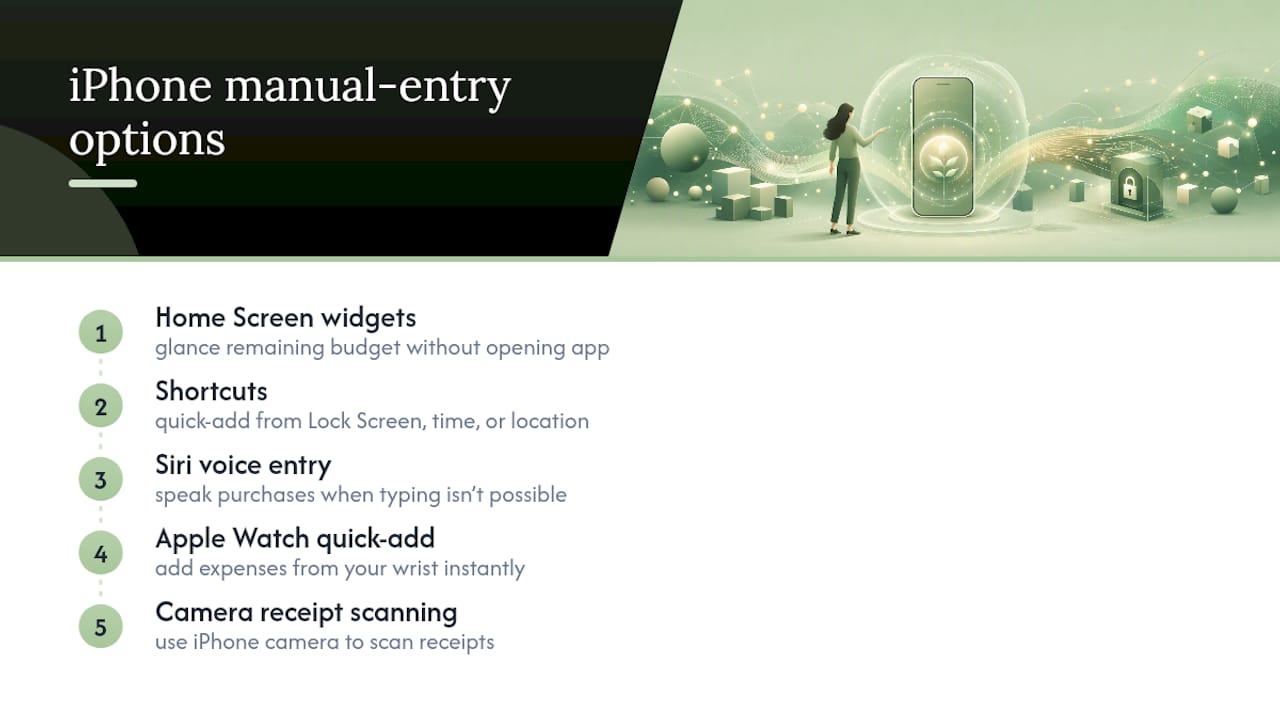
iPhone happens to be well-suited to this kind of tracking. Home Screen widgets let you glance at your remaining budget without opening an app. Shortcuts can trigger a quick-add flow from the Lock Screen or an automation tied to time or location. Siri handles voice entry for situations where typing is inconvenient, like standing in a checkout line. Apple Watch extends quick-add to your wrist, and the iPhone camera doubles as a receipt scanner. Editorial roundups of budgeting apps for iPhone consistently flag these iOS integrations as the difference between an app that gets used daily and one that gets abandoned after a week.
Manual tracking works best for people who want control over categorization logic, who distrust data aggregators, or who simply spend across enough cash and irregular sources that bank feeds miss half the picture anyway.
What Are the Fastest Ways to Log Expenses Manually?
The biggest myth about manual expense tracking on iPhone is that it has to be slow. It doesn't, if you set up the right shortcuts once and reuse them daily.
- Build entry templates for recurring purchases. Most apps let you save a "favorite" transaction (coffee, gas, groceries) with a preset amount and category, cutting entry to one or two taps.
- Use Siri for on-the-go logging. A phrase like "add $12 for lunch to my budget app" can log an expense before you've even left the register, if the app supports Shortcuts-based voice commands.
- Scan receipts instead of typing totals. On-device optical character recognition can pull merchant name, date, and total directly from a photo, which is faster than manual entry for anything with more than two or three line items.
- Import a CSV once a week for catch-up. Export a statement from your bank's website (not by linking accounts, just downloading a file), map the columns to your app's fields, and import it as a single batch. This is the compromise practitioner guides recommend for people who want privacy day-to-day but still want a full picture at reconciliation time.
- Set up recurring transactions for fixed bills. Rent, streaming subscriptions, and loan payments don't need daily attention. Enter them once as recurring items and let the app post them automatically on schedule.
Predictive categorization also speeds things up more than people expect. Apps that learn from past entries can suggest a category the moment you type a merchant name, which is part of why manual entry has gotten faster over the past few years rather than staying stuck in spreadsheet-era friction.
Pro Tip: Set up three or four templates for your most frequent purchases before you start tracking. That single setup step removes 80 percent of the daily typing most people expect manual budgeting to require.
How Do You Verify an App's Privacy Claims?
Privacy claims are easy to print on an App Store listing and hard to verify without knowing what to check. A handful of technical signals separate a genuinely private manual budgeting iPhone app from one that just markets itself that way.
- Local-first storage. The app should store your transaction database on your device by default, not in a vendor's cloud, so nothing is transmitted unless you explicitly export it.
- Backup transparency. iCloud backup should be optional and clearly explained, not silently enabled. If you back up manually, look for encrypted export formats rather than plain CSV sitting unprotected in Files.
- Permission minimalism. A budgeting app has no legitimate reason to request microphone access beyond voice entry, or photo library access beyond receipt scanning. Broad permission requests are a warning sign.
- No hidden telemetry. Check the privacy policy for language about analytics, advertising partners, or "anonymized" data sharing. Aggregated financial data marketed as anonymized carries real re-identification risk once it leaves your device, which is part of why local-first storage is the stronger technical guarantee against third-party exposure.
On-device AI plays a specific role here: it can handle receipt OCR and category suggestions without ever sending a photo or a transaction description to a server. That's a meaningful distinction from cloud-based OCR, which processes your receipt image on someone else's infrastructure before returning a result.
Open-source tools like GnuCash have long proven that serious bookkeeping doesn't require a cloud dependency at all, and that same logic now applies to lightweight iPhone apps.
One statistic worth sitting with: financial data marketed as "anonymized" by data brokers has repeatedly been shown to be re-identifiable when cross-referenced with other datasets. Local-first storage sidesteps that risk entirely, because there's no aggregated dataset to re-identify in the first place.
How Do You Build a Weekly Manual Budgeting Routine?
A manual system only works if it's boring and repeatable. Here's a setup and cadence that holds up over months, not just the first excited week.
- Set up your categories once. Pick 5 to 8 categories (rent, groceries, transportation, subscriptions, dining, discretionary) rather than 20. Fewer categories mean faster entry and clearer monthly trends.
- Enter opening balances and recurring items. Log your current account balances and set up recurring transactions for rent, subscriptions, and any fixed bill before you start daily tracking.
- Build a 30 to 60 second daily habit. Log a purchase the moment it happens, either by typing it, speaking it to Siri, or snapping a receipt photo. Don't batch a full day's spending from memory at night; you'll forget the small stuff.
- Reconcile weekly for 10 to 15 minutes. Compare your app's running total against your bank's actual balance, catch anything you forgot to log, and import a CSV if you fell behind. This weekly reconciliation habit is what keeps manual tracking accurate without requiring daily perfection.
- Review monthly and adjust. Look at category totals, tighten budgets that ran over, and export a backup of your data before the month closes out.
The weekly step is the one people skip, and it's the one that matters most. Daily entry catches individual purchases; the weekly review catches the pattern.
How Should You Choose a Private Budgeting App?
Comparing manual budgeting apps for iPhone gets easier once you stop looking at feature lists and start checking five specific categories.
- Storage and export. Does the app keep a local database, and can you export your full history as CSV or another portable format without a subscription paywall blocking it?
- Entry speed. Are there templates, voice entry, home screen widgets, and receipt scanning, or does every transaction require the same five taps through nested menus?
- Recovery and portability. If you switch phones or apps later, can you actually get your data out in a usable format, not just view it inside a locked interface?
- iOS integration depth. Shortcuts support, Siri phrases, Apple Watch quick-add, and widget customization all indicate an app built specifically for iPhone rather than ported from a cross-platform codebase.
- Business model clarity. A one-time purchase or a transparent subscription with a clear privacy policy beats a "free" app that quietly monetizes your data through advertising partnerships.
Reviewer testing of budgeting tools has found that even apps built around bank linking increasingly support manual entry and CSV import as an alternative for users who don't want to keep account credentials connected, which tells you the demand for this workflow is real and growing.
Pro Tip: Before committing to any app, test its export function on day one, not month three. A privacy-first app that can't get your own data back out to you defeats half the purpose of going manual in the first place.
Why I Trust Manual, On-Device Tracking Over Bank Syncing
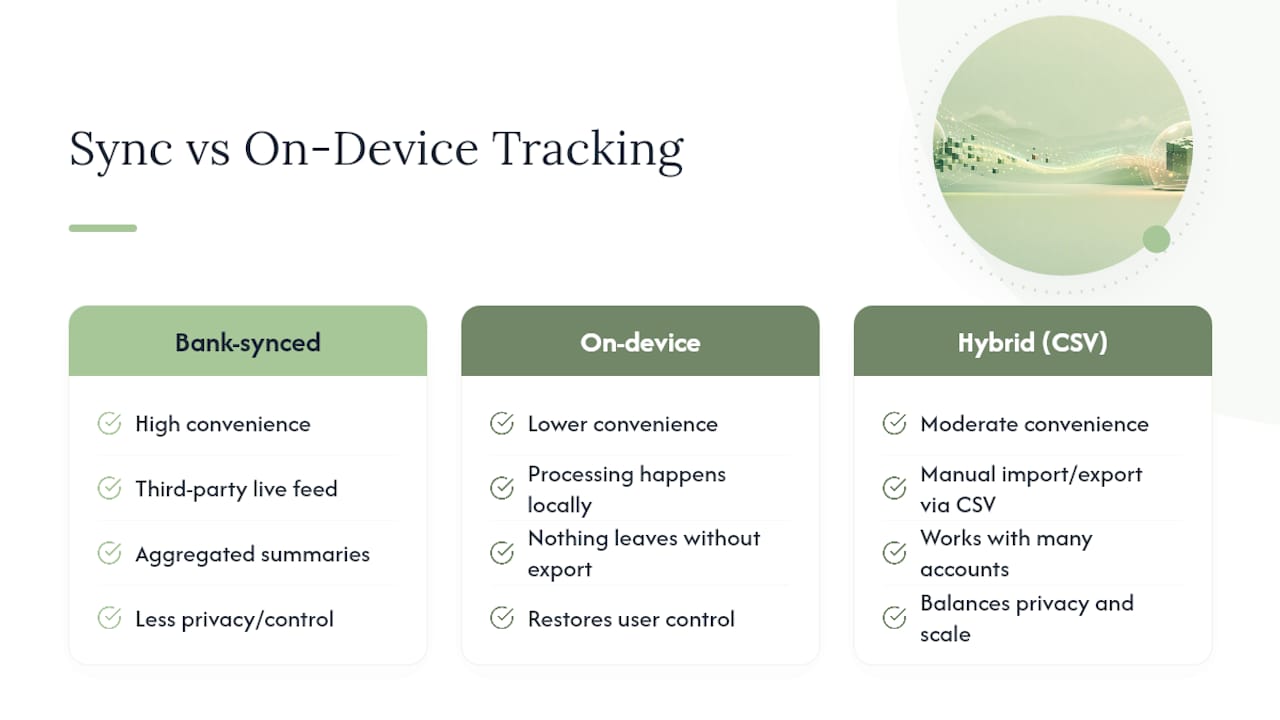
Bank-synced budgeting apps sell convenience, but that convenience comes from handing a third party a live feed of your financial life. Most people never stop to ask who else has access to that feed once it's aggregated. On-device processing flips the arrangement: your data does the work locally, and nothing leaves unless you decide to export it.
Manual tracking isn't the right fit for everyone. If you have dozens of accounts and no patience for daily entry, a hybrid CSV workflow will serve you better than pure manual logging. But for anyone who values privacy over convenience, or who simply wants to feel their spending rather than watch it get summarized for them, on-device manual budgeting restores a level of control that syncing quietly takes away.
— Alex
A Private Finance App Built for This Exact Workflow
Obsidianridgelabs built Echo Chamber Pro around the same checklist this article just walked through: local-first storage, no bank linking required, and on-device processing that keeps receipt scanning and category suggestions off any external server. Optional network connections are opt-in and clearly disclosed, so nothing syncs to a cloud unless you choose it yourself.

A private finance app can support a full manual workflow, quick-add entry, receipt capture, recurring transactions, and CSV export for backups or app switching, without requiring bank credentials. Various pricing options are available, including monthly, yearly, and one-time purchase plans, as detailed on the Echo Chamber Pro product page. If private, on-device finance management is what you've been trying to build with a spreadsheet or a half-abandoned app, download it and set up your first week of categories today.
Sources
- GnuCash — personal and small-business financial-accounting software
- Budget App Without Bank Account: Manual Expense Tracker (iPhone, 2026)
- Best budget apps for iPhone (Alphr, 2026)
This article is general information, not a substitute for advice from a qualified financial advisor. Consult a qualified financial professional about your own circumstances before acting on anything here.
FAQ
Does the iPhone Have a Built-In Budgeting Tool?
Apple's Wallet app tracks cards and transactions tied to Apple Pay, but it isn't a full budgeting tool with categories, recurring bills, or spending reports. Most people who want real manual budgeting on iPhone use a dedicated app like Echo Chamber Pro or another local-first tracker instead.
What Is the 70-10-10-10 Budget Rule?
The 70-10-10-10 rule allocates 70% of income to living expenses, with the remaining 30% split three ways across savings, debt repayment, and discretionary spending or giving. It's a simpler alternative to the 50-30-20 rule and works well with manual category tracking since it only requires four buckets.
What Is the Best Free Manual Budget App?
There's no single best free option since "best" depends on whether you prioritize privacy, iOS integration, or export flexibility. Open-source tools like GnuCash offer robust free bookkeeping, though several iPhone-native apps also offer free tiers with manual entry and limited export.
What Is the Best Budgeting App for iPhone?
The best iPhone budgeting app depends on whether you want bank syncing or manual, privacy-first control. For readers who prioritize on-device processing and no bank linking, some apps cover manual entry, receipt scanning, and CSV export with subscription plans available.
Is CSV Import Considered Manual Budgeting?
Yes, importing a CSV you downloaded yourself from your bank's website still counts as manual budgeting, since it doesn't require linking live account credentials to a third-party aggregator. Many privacy-focused users combine daily manual entry with a weekly CSV import to catch anything missed.