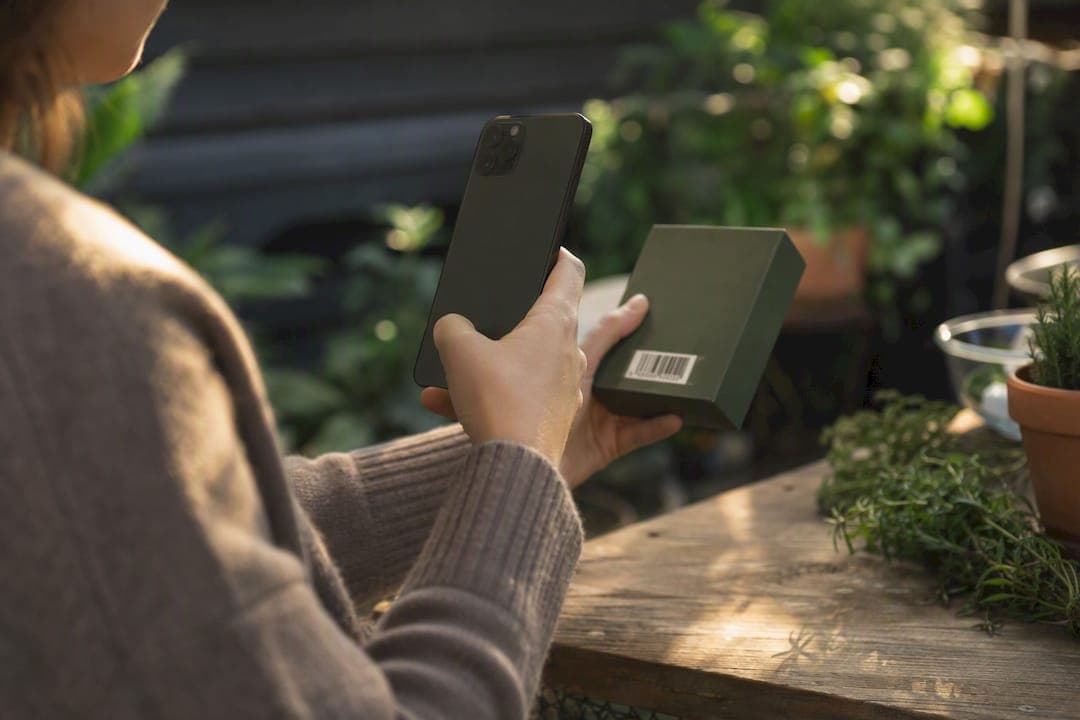
Use the built-in iPhone Camera or Control Center scanner, never a random third-party app, and let it show you the destination before you tap anything. Preview the full URL, unshorten it if it's condensed, and open it in a private or tracker-blocking browser. Never enter credentials or payment details on a site you haven't verified. That sequence, done every time, closes most of the privacy gaps that barcode and QR scanning create.
TL;DR:
- Use the iPhone Camera or Control Center scanner instead of third-party apps to ensure local decoding and minimize data sharing risks.
- Always preview the URL before opening, unshorten links with a trusted tool, and verify the domain in a private or tracker-blocking browser to prevent phishing.
- Set app permissions to camera only, restrict location access, and review privacy labels regularly to limit unnecessary data collection.
- Avoid automatic linking to apps or websites; reach the destination manually if something looks suspicious or unfamiliar.
- Prioritize scanner tools that process data locally, show clear privacy policies, and restrict permissions to reduce exposure of personal information.
Table of Contents
- How iPhone Barcode Scanning Actually Works
- What Are the Real Privacy Risks of Scanning Codes?
- A Privacy-First Workflow for Scanning Any Code
- Which iPhone Settings Actually Reduce Your Exposure?
- What Should You Look for in a Scanning Tool?
- Why On-Device Processing Matters for Verification
- The Convenience Trade-Off Nobody Wants to Admit
- A Complementary Way to Keep Sensitive Data Local
- Sources
How iPhone Barcode Scanning Actually Works
The iPhone's Camera app decodes QR codes and barcodes locally, on the device, before it ever shows you a banner or notification. That decoding step doesn't touch a server. What happens next is the part that determines your privacy: a preview banner appears with the destination link, and you decide whether to open it. Nothing loads automatically.
Third-party scanner apps don't always follow that model. Some process the scan on-device and stop there. Others send the scanned content, your approximate location, or a device identifier back to their own servers, often to support analytics or ad monetization. An analysis of 100 barcode scanner applications found that many requested permissions well beyond what scanning requires and transmitted data the researchers judged unnecessary for the app's stated function.
That's the core distinction for barcode privacy on iPhone: the built-in Camera minimizes your exposure by design, while a downloaded scanner app is only as private as its developer decided to make it.
You'll also notice iPhone sometimes routes a scanned link straight into the App Store or opens a different app entirely. That's Universal Links at work, a system Apple uses to hand off web addresses to the matching installed app instead of Safari. It's convenient, but it also means a scanned code can trigger an app installation prompt or deep-link into software you didn't expect, another reason to look at the preview before committing to anything.
What Are the Real Privacy Risks of Scanning Codes?
A QR code, by itself, is inert. It's a grid of black and white squares encoding a string of text, usually a URL. The risk lives in what that URL points to, and in what happens after you land there.
Phishing remains the dominant threat. Attackers print malicious QR codes over legitimate ones on parking meters, restaurant menus, and shipping labels, betting that you'll scan and enter payment information without checking the domain first. Government cybersecurity guidance specifically lists code cloning and phishing as top risks, recommending that people verify a URL before providing any personal data.
The second risk is quieter: tracking. Scanning a code on packaging can reveal your approximate location, device type, the time of the scan, and even the specific product batch to the company running that campaign, according to reporting on QR code privacy concerns in packaging. None of that requires malware. It's just what happens when you visit a tracked link.
The third risk sits inside the scanner app itself:
- Some apps request camera, location, contacts, and photo library access for a task that only needs a camera.
- Research from Princeton's Center for Information Technology Policy found that many popular scanner apps transmitted scan contents and location data to developer servers.
- QR management platforms used by brands can add an extra processing layer that shares scan data with additional partners.
Key point: researchers who tested a barcode scanner app sample found many transmitted scan data or requested permissions unrelated to their core function, the exact behavior privacy-conscious iPhone users are trying to avoid.
A Privacy-First Workflow for Scanning Any Code
Treat every barcode or QR code the way you'd treat an unsolicited text link: useful, but unverified until you check it. Here's the sequence to run every time.
- Scan with Camera or Control Center, not a third-party app. Open Camera (or add the Code Scanner to Control Center) and point it at the code. Let it detect and decode automatically, but don't tap the resulting banner yet.
- Read the previewed URL before touching anything. iPhone shows you the destination in a banner above the notification. Check the domain carefully. If it's a shortened link (bit.ly, tinyurl, or similar), that's your cue to slow down. A tool like the Verified can unshorten and inspect a link before you commit to opening it. Security researchers recommend this preview step specifically because obscured links are how most malicious codes succeed.
- Open the link in Private Browsing or a tracker-blocking browser. Long-press the link, choose to open it privately, and confirm the site's certificate and domain match what you expect before entering any credentials or payment details. Look for a legitimate TLS connection and a domain that matches the brand you think you're visiting, not a lookalike.
- When something feels off, skip the scan entirely. Type the brand's address manually or search for it. A restaurant menu QR code that points somewhere unfamiliar, or a parking meter sticker that looks slightly peeled at the edges, is worth ten extra seconds of manual typing.
Pro Tip: Keep this four-step sequence as muscle memory rather than a checklist you consult each time. The moment you catch yourself about to tap a preview banner without reading it is exactly the moment a phishing code succeeds.
This workflow costs you maybe five extra seconds per scan. Compare that to the time lost recovering a compromised account, and the trade favors caution every time.
Which iPhone Settings Actually Reduce Your Exposure?
A few minutes in Settings closes most of the gaps a scanner app could otherwise exploit.
- Camera and Photos access: open Settings > Privacy & Security and confirm any scanner app has Camera access only, not Photos, unless it has a documented reason to need your library.
- Location permission: set scanner apps to "While Using" at most. There is rarely a legitimate reason for a barcode reader to request "Always" location access.
- Safari privacy controls: enable "Prevent Cross-Site Tracking" under Settings > Safari, use Private Browsing for any link opened from a scan, and turn off AutoFill for unfamiliar or newly visited sites.
- App Store privacy labels: before installing any scanner app, check its listed data collection practices. If a barcode reader discloses that it collects "Identifiers" or "Usage Data" linked to you, treat that as a reason to look elsewhere. This is also where reviewing how apps declare their tracking practices under App Tracking Transparency pays off.
Pro Tip: Set a quarterly reminder to review permissions for every app that touches your camera or location. Apps update, and a scanner that started with minimal access can request more after a version bump.
What Should You Look for in a Scanning Tool?
Three categories exist: the built-in Camera app, open-source scanner projects, and privacy-first paid apps. Each has a place, but the selection criteria stay consistent.
- On-device processing. The app should decode the barcode locally and never phone home with the scan contents.
- URL preview and unshortening. A trustworthy tool shows you the full destination, not an obscured redirect link, before you open it.
- No telemetry beyond what's needed. Open-source scanner projects demonstrate this well, since features like tracker removal and unshortening are visible in the published code rather than promised in marketing copy.
- Least-privilege permissions. Camera and network access only, unless a specific feature genuinely requires more.
- A readable, specific privacy policy. Vague language about "improving services" is a red flag; a clear statement of what data stays on-device is not.
Check the App Store privacy label, look for an actual reputation history rather than a handful of five-star reviews posted the same week, and favor tools whose code or documented behavior you can verify instead of ones asking you to trust a brand name.
Why On-Device Processing Matters for Verification
Obsidianridgelabs builds private AI applications exclusively for Apple devices, keeping processing local rather than routing data through a cloud server. That same principle applies directly to barcode privacy on iPhone: the fewer servers a scan touches, the fewer places your data can leak or get logged.
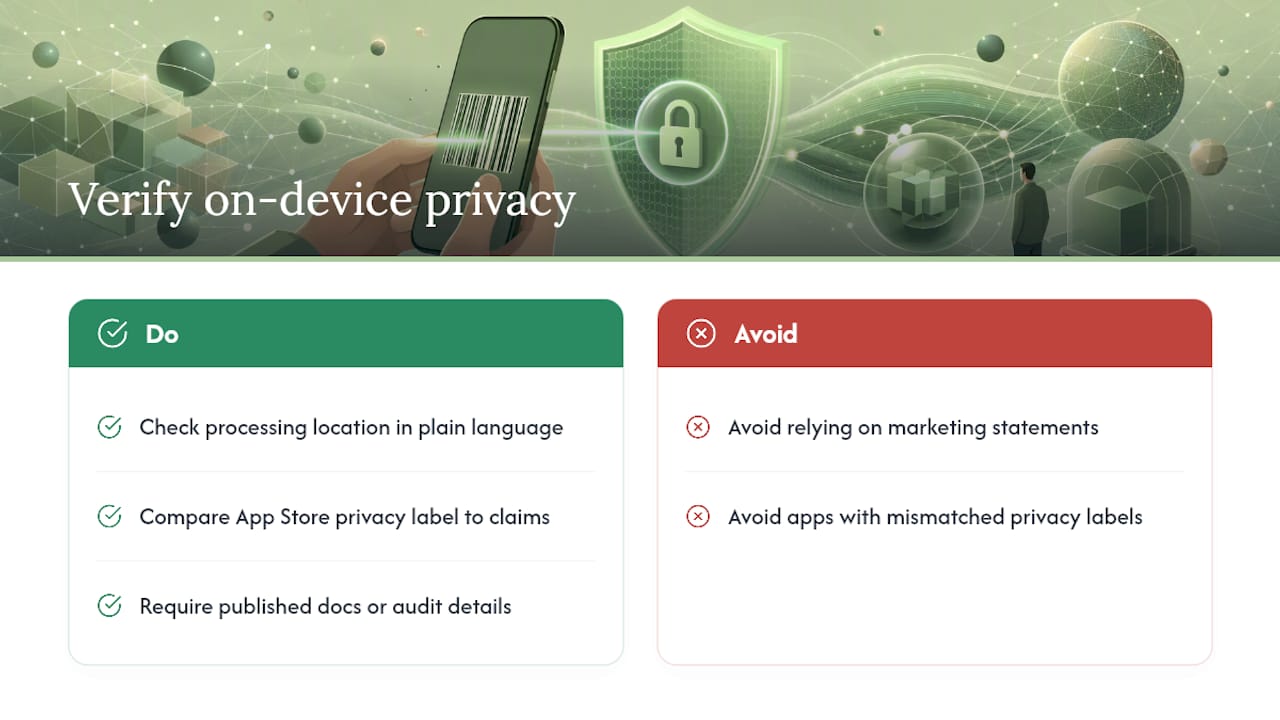
When evaluating any privacy claim, whether from a scanner app or an AI tool, check three things: does the privacy policy state processing location in plain language, does the App Store privacy label match those claims, and does the developer publish any documentation or audit detail rather than a marketing statement. Our guide on verifying on-device AI claims walks through this in more depth.
The Convenience Trade-Off Nobody Wants to Admit
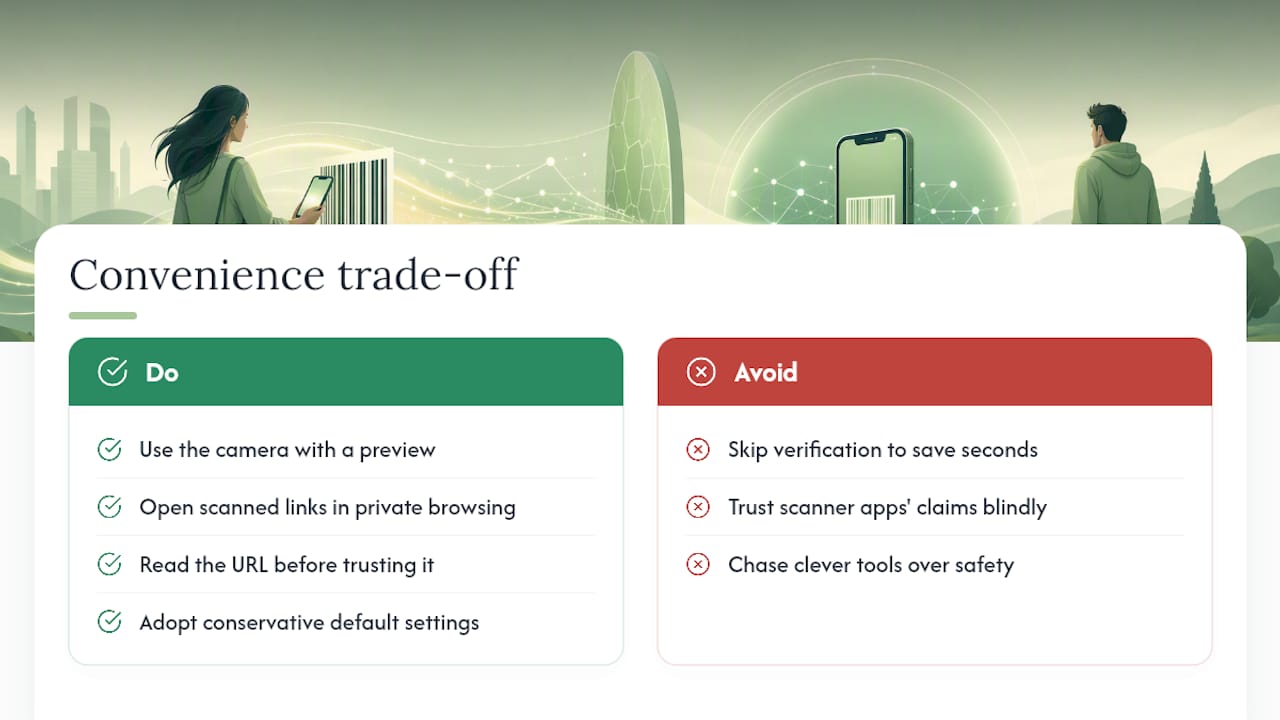
Privacy-first scanning costs you a few seconds you'll be tempted to skip. That temptation is exactly the mechanism phishing codes exploit, and it's why I'd rather see readers adopt boring, conservative defaults than chase clever tools. Camera plus preview plus private browsing isn't glamorous. It's also the workflow that fails least often, because it depends on you reading a URL rather than trusting an app's promises.
The gap between what scanner apps claim and what they actually transmit is wider than most people assume, and closing that gap takes verification, not faith. If you want to go deeper on checking privacy claims yourself, our journal has more on that verification process.
— Alex
A Complementary Way to Keep Sensitive Data Local
Safe scanning habits protect you at the moment you point your camera at a code. What happens to your data afterward, in the apps where you store notes, finances, or transcripts, is a separate question, and it's the one Obsidianridgelabs was built to answer. Our on-device AI apps for iPhone process transcription, journaling, and finance tracking entirely on your device, with no cloud transfer required to function.

These tools aren't a scanning replacement. They're the natural next step once you've adopted preview-before-open habits: a way to make sure the sensitive information you generate after scanning something, a receipt, a note, a voice memo, stays as local as the scan itself was. Our privacy verification guide walks through exactly how to confirm those on-device claims yourself. Visit Obsidianridgelabs to see the full lineup and start with the app that matches what you're already trying to protect.
Sources
- QR codes on packaging spark consumer privacy debate
- Security and privacy analysis of barcode scanner applications
- Security considerations for QR codes ITSAP.00.141
- Scan This or Scan Me? User Privacy & Barcode-Scanning Applications