
Choose a notes app when your goal is capturing and reusing information. Choose a journaling app when your goal is reflection and building a record of your life over time. The distinction rests on how each system organizes what you write: notes apps prioritize searchability and utility so you can find and act on information later, while journaling apps favor prompts, calendar views, and automatic metadata that lower the friction of daily reflection.
Most people don't need to pick just one.
The real question isn't "journal or notes app." It's "am I trying to remember something external, or process something internal?"
- If you're drafting a grocery list, meeting agenda, or project outline: notes app.
- If you're logging how today felt, tracking a habit, or writing toward self-understanding: journaling app.
- If you do both regularly, a hybrid workflow (detailed below) usually beats forcing one app to do both jobs.
Key Takeaways
The core decision comes down to one question: are you capturing information to reuse, or processing experience to understand it?
| Point | Details |
|---|---|
| Purpose drives the choice | Notes apps favor capture and reuse; journal apps favor reflection and habit-building. |
| Prompts lower friction | Built-in suggestions in apps like Apple Journal reduce blank-page anxiety and support consistency. |
| Search behaves differently | Notes apps prioritize retrieval by keyword; journal apps favor chronological, calendar-based review. |
| Privacy needs a real check | Confirm on-device storage, export formats, and sync defaults before trusting an app with personal entries. |
| Hybrid works with structure | Obsidianridgelabs's Cove offers on-device journaling for readers who want privacy-first reflection tools built for Apple devices. |
Table of Contents
- Journal vs Notes App: Comparing the Core Features
- When a Notes App Is the Better Fit
- When a Journaling App Is the Better Fit
- How Specific Features Change the Experience
- Privacy, Storage, and Cost: What to Check First
- Can You Journal in a Notes App (or Take Notes in a Journal App)?
- Your Two-Minute Decision Checklist
- Why On-Device Processing Matters for Personal Writing
- Sources
Journal vs Notes App: Comparing the Core Features
The two categories solve different problems, and that shows up in every design decision. A notes app like Apple Notes is built around retrieval: folders, tags, cross-note linking, and full-text search across everything you've ever typed. A journaling app like Apple Journal is built around momentum: it wants you writing something, however short, most days.
| Dimension | Notes App (e.g., Apple Notes) | Journal App (e.g., Apple Journal) |
|---|---|---|
| Primary goal | Capture and reuse information | Reflection and habit-driven record-keeping |
| Entry workflow | Quick capture, blank canvas, checklists | Prompts, suggested entries, blank-page writing |
| Organization | Folders, tags, cross-note links, full search | Calendar view, chronological archive |
| Multimedia | Attachments, scanned docs, handwriting | Photos, automatic contextual metadata |
| Privacy/sync | iCloud sync across Apple devices | On-device by default, more limited sync |
| Platform | iPhone, iPad, Mac, web | Historically iPhone-only at launch |
| Cost | Built into iOS/macOS | Built into iOS; third-party apps often add subscriptions |
The dimension that changes daily behavior most is entry workflow. A notes app hands you an empty page and a cursor. A journaling app hands you a suggestion, which is the entire reason people who abandon blank documents will still write in Apple Journal.
When a Notes App Is the Better Fit
Reach for a notes app when the information needs to survive contact with your future self doing something practical with it. A few concrete cases:
- Project notes: capture meeting decisions, tag by project, search them back up in seconds during a status update.
- Recipes: photograph a cookbook page, add tags like "weeknight" or "baking," and pull it up hands-free while cooking.
- Shopping and packing lists: checklists you check off and reuse as templates.
- Research capture: clip articles, scan documents, and link related notes together for a paper or project.
- Meeting minutes: date-stamped entries you search by client name months later.
The workflow is always some version of capture, tag, reuse. You write something down not to process it emotionally but because you'll need it again, and Notes' cross-note linking and folder structure exist specifically to make that retrieval fast.
When a Journaling App Is the Better Fit
A journaling app earns its place when the point of writing is the writing itself, not what you extract from it later. Common cases include daily mood logs, therapy prep notes, milestone records ("first steps," "moved apartments"), gratitude practice, and habit streaks you want to see building over weeks.

What makes the difference is friction. Many journaling apps automatically attach location, weather, steps, and even currently playing music to each entry, so you get context without typing it. Prompts do similar work for the blank page. Apple Journal's built-in suggestions, for instance, nudge you toward a specific memory instead of asking you to conjure one from nothing.
A simple daily workflow: open the app, answer the day's prompt in three sentences, close it. Review weekly, not daily.
Pro Tip: Set a single reminder rather than multiple daily nudges, as too many prompts can reduce consistency.
How Specific Features Change the Experience
Search behaves differently depending on what the app assumes you're looking for. Notes systems are retrieval first: type a keyword, jump straight to the note, regardless of when you wrote it. Journaling apps are chronological first: you scroll or tap a calendar date, because the point is often re-reading a period of time, not one isolated fact.
Metadata and prompts do the heavy lifting for reflection apps. Automatic context (location, weather) removes a small but real barrier, and prompts specifically reduce blank-page anxiety, which is the number one reason journaling habits die in week two.
Multimedia cuts both ways. Rich attachments help notes apps immensely, but a journal cluttered with formatting options can turn a five-minute reflection into a twenty-minute editing session.
- Notes: attachments are the point.
- Journal: attachments should stay optional, not mandatory.
Pro Tip: You can make Notes behave more like a journal by creating one folder, naming entries by date, and writing there daily. Just don't expect prompts or automatic metadata; you'll be doing that structure manually.
Privacy, Storage, and Cost: What to Check First
Before committing to either category, confirm four things: platform availability, privacy model, cost structure, and export options.
- Platform: Apple Journal launched iPhone-only, so if you write across an iPad or Mac regularly, that's a real constraint worth testing before you commit to a routine.
- Privacy: check whether entries live on-device by default or sync to a cloud account automatically, and whether you can lock individual entries with a passcode.
- Cost: Apple Journal and Apple Notes are both built into iOS at no extra charge, but third-party apps in either category often gate export, multi-device sync, or metadata features behind a subscription.
- Backups: buyer's-guide comparisons consistently flag export format and platform parity as the two most-overlooked factors until someone tries to switch apps and can't get their data out cleanly.
Journaling touches more personal material than a grocery list, so treat the privacy check as non-negotiable, not optional.
Can You Journal in a Notes App (or Take Notes in a Journal App)?
Yes to both, with limits. Mixing the two jobs in one stream tends to work until volume grows, at which point either your journal loses candor (because you know it's searchable and semi-public to future-you-at-work) or your notes lose structure (because reflective writing doesn't tag itself neatly).
Journaling inside a notes app:
- Create one dedicated, private notebook or folder.
- Title entries by date, not topic.
- Add a mood tag or emoji for quick scanning later.
- Export monthly as a backup habit.
Capturing notes in a journal app:
- Use a quick-entry template for fast capture.
- Tag anything actionable for later extraction.
- Export or copy action items into your notes system weekly, so nothing sits stranded in reflective writing.
When the extraction step starts feeling like a chore, that's the signal to split the workflow back into two apps.
Your Two-Minute Decision Checklist
Run through this before downloading anything new:
- Define the primary job. Are you capturing external information to reuse, or processing internal experience?
- Estimate review frequency. Daily glance-backs favor a journal's calendar view; occasional lookups favor a notes app's search.
- Check privacy and device needs. Do you need cross-device sync, or is on-device-only storage more important to you?
- Confirm export needs. Will you want this data in five years, and in what format?
If three or more answers point toward capture, reuse, and search, choose a notes app. If they point toward reflection, review, and habit, choose a journal app. Anything split down the middle argues for the hybrid pattern above. Either way, commit to one app for seven days before judging it. Habits need a trial period, not a verdict on day one.
Why On-Device Processing Matters for Personal Writing
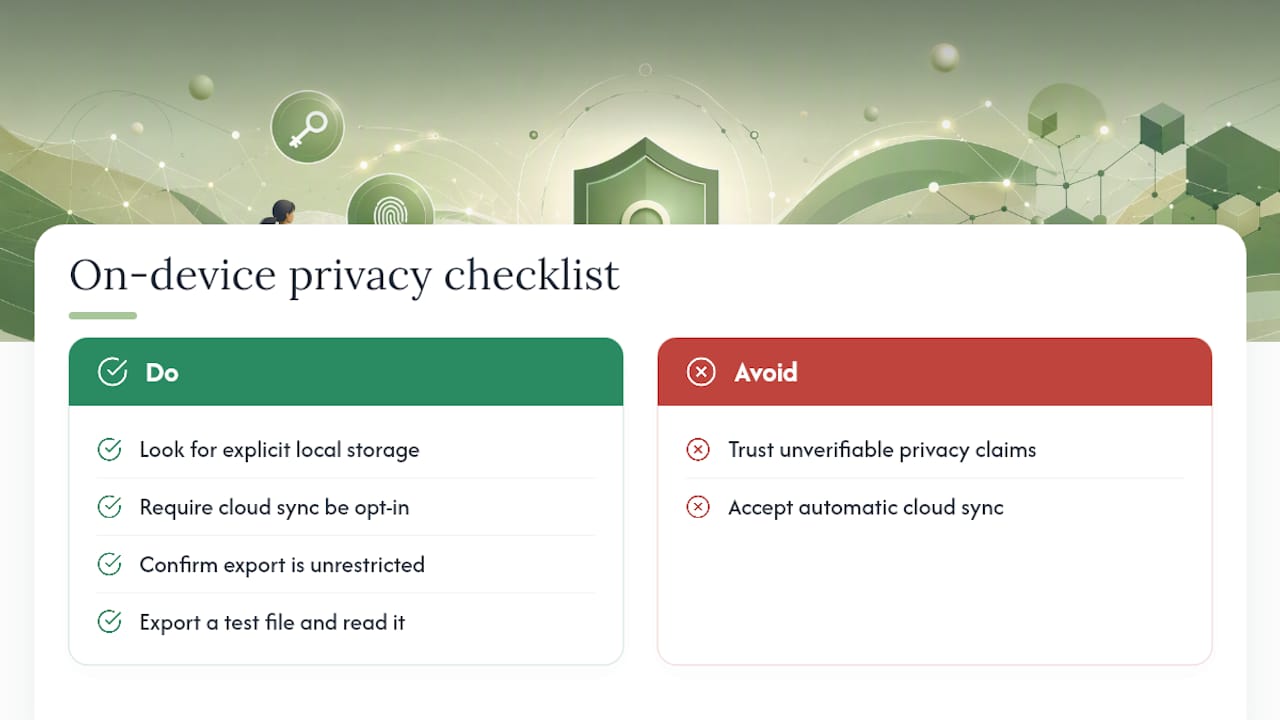
Journal entries are often the most candid writing you produce. That raises the stakes on where the data actually lives. On-device processing keeps entries off remote servers by default, which shrinks the exposure window if an account gets compromised somewhere else.
When evaluating any app's privacy claims, look for explicit language about local storage, whether cloud sync is opt-in rather than automatic, and whether export is unrestricted.
A privacy claim you can't verify with an export test isn't a privacy claim. It's marketing copy.
Pro Tip: Before trusting any journal or notes app with sensitive entries, export a test file and confirm you can actually read it outside the app.
A Short Note on Habits and Defaults
Friction kills habits faster than motivation ever does. A single daily prompt and one reminder tend to outlast elaborate setups with multiple tags, templates, and reminders. Pick a default, run it for 30 days, and treat the choice as an experiment rather than a permanent commitment. You'll learn more from a month of actual use than from another hour of comparison reading.
A Private Journaling Option Built for Apple Devices
If the privacy checklist above left you wanting entries that never leave your device by default, that's precisely the gap Obsidianridgelabs built its journaling app to close. Cove processes entries locally on iPhone, so sensitive reflections aren't routed through a cloud server as a default behavior, and any optional sync stays transparent about what it does.

For readers comparing multiple private, on-device journaling options beyond Apple's built-in app, the private AI journal comparison breaks down feature and privacy trade-offs across several tools. If you've decided a journaling app is the better fit for your goals, Cove's product page is the place to see how on-device processing works in practice. This mention is Obsidianridgelabs's own offering, disclosed here as the publisher of this guide.
Sources
- Notes App - App Store
- I tried Apple's new Journal app, and for once, basic is good
- Best journaling apps — Zapier
- Journal vs Notebook: How to Choose the Right One in 2026 | SparkPod